Actions
Watch on YouTubeTutorial Details
Actions
Watch on YouTubeTutorial Details
How to Lock Apps on iPad for Better Security - Complete Guide
Learn how to lock individual apps on iPad using Touch ID or Face ID for enhanced privacy and security. Protect sensitive applications with biometric authentication.
In today's digital age, privacy and security are paramount, especially on shared devices like iPads used by multiple family members or in professional environments. Apple's iPadOS includes a powerful app locking feature that allows you to secure individual applications using biometric authentication, ensuring that only authorized users can access sensitive content. This comprehensive guide covers everything you need to know about locking apps on your iPad for enhanced security and peace of mind.
Whether you're protecting financial apps, personal photos, or work-related applications, the app locking feature provides an additional layer of security beyond the standard passcode or biometric unlock for the device itself.
Understanding iPad App Locking
iPad app locking works differently from full device security:
- Individual Security: Lock specific apps while keeping others accessible
- Biometric Authentication: Uses Touch ID or Face ID for quick verification
- Selective Protection: Choose which apps need extra security
- Privacy Focused: Protects sensitive data without affecting device usability
Prerequisites for App Locking
- iPadOS Compatibility: iPadOS 18 or later required
- Biometric Hardware: Touch ID button or Face ID camera
- Biometric Setup: Face ID or Touch ID must be configured
- App Updates: Target apps should be updated to latest versions
Solution 1: Lock Apps Using Touch ID or Face ID
The primary method for locking iPad apps uses Apple's biometric authentication system.
Step 1: Access App Options
- Ensure your iPad is unlocked and on the home screen
- Locate the app you want to lock on your home screen or in the app library
- Press and hold the app icon until a context menu appears
- The menu will show various options for the selected app
Step 2: Enable App Lock
- In the context menu, look for the "Require [Touch ID/Face ID]" option
- The exact text depends on your iPad's biometric capability:
- iPads with Touch ID show "Require Touch ID"
- iPads with Face ID show "Require Face ID"
- Tap the biometric authentication option
- The app icon will show a small lock indicator
Step 3: Verify App Lock Activation
- Exit to the home screen by pressing the home button or swiping up
- Try to open the locked app by tapping its icon
- You should be prompted to authenticate using Touch ID or Face ID
- Provide your biometric authentication to unlock the app
- The app should open normally after successful authentication
Solution 2: Lock Multiple Apps Efficiently
Streamline the process when locking multiple applications.
Step 1: Identify Apps to Lock
- Review your installed apps and identify sensitive ones
- Consider apps containing personal information:
- Banking and financial apps
- Email and messaging applications
- Photo and video libraries
- Password managers
- Work-related applications
Step 2: Batch Lock Process
- Start with the most sensitive applications first
- Use the same press-and-hold method for each app
- Enable biometric authentication for each selected app
- Verify each app lock by attempting to open it
- Create a systematic approach (e.g., lock one screen worth of apps at a time)
Solution 3: Manage Locked Apps
Learn how to manage and modify app locking settings.
Step 1: View Locked Apps
- Locked apps show a small lock icon overlay on their home screen icon
- The lock appears in the top-right corner of the app icon
- This visual indicator helps you identify which apps are protected
Step 2: Temporarily Unlock Apps
- When you need to access a locked app, tap its icon
- Provide your biometric authentication (Touch ID or Face ID)
- The app remains unlocked for the current session
- Close and reopen the app if you need to authenticate again
Step 3: Disable App Locking
- Press and hold the locked app icon
- From the context menu, tap to disable the biometric requirement
- The lock icon will disappear from the app
- Confirm that the app no longer requires authentication
Advanced App Security Features
Explore additional security options for comprehensive protection.
iPad Screen Time Restrictions
- App Limits: Set time limits for app usage
- Content Restrictions: Block inappropriate content
- Privacy Controls: Manage app permissions
- Family Sharing: Parental controls for shared devices
iCloud Security Integration
- iCloud Keychain: Secure password storage
- Find My iPad: Remote lock and erase capabilities
- Activation Lock: Prevents unauthorized reactivation
Troubleshooting App Locking Issues
Resolve common problems with iPad app locking:
Issue: Biometric Authentication Not Working
Problem: Touch ID or Face ID fails during app unlock.
Solutions:
- Ensure your face/fingerprints are properly enrolled in Settings
- Clean the Touch ID sensor or Face ID camera
- Remove and re-add your biometric data
- Restart your iPad to refresh biometric services
- Check for iPadOS updates that may fix biometric issues
Issue: App Lock Option Not Appearing
Problem: The "Require [Touch ID/Face ID]" option doesn't show in the context menu.
Solutions:
- Verify your iPad is running iPadOS 18 or later
- Ensure biometric authentication is set up and working
- Check that the app supports the locking feature
- Restart your iPad and try again
- Sign out and back into your Apple ID if issues persist
Issue: Locked Apps Still Accessible
Problem: Apps open without biometric authentication.
Solutions:
- Force quit the app and try reopening it
- Restart your iPad completely
- Re-enable the app lock feature
- Check if biometric authentication is working for device unlock
- Update the app to the latest version
Issue: Multiple Authentication Prompts
Problem: Apps require authentication too frequently.
Solutions:
- This is normal behavior for security - apps lock after inactivity
- Consider keeping frequently used apps unlocked
- Use apps that remember authentication for short periods
- Adjust your iPad's auto-lock settings if needed
Issue: App Lock Lost After Update
Problem: App locking settings reset after iPadOS update.
Solutions:
- Re-enable app locking for affected applications
- Check for iPadOS update issues in Settings > General > Software Update
- Sign out and back into your Apple ID
- Reset your iPad's biometric settings if necessary
Best Practices for App Security
Implement comprehensive security measures for your iPad:
App Selection Strategy
- Prioritize Sensitive Apps: Lock banking, email, and social media first
- Balance Security and Convenience: Don't lock every app
- Regular Review: Periodically assess which apps need locking
- User-Specific Settings: Different security levels for different users
Device Security Integration
- Strong Passcode: Use complex device passcode
- Auto-Lock: Set appropriate auto-lock timing
- Erase Data: Enable remote erase capability
- Backup Security: Encrypt iCloud backups
Privacy Protection
- App Permissions: Review and limit app access to personal data
- Location Services: Control which apps can access location
- Camera/Microphone: Manage media access permissions
- Advertising: Limit personalized advertising
Alternative App Security Methods
Consider additional security options for comprehensive protection:
Third-Party App Lockers
- Guided Access: Built-in iPadOS feature for single-app focus
- Screen Time: Parental controls and app restrictions
- Enterprise Solutions: MDM (Mobile Device Management) for organizations
Hardware Security
- Apple Pencil: Additional biometric authentication method
- Smart Covers: Automatic lock when closed
- External Security: Smart locks and security cases
iPad Security Ecosystem
Integrate app locking with broader iPad security features:
iCloud Security Features
- iCloud Keychain: Secure password and credit card storage
- Find My iPad: Locate, lock, or erase lost/stolen device
- Family Sharing: Manage security for family devices
- Backup Encryption: Protect backed up data
Advanced Security Settings
- Face ID/Touch ID: Advanced facial recognition settings
- Emergency SOS: Quick access to emergency features
- USB Accessories: Control which devices can connect
- Background App Refresh: Manage app activity when not in use
Related Tutorials
- How to Fix Face ID Not Working on iPhone - Troubleshoot biometric authentication issues.
- How to Use Math Notes in iPad Calculator - Advanced calculator features on iPad.
- How to Fix Groups Not Showing in iPhone Passwords App - Password management troubleshooting.
Conclusion
Locking apps on your iPad provides an essential layer of security for protecting sensitive information and maintaining privacy, especially on shared devices. The biometric authentication feature makes it convenient to secure individual applications while keeping your iPad fully functional for everyday use.
By following this comprehensive guide, you'll be able to selectively protect your most important apps using Touch ID or Face ID, creating a personalized security setup that balances protection with usability. The app locking feature integrates seamlessly with iPadOS, providing quick access to authorized users while preventing unauthorized access.
Remember that app locking works best as part of a comprehensive security strategy that includes strong device passcodes, regular software updates, and mindful app permission management. With these measures in place, you can confidently share your iPad or use it in various environments while keeping your sensitive data secure.
The ability to lock individual apps represents a significant enhancement to iPad security, giving users granular control over their digital privacy. Whether protecting financial information, personal photos, or work documents, app locking ensures that your sensitive data remains accessible only to you.
Tags
Related Tutorials
How to Delete Search History on YouTube - Complete Guide
Step-by-step guide to deleting YouTube search history, including individual searches and clearing all search history for privacy.
How To Find Hidden Apps on Any iPhone
Step-by-step tutorial on finding hidden apps on iPhone, including App Library navigation, authentication methods, and accessing secured applications.
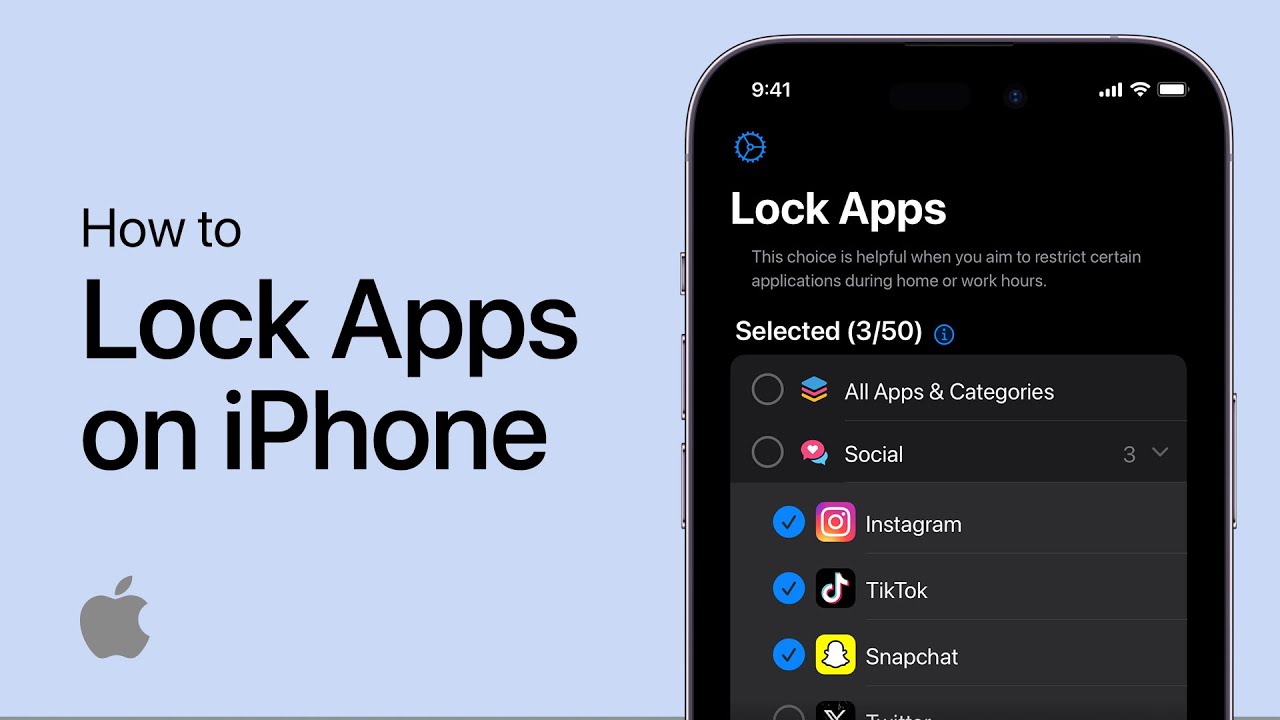
How To Lock Apps on iPhone - Easy Guide
Step-by-step tutorial on locking apps on iPhone, including Face ID/Touch ID setup, app security options, and managing locked applications.
How To Change Your Passcode on iPad - Easy Guide
Step-by-step tutorial on changing iPad passcode, including different passcode types, security settings, and best practices for iPad security.