Actions
Watch on YouTubeTutorial Details
Actions
Watch on YouTubeTutorial Details
How to Create Custom Photo Collections on iPhone - Complete Guide
Learn how to create and organize custom photo albums on iPhone with advanced sorting, sharing options, and collection management features.
In the digital age, our smartphones have become our primary cameras, capturing countless memories, moments, and important visual information. With thousands of photos accumulating over time, effective organization becomes crucial. Apple's Photos app on iPhone offers powerful tools for creating custom collections that go beyond simple albums, allowing you to curate, organize, and showcase your visual memories in meaningful ways.
This comprehensive guide explores the art of creating and managing custom photo collections on iPhone, from basic album creation to advanced organization strategies that help you maintain and enjoy your digital photo library.
Understanding iPhone Photo Organization
The Photos app provides multiple levels of organization:
- Albums: Basic containers for grouping related photos
- Collections: Higher-level organization of related albums
- Smart Albums: Automatically created based on content and metadata
- Pinned Collections: Quick access to frequently used collections
- Hidden Albums: Private storage for sensitive photos
Prerequisites for Photo Collection Creation
- iOS Version: iOS 18 or later for advanced collection features
- Photos Library: Sufficient photos to organize into collections
- Storage Space: Adequate space for photo organization operations
- iCloud Photos: Optional for cross-device synchronization
Solution 1: Creating Basic Photo Albums
Start with fundamental album creation before building collections.
Step 1: Access Photos App
- Locate and tap the Photos app on your iPhone's home screen
- Ensure you're in the main Photos view (showing all photos)
- You should see your photo library organized by date
Step 2: Select Photos for Album
- Browse through your photos to find images for your album
- Tap "Select" in the top-right corner
- Tap individual photos to add them to your selection
- You can select multiple photos at once
- A blue checkmark appears on selected photos
Step 3: Create New Album
- With photos selected, tap the share button (square with arrow)
- Scroll through the share options and tap "Add to Album"
- Select "New Album" from the album list
- Enter a descriptive name for your album
- Tap "Save" to create the album
Step 4: Review Created Album
- Tap "Albums" at the bottom of the Photos app
- Scroll to find your newly created album
- Tap the album to view its contents
- Verify all selected photos are included
Solution 2: Building Photo Collections
Organize albums into higher-level collections for better management.
Step 1: Access Collections View
- Open the Photos app and tap "Albums" at the bottom
- Look for the "Collections" section
- If Collections isn't visible, swipe down to reveal more options
Step 2: Create New Collection
- In the Collections section, look for "New Collection" or a "+" button
- Tap to create a new collection
- Enter a meaningful name for your collection
- Choose an appropriate cover image or emoji
Step 3: Add Albums to Collection
- Tap on your newly created collection
- Look for options to add albums or photos
- Select existing albums to include in the collection
- Arrange albums in your preferred order
- Save the collection configuration
Solution 3: Advanced Album Management
Master sophisticated photo organization techniques.
Step 1: Pin Collections for Quick Access
- In the Albums view, scroll to "Pinned Collections"
- Tap "Modify" in the top-right corner
- Select collections you want to pin
- Arrange pinned collections in your preferred order
- Tap "Done" to save changes
Step 2: Organize Albums Within Collections
- Open a collection to view its contents
- Tap and hold album thumbnails to rearrange them
- Drag albums to your desired positions
- Create sub-collections for complex organization
Step 3: Edit Album Contents
- Open an album and tap "Select"
- Choose photos to add or remove
- Use the "+" button to add more photos
- Tap the trash icon to remove unwanted photos
- Tap "Done" to save changes
Solution 4: Smart Organization Features
Utilize iOS intelligence for automatic photo organization.
Step 1: Enable Smart Organization
- Go to Settings → Photos
- Enable "Show Featured Content"
- Turn on "Show Suggested Contributions"
- Allow "Automatic Sharing Suggestions"
Step 2: Create Smart Albums
- In the Albums view, look for "Smart Albums"
- iOS automatically creates albums like:
- Recently Added: Latest photos
- Favorites: Hearted photos
- Screenshots: Screen captures
- Selfies: Front camera photos
Step 3: Use Search and Filters
- Tap the search icon in the Photos app
- Use natural language search ("beach vacation 2024")
- Filter by date, location, or content type
- Save frequent searches as custom albums
Solution 5: Sharing and Collaboration
Share collections with others and collaborate on photo organization.
Step 1: Share Collections
- Open a collection and tap the share button
- Choose sharing method (Messages, Mail, AirDrop)
- Select whether to share as links or copies
- Set sharing permissions and expiration
Step 2: Create Shared Albums
- In Albums view, tap "+" to create new album
- Choose "Shared Album" option
- Invite people to contribute photos
- Set album privacy and contribution rules
Step 3: Family Sharing Integration
- Enable Family Sharing in Settings
- Create family-shared photo collections
- Automatically share photos with family members
- Manage shared content and permissions
Advanced Photo Collection Strategies
Implement sophisticated organization systems for large photo libraries:
Thematic Collections
- Event-Based: Organize by weddings, birthdays, vacations
- Subject-Based: Group by people, places, activities
- Time-Based: Chronological organization by years or seasons
- Project-Based: Collections for work, hobbies, or creative projects
Quality Management
- Curation Albums: Best photos from larger collections
- Editing Workflows: Albums for photos needing editing
- Backup Verification: Albums confirming cloud backup status
Privacy and Security
- Hidden Albums: Private collections not visible in main library
- Locked Collections: Biometric protection for sensitive photos
- Encrypted Sharing: Secure sharing options for private content
Troubleshooting Photo Collection Issues
Resolve common problems with photo organization:
Issue: Collections Not Appearing
Problem: Created collections don't show up in the Albums view.
Solutions:
- Force quit and restart the Photos app
- Check iOS version compatibility
- Ensure sufficient storage space
- Restart your iPhone
- Check iCloud Photos sync status
Issue: Photos Not Adding to Albums
Problem: Selected photos aren't being added to albums.
Solutions:
- Ensure photos are fully downloaded from iCloud
- Check available storage space
- Try adding photos one at a time
- Restart the Photos app
- Check for iOS updates
Issue: Collection Changes Not Syncing
Problem: Album and collection changes don't appear on other devices.
Solutions:
- Verify iCloud Photos is enabled
- Check internet connection
- Ensure all devices are signed into the same Apple ID
- Wait for iCloud sync to complete
- Restart affected devices
Issue: Pinned Collections Not Staying
Problem: Pinned collections disappear after app restart.
Solutions:
- Ensure changes are saved after modifying pinned collections
- Check for sufficient storage space
- Restart the Photos app
- Verify iOS version supports pinned collections
- Reset Photos app settings if issues persist
Issue: Album Thumbnails Not Updating
Problem: Album cover images don't reflect recent changes.
Solutions:
- Force quit and restart the Photos app
- Wait for thumbnail generation to complete
- Manually change album cover image
- Check for iOS updates
- Free up storage space on device
Best Practices for Photo Collections
Develop effective strategies for long-term photo organization:
Naming Conventions
- Descriptive Names: Use clear, specific album names
- Date Inclusion: Include dates in chronological collections
- Consistent Formatting: Maintain uniform naming patterns
- Avoid Special Characters: Use simple text for compatibility
Maintenance Routines
- Regular Review: Periodically organize new photos
- Duplicate Removal: Clean up duplicate images
- Storage Management: Monitor and optimize storage usage
- Backup Verification: Ensure important photos are backed up
Cross-Platform Compatibility
- iCloud Sync: Enable for seamless device access
- Shared Libraries: Family sharing for collaborative collections
- Export Options: Prepare for migration to other platforms
Advanced Photo Management Tools
Enhance your photo organization with additional tools:
iOS Built-in Features
- Live Photos: Special albums for animated photos
- Portrait Mode: Albums for depth-of-field photos
- Burst Photos: Collections of rapid-sequence images
- Panoramas: Wide-angle photo collections
Third-Party Apps
- Photo Organizer Apps: Advanced sorting and tagging
- Cloud Storage Integration: Google Photos, Amazon Photos
- Professional Editing Suites: Adobe Lightroom, Affinity Photo
iCloud Photos Integration
Leverage iCloud for enhanced photo collection management:
iCloud Shared Albums
- Family Sharing: Share collections with family members
- Collaborative Editing: Allow others to add photos
- Comment Features: Add notes to shared photos
- Activity Tracking: Monitor who views shared content
iCloud Storage Management
- Optimize Storage: Automatically manage device storage
- Storage Plans: Upgrade for more photo storage
- Device Backup: Include photos in iCloud backups
Future of Photo Organization
Emerging features that will enhance photo collections:
AI-Powered Organization
- Automatic Tagging: AI-generated keywords and descriptions
- Face Recognition: Advanced person identification
- Scene Detection: Automatic categorization by location and activity
- Memory Creation: AI-curated memory collections
Advanced Sharing Features
- Link Sharing: Password-protected collection links
- Expiration Settings: Time-limited shared access
- Download Controls: Prevent or allow recipient downloads
Related Tutorials
- How to Use Text Formatting in iPhone Messages - Advanced messaging features.
- How to Fix Groups Not Showing in iPhone Passwords App - Password management troubleshooting.
- How to Use Distraction Control in Safari - Focus-enhancing browsing features.
Conclusion
Creating custom photo collections on iPhone transforms your photo library from a chaotic collection of images into a well-organized, meaningful archive of your life's visual memories. The Photos app's collection features provide the tools needed to curate, organize, and share your photos in ways that reflect their importance and context.
Whether you're organizing family photos, documenting travel adventures, or managing professional photography, custom collections offer the flexibility and control needed to maintain an efficient and enjoyable photo library. The ability to create nested collections, pin frequently accessed albums, and leverage smart organization features ensures that your photos remain accessible and meaningful.
As iOS continues to evolve, we can expect even more sophisticated photo organization features, including enhanced AI-powered categorization, improved sharing capabilities, and deeper integration with the broader Apple ecosystem. Mastering photo collections now will prepare you for these future advancements and ensure your digital memories remain well-organized and accessible.
The art of photo organization is not just about storage—it's about creating a system that allows you to easily find, share, and cherish your most important visual memories. With custom collections, your iPhone becomes not just a camera, but a sophisticated digital photo management system.
Tags
Related Tutorials
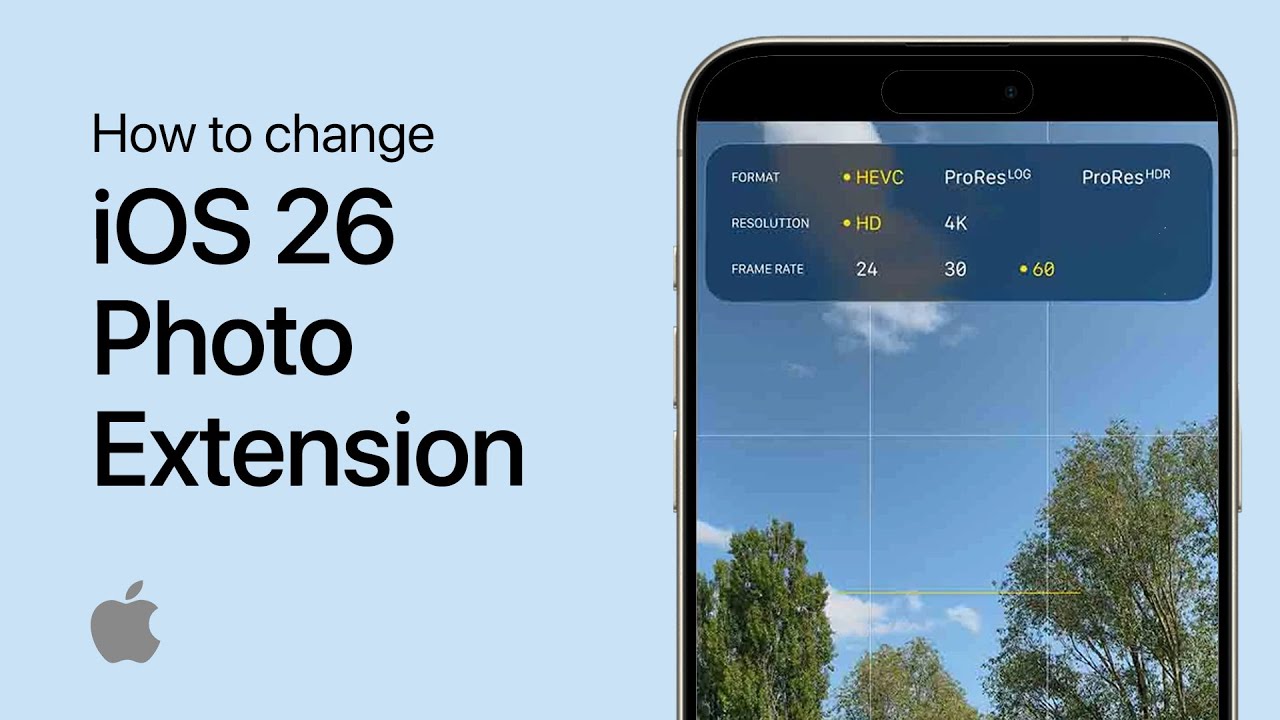
How to Change iOS 26 Camera Photo Extension (Format)
Step-by-step guide to changing camera photo formats in iOS 26, including HEIF vs JPEG settings and ProRAW/ProRes options for professional photography.
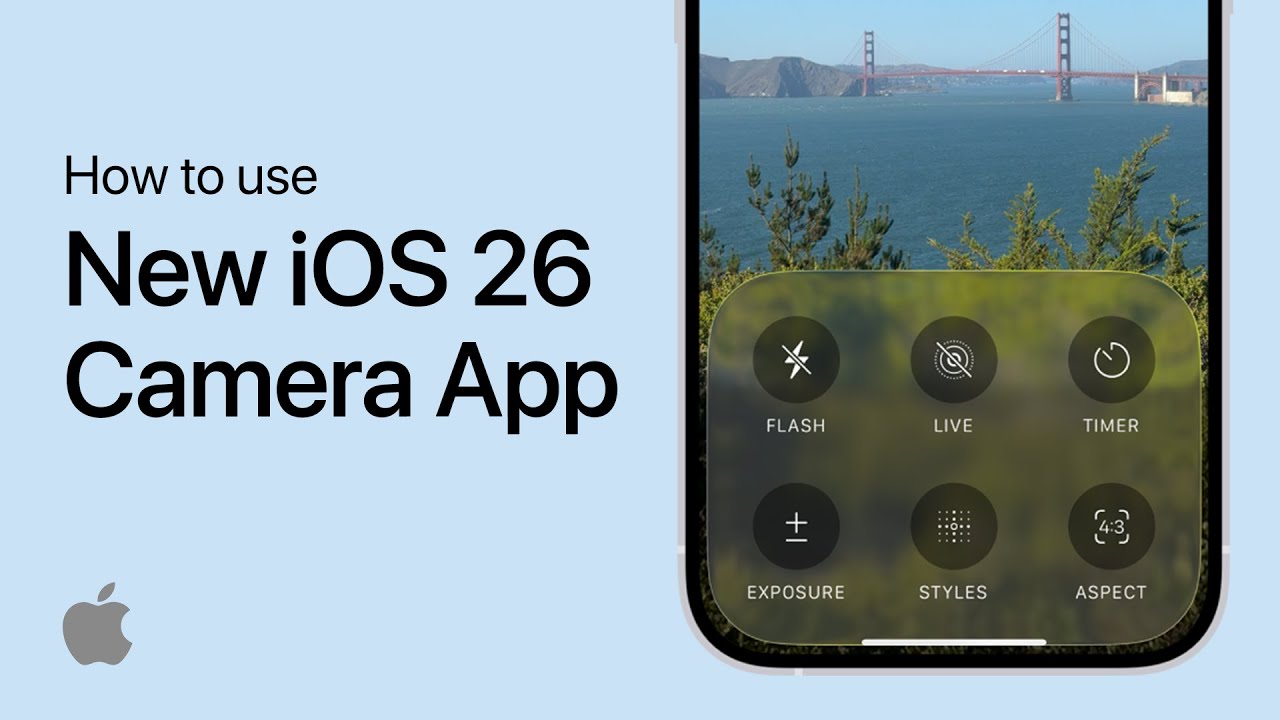
How to Use New Camera App in iOS 26
Step-by-step guide to using the new camera app in iOS 26, including interface changes, camera styles, aspect ratios, filters, and photography modes.
How To Restore Photos From iCloud on iPhone - Easy Guide
Step-by-step tutorial on restoring photos from iCloud to iPhone, including iCloud settings configuration, photo syncing, and photo recovery for complete photo restoration.
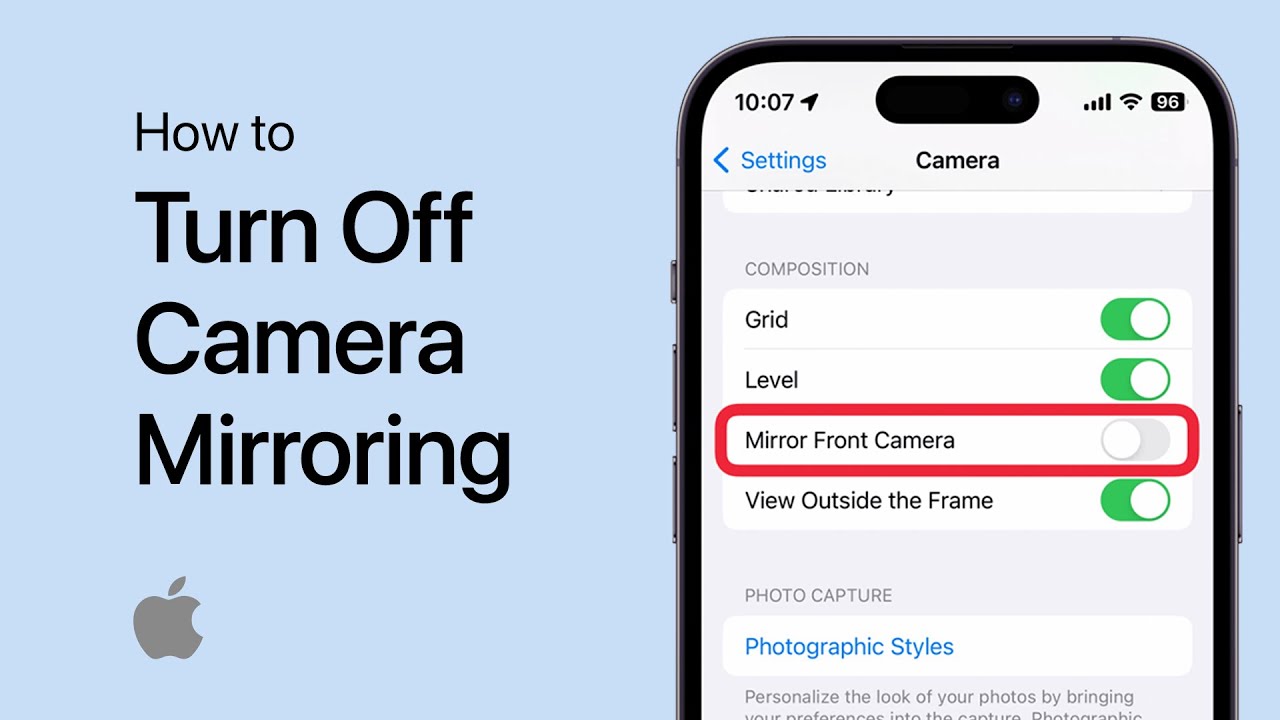
How to Turn Off iPhone Front Camera Mirroring
Open iPhone Camera settings, turn off Mirror Front Camera, and capture selfies that match the live preview without mirroring.