Actions
Watch on YouTubeTutorial Details
Actions
Watch on YouTubeTutorial Details
How to Create Download Media Shortcut on iPhone - Complete Guide
Learn how to install and use the All Media Downloader shortcut on iPhone to download videos, music, and other media content from various platforms.
In an era where online content dominates our digital consumption, the ability to download media for offline viewing has become increasingly valuable. While iOS restrictions typically prevent direct app installations from third-party sources, the Shortcuts app provides a workaround through community-created shortcuts that can interface with web services to download various types of media content. The All Media Downloader shortcut represents one of the most comprehensive solutions for downloading videos, audio files, and other media from popular platforms directly to your iPhone.
This comprehensive guide explores the installation, configuration, and usage of media download shortcuts on iPhone, including safety considerations, supported platforms, and troubleshooting common issues.
Understanding iPhone Media Download Limitations
iOS has strict security measures that affect media downloading:
- App Store Restrictions: No direct third-party app stores like Android
- Shortcuts Workaround: Automation app enables custom download solutions
- Web-Based Services: Downloads rely on online converter services
- Format Limitations: Dependent on service capabilities and platform restrictions
- Quality Trade-offs: Downloaded content may vary in quality
Prerequisites for Media Download Shortcuts
- iOS Version: iOS 15 or later for full Shortcuts functionality
- Shortcuts App: Pre-installed automation app
- Internet Connection: Required for downloading and conversion
- Storage Space: Sufficient space for downloaded media
- Trusted Sources: Download shortcuts from reputable developers
Solution 1: Install All Media Downloader Shortcut
Install the comprehensive media download shortcut from a trusted source.
Step 1: Prepare iPhone Settings
- Open the Settings app on your iPhone
- Scroll down and tap "App Store"
- Ensure "App Downloads" is set to "Always Allow"
- Go back to Settings and tap "Battery"
- Disable "Low Power Mode" to prevent download interruptions
Step 2: Configure Background App Refresh
- In Settings, tap "General"
- Select "Background App Refresh"
- Ensure it's enabled for "Wi-Fi & Mobile Data"
- This allows shortcuts to function properly in the background
Step 3: Access Download Source
- Open Safari or your preferred web browser
- Navigate to a reputable shortcut repository (e.g., themepoint.com or similar)
- Search for "All Media Downloader" or "YAS Download"
- Note: The shortcut may have different names due to updates
- Look for the most recent version with good user reviews
Step 4: Download the Shortcut
- On the shortcut page, look for the download or install button
- Tap "Get Shortcut" or similar option
- You may see a prompt asking to open the link in Shortcuts
- Tap "Open in Shortcuts" to proceed
- The Shortcuts app will open automatically
Step 5: Install the Shortcut
- In the Shortcuts app, review the shortcut details
- Tap "Add Shortcut" to install it
- You may need to grant permissions for web access
- Allow the shortcut to access your photo library if prompted
- The shortcut will appear in your shortcuts collection
Solution 2: Using the Media Downloader Shortcut
Learn how to download different types of media content.
Step 1: Launch the Shortcut
- Open the Shortcuts app on your iPhone
- Find the All Media Downloader shortcut in your collection
- Tap the shortcut to launch it
- The shortcut will present you with options
Step 2: Choose Media Type
- Select the type of media you want to download:
- Video: Download videos from supported platforms
- Audio: Extract audio from videos or download music
- Images: Download images and photo collections
- Documents: Download PDFs and other files
Step 3: Input Media URL
- Copy the URL of the media you want to download
- Paste the URL into the shortcut's input field
- Alternatively, share the URL directly to the shortcut
- The shortcut will analyze the URL and determine compatibility
Step 4: Configure Download Options
- Select desired quality/format if multiple options are available
- Choose download location (usually Photos app or Files app)
- Set any additional preferences (subtitles, etc.)
- Tap "Download" to start the process
Step 5: Monitor Download Progress
- The shortcut will show download progress
- Processing time varies based on file size and internet speed
- Large files may take several minutes to complete
- You'll receive a notification when download is finished
Solution 3: Advanced Download Features
Explore advanced capabilities of media download shortcuts.
Step 1: Batch Downloads
- Some shortcuts support multiple URL input
- Create a list of URLs for batch processing
- The shortcut will process downloads sequentially
- Monitor progress for each item in the batch
Step 2: Quality Selection
- Choose from available quality options (720p, 1080p, etc.)
- Higher quality means larger file sizes
- Consider your storage space and intended use
- Balance quality with download speed and storage constraints
Step 3: Format Conversion
- Select output format (MP4, MP3, etc.)
- Convert videos to audio-only files
- Choose formats compatible with your devices
- Consider playback compatibility across different apps
Supported Platforms and Limitations
Understand which platforms and content types are supported:
Video Platforms
- YouTube: Most popular videos (subject to copyright)
- Instagram: Reels, Stories, and IGTV videos
- TikTok: Videos from the platform
- Twitter/X: Video content from posts
- Facebook: Videos from pages and groups
Audio Platforms
- YouTube Audio: Extract audio from videos
- SoundCloud: Music and audio tracks
- Mixcloud: DJ mixes and audio content
Content Restrictions
- Copyright Protection: Some content may be blocked
- Private Content: Password-protected or private videos
- Geographic Restrictions: Region-locked content
- Premium Content: Paid or subscription-only material
Troubleshooting Download Issues
Resolve common problems with media download shortcuts:
Issue: Shortcut Won't Install
Problem: Unable to add the shortcut to your iPhone.
Solutions:
- Check iOS version compatibility (requires iOS 15+)
- Ensure Shortcuts app has necessary permissions
- Try downloading from a different source
- Restart your iPhone and try again
- Check available storage space
Issue: Download Fails
Problem: The download process stops or fails.
Solutions:
- Verify the URL is correct and accessible
- Check your internet connection stability
- Try a different quality setting
- Ensure the content isn't copyright-protected
- Test with a different video to isolate the issue
Issue: Poor Quality Output
Problem: Downloaded media has low quality or artifacts.
Solutions:
- Select higher quality options when available
- Check the original source quality
- Try downloading during off-peak hours
- Use a more stable internet connection
- Consider using different shortcut versions
Issue: Unsupported Platform
Problem: The shortcut doesn't support the desired platform.
Solutions:
- Check the shortcut's documentation for supported sites
- Look for alternative shortcuts for specific platforms
- Use web-based download services as alternatives
- Consider official app download features when available
Issue: Storage Space Errors
Problem: Downloads fail due to insufficient storage.
Solutions:
- Check available storage in Settings → General → iPhone Storage
- Delete unnecessary files and apps
- Choose lower quality options to reduce file size
- Move existing files to iCloud or external storage
- Monitor download sizes before starting
Best Practices for Media Downloads
Use media download shortcuts responsibly and effectively:
Legal and Ethical Considerations
- Copyright Respect: Only download content you have rights to
- Fair Use: Understand local copyright laws
- Personal Use: Limit downloads to personal consumption
- Platform Terms: Review platform terms of service
Quality and Performance
- Network Conditions: Use stable, fast internet for downloads
- Quality Selection: Balance quality with storage constraints
- Batch Processing: Download multiple items efficiently
- Organization: Keep downloaded media well-organized
Security Practices
- Trusted Sources: Only install shortcuts from reputable developers
- Regular Updates: Keep shortcuts updated for security
- Permission Review: Understand what permissions shortcuts request
- Antivirus Scanning: Scan downloaded files when possible
Alternative Download Methods
Explore other approaches to downloading media on iPhone:
Official App Features
- YouTube Premium: Official download feature
- Netflix: Download for offline viewing
- Spotify: Music download capabilities
- Platform Apps: Built-in download features
Web-Based Services
- Online Converters: Web-based download services
- Browser Extensions: Limited options on iOS Safari
- Cloud Services: Download to cloud storage first
Third-Party Apps (Alternatives)
- Documents App: Built-in download capabilities
- Alternative Browsers: Some offer download features
- File Managers: Enhanced download management
Advanced Shortcut Customization
Modify and enhance your media download shortcuts:
Shortcut Modification
- Parameter Adjustment: Modify quality and format settings
- Workflow Enhancement: Add pre/post-processing steps
- Integration: Combine with other automation shortcuts
- Personalization: Customize to your specific needs
Automation Integration
- Batch Processing: Create automations for multiple downloads
- Scheduled Downloads: Set up recurring download tasks
- Quality Optimization: Automatic quality selection based on content
iOS Download System Limitations
Understand fundamental iOS restrictions on downloads:
Security Architecture
- Sandboxing: Apps can't access system files freely
- Permission Model: Strict access controls for user data
- App Store Review: All apps must pass security review
- Background Restrictions: Limited background processing
Content Protection
- DRM Protection: Premium content often protected
- Copyright Detection: Some platforms block downloads
- Geographic Blocking: Region-specific content restrictions
Future iOS Download Capabilities
Anticipated improvements to iOS media downloading:
iOS 19+ Features
- Enhanced Shortcuts: More powerful automation capabilities
- Native Downloads: Built-in system-level download features
- Cross-App Integration: Better sharing between apps
- Cloud Integration: Seamless cloud-based downloading
Privacy Enhancements
- Secure Processing: Enhanced security for downloaded content
- Content Verification: Built-in malware and virus checking
- Usage Tracking: Better transparency in data handling
Related Tutorials
- How to Auto Rotate Video on iPhone - Video orientation automation.
- How to Create PDF from Multiple Files on iPhone - Document processing shortcuts.
- How to Play Custom Sound When Charging iPhone - Custom charging notifications.
Conclusion
Media download shortcuts represent a clever workaround to iOS's restrictive app ecosystem, enabling users to download videos, audio, and other media content through the Shortcuts app's automation capabilities. The All Media Downloader shortcut, in particular, provides a comprehensive solution for downloading content from multiple platforms, though it requires careful attention to legal and ethical considerations.
The installation process involves preparing your iPhone's settings, sourcing the shortcut from reputable repositories, and configuring the necessary permissions. Once installed, the shortcut offers flexibility in media types, quality options, and output formats, making it a versatile tool for offline content consumption.
However, users must remain mindful of copyright laws, platform terms of service, and the potential security risks associated with third-party shortcuts. The temporary nature of these solutions—dependent on iOS updates and platform changes—means that users should stay informed about the latest developments in iOS automation capabilities.
As iOS continues to evolve, we may see more native download capabilities integrated into the system, potentially reducing the need for workaround solutions like Shortcuts-based downloaders. Until then, these shortcuts provide a functional, if imperfect, solution for users who need offline access to online media content.
The key to successful media downloading on iPhone lies in balancing technical capability with responsible usage, ensuring that downloaded content serves legitimate personal needs while respecting content creators' rights and platform policies.
Tags
Related Tutorials
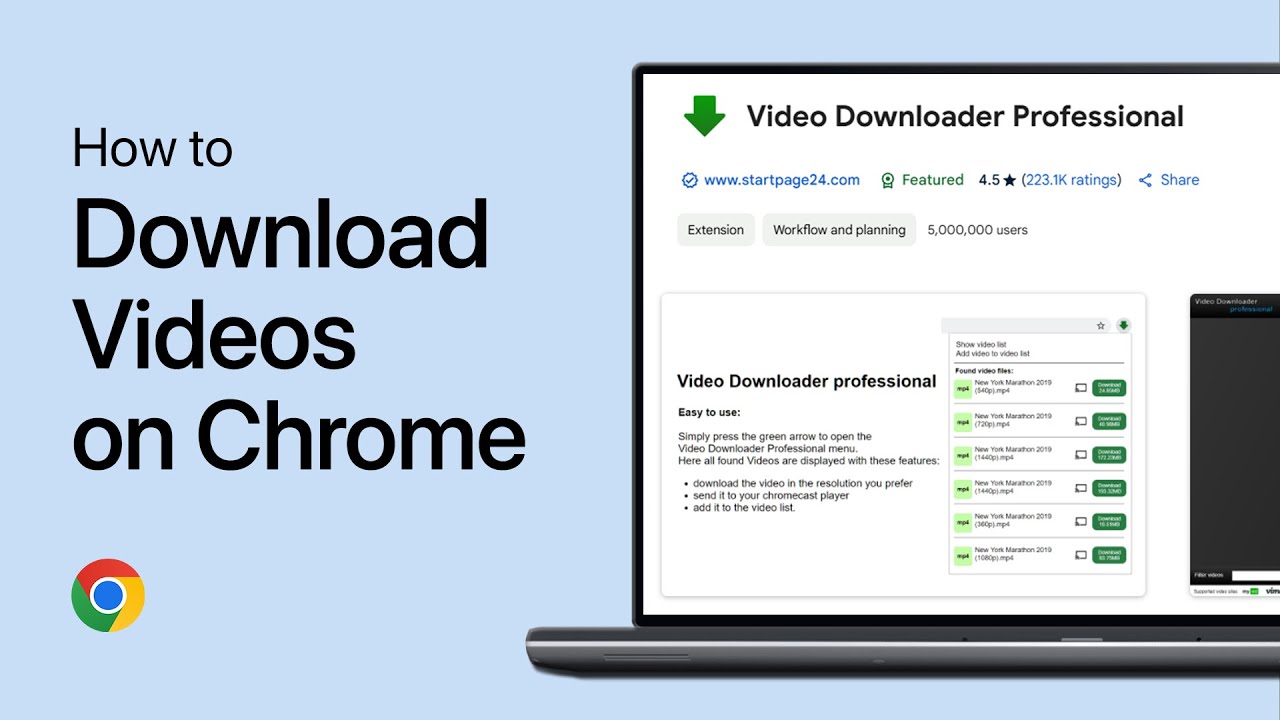
How To Download Any Video Using Google Chrome - Tutorial
Step-by-step tutorial on downloading videos using Google Chrome, including extension installation, video detection, and download management for various websites.
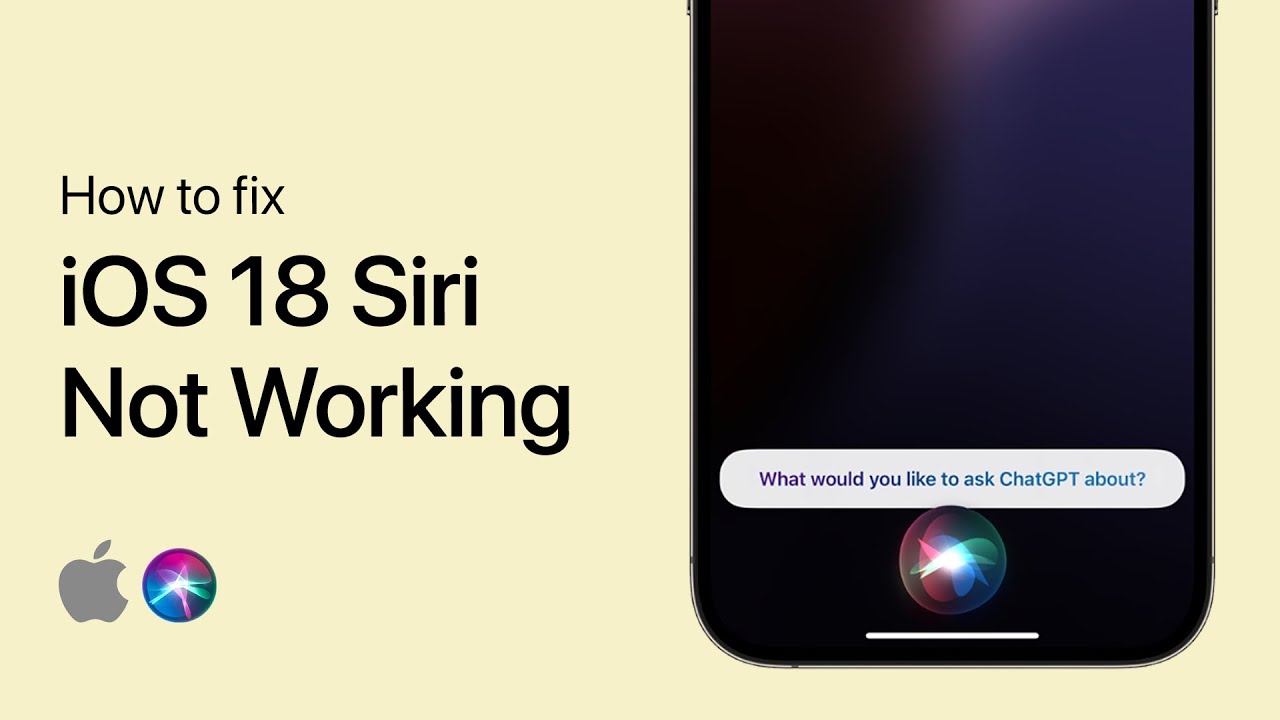
How to Fix Siri Not Working or Responding on iPhone - Easy Guide
Fix Siri by checking Talk To Siri settings, enabling Hey Siri voice recognition, testing microphone, updating iOS software, restarting iPhone, or resetting all settings if needed.
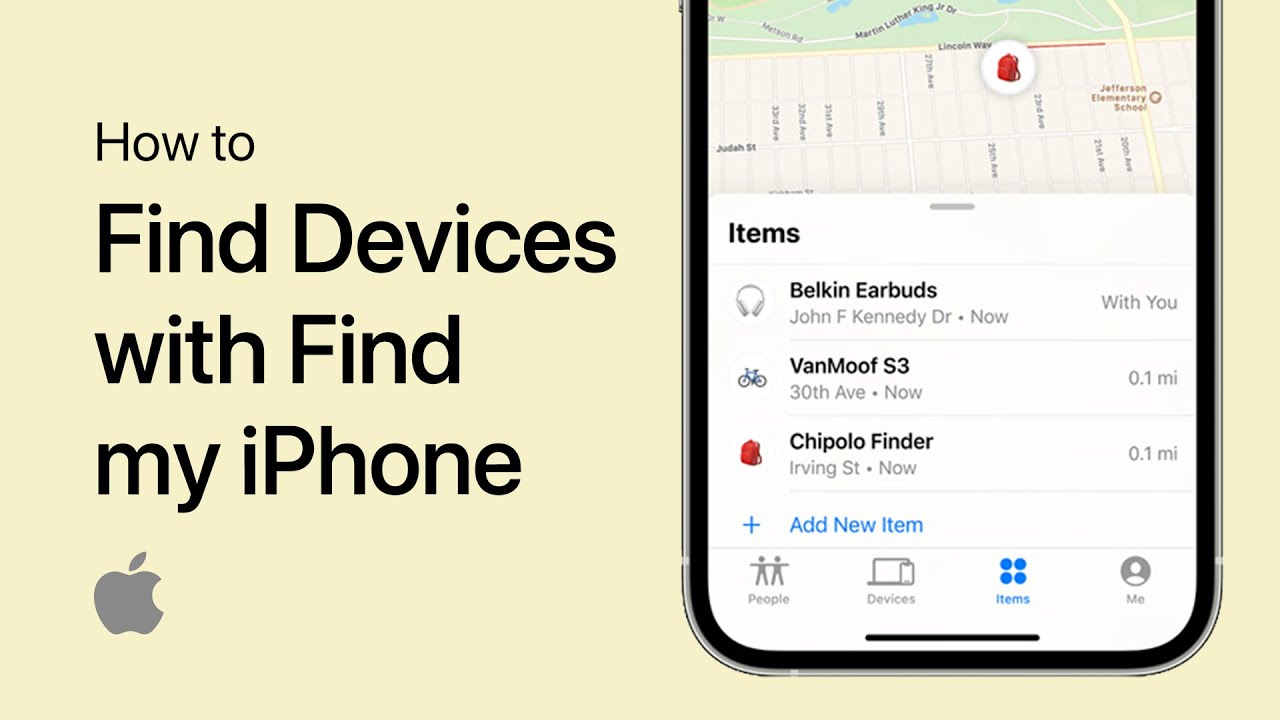
How to Use 'Find My iPhone' to Find Your iPhone - Complete Guide
Enable Find My iPhone in Settings, access Find My app to locate device on map, use Play Sound for nearby devices, Lost Mode to lock remotely, or Erase iPhone as last resort for lost or stolen iPhones.
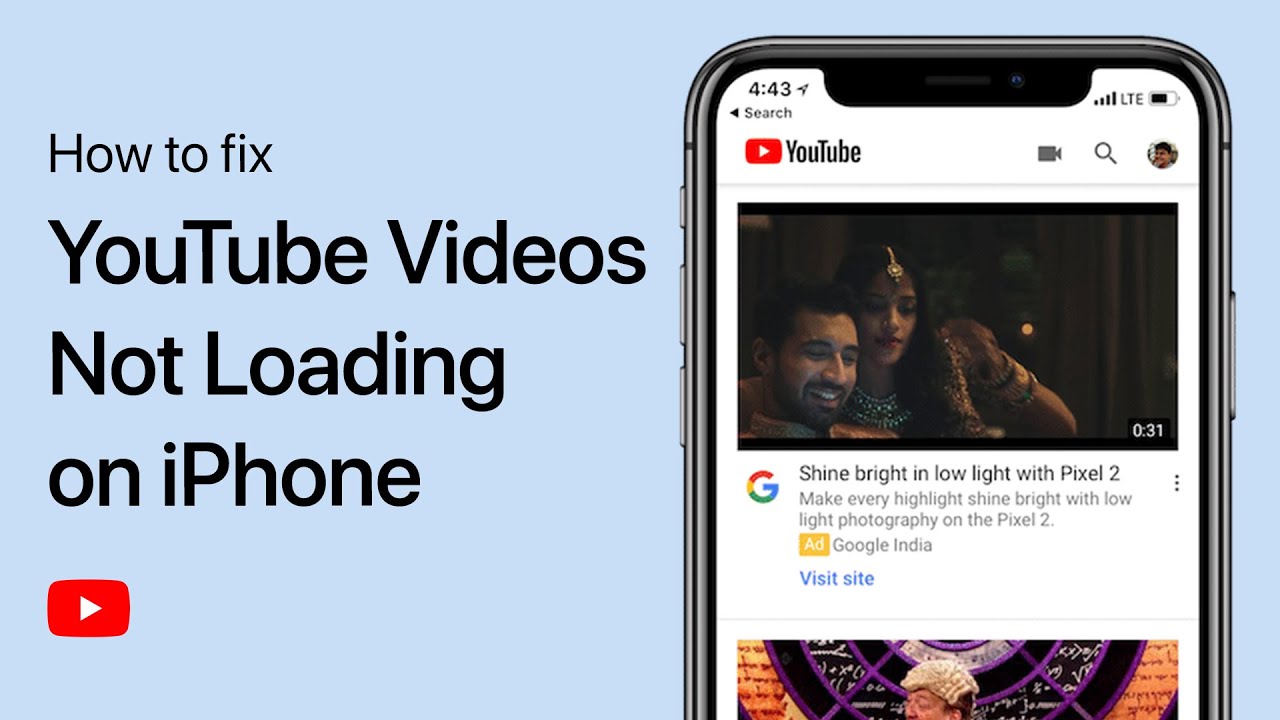
How to Fix YouTube Videos Not Loading on iPhone - 'Something Went Wrong' Problem
Fix YouTube videos not loading on iPhone by force closing app from App Switcher, testing internet connection in Safari, restarting iPhone, or deleting and reinstalling YouTube app.