Actions
Watch on YouTubeTutorial Details
Actions
Watch on YouTubeTutorial Details
Top 15 Windows Run Commands Every User Should Know - Complete Guide
Learn the top 15 essential Windows Run commands including changepk.exe, charmap, cleanmgr, msconfig, dxdiag, and more for system management, troubleshooting, and optimization.
The Windows Run dialog represents one of the most powerful yet underutilized tools in the Windows operating system, providing direct access to system utilities, administrative tools, and hidden features that can significantly enhance productivity and troubleshooting capabilities. Understanding the essential Run commands transforms casual Windows users into power users capable of efficiently managing their systems without navigating through complex menus and settings interfaces.
This comprehensive guide explores the top 15 Windows Run commands that every user should know, covering system management, troubleshooting, optimization, and productivity enhancement tools that unlock the full potential of the Windows operating system.
Understanding Windows Run Commands
Run commands provide direct access to Windows system utilities:
- Direct Access: Instant access to system tools and utilities
- Keyboard Shortcuts: Win + R provides quick activation
- System Management: Administrative and configuration tools
- Troubleshooting: Diagnostic and repair utilities
- Productivity: Enhanced workflow and system optimization
Prerequisites for Using Run Commands
- Windows Version: Compatible with Windows 10 and Windows 11
- User Permissions: Standard user account with administrative access
- Command Accuracy: Exact spelling and syntax required
- System Knowledge: Understanding of target tools and utilities
- Backup Awareness: Some commands affect system settings
Essential Run Commands Overview
The top 15 Run commands every Windows user should master:
1. changepk.exe - Windows Activation Management
Access Windows activation status and product key management.
- Purpose: Check activation status and change product keys
- Use Case: License management and activation troubleshooting
- Access Level: Administrative privileges required
- Alternative: Settings > Update & Security > Activation
2. charmap - Character Map Utility
Access special characters and symbols for documents.
- Purpose: Insert special characters and symbols
- Use Case: Document creation and international text input
- Features: Unicode character browser with copy/paste
- Alternative: Windows Key + Period (.) for emoji panel
3. cleanmgr - Disk Cleanup Tool
Remove temporary files and free up disk space.
- Purpose: Clean system and user temporary files
- Use Case: Disk space optimization and system cleanup
- Features: Selective file type removal and compression
- Alternative: Settings > System > Storage > Free up space
4. control userpasswords2 - User Account Management
Manage Windows user accounts and passwords.
- Purpose: User account administration and password management
- Use Case: Multi-user system management and account recovery
- Features: Account creation, deletion, and password reset
- Alternative: Settings > Accounts > Family & other users
5. computerdefaults - Default Programs Settings
Configure default applications for file types and protocols.
- Purpose: Set default applications for file associations
- Use Case: Application preference management and file handling
- Features: Protocol and file type association management
- Alternative: Settings > Apps > Default apps
6. cttune - ClearType Text Tuner
Optimize text rendering and readability on displays.
- Purpose: Fine-tune text display for better readability
- Use Case: Display calibration and visual comfort optimization
- Features: Font smoothing and anti-aliasing adjustment
- Alternative: Settings > Ease of Access > Display > Make text bigger
7. dxdiag - DirectX Diagnostic Tool
Access system information and DirectX diagnostics.
- Purpose: Hardware and DirectX system information display
- Use Case: Gaming troubleshooting and system diagnostics
- Features: Display, sound, and input device information
- Alternative: msinfo32 for general system information
8. diskmgmt.msc - Disk Management Console
Manage disk partitions, volumes, and storage devices.
- Purpose: Disk partitioning and volume management
- Use Case: Storage organization and disk maintenance
- Features: Partition creation, deletion, and drive letter assignment
- Alternative: Windows Explorer > This PC > Manage
9. msconfig - System Configuration Utility
Configure system startup and services management.
- Purpose: Startup program and service management
- Use Case: System optimization and troubleshooting
- Features: Boot configuration and service control
- Alternative: Task Manager > Startup tab
10. msinfo32 - System Information Tool
Access comprehensive system hardware and software information.
- Purpose: Detailed system specification display
- Use Case: System documentation and troubleshooting support
- Features: Hardware, software, and component information
- Alternative: Settings > System > About
11. powercfg.cpl - Power Options Configuration
Manage power plans and energy settings.
- Purpose: Power management and plan customization
- Use Case: Battery optimization and performance tuning
- Features: Power plan selection and advanced settings
- Alternative: Settings > System > Power & sleep
12. winver - Windows Version Information
Display current Windows version and build information.
- Purpose: Windows version and build number identification
- Use Case: Update verification and compatibility checking
- Features: Version, build, and edition information
- Alternative: Settings > System > About
13. ncpa.cpl - Network Connections Panel
Manage network adapters and connection settings.
- Purpose: Network adapter configuration and management
- Use Case: Network troubleshooting and configuration
- Features: Adapter properties, DNS settings, and connection management
- Alternative: Settings > Network & Internet > Status
14. timedate.cpl - Date and Time Settings
Configure system clock and time zone settings.
- Purpose: Time and date synchronization and configuration
- Use Case: Clock accuracy and time zone management
- Features: Automatic time sync and additional clock setup
- Alternative: Settings > Time & Language > Date & time
15. appwiz.cpl - Programs and Features
Manage installed applications and Windows features.
- Purpose: Software installation management and removal
- Use Case: Application maintenance and system cleanup
- Features: Program uninstallation and Windows feature management
- Alternative: Settings > Apps > Apps & features
How to Use Run Commands Effectively
Master the Run dialog and command execution:
Accessing the Run Dialog
- Press Windows key + R simultaneously
- Right-click Start button and select "Run"
- Search for "Run" in Start menu
- Use Windows Terminal or Command Prompt alternatives
Command Execution Best Practices
- Type commands exactly as shown (case-insensitive)
- Use administrator privileges when required
- Understand command purpose before execution
- Backup important data before system changes
- Test commands in safe environment first
Troubleshooting Command Issues
- Verify command spelling and syntax
- Check user account permissions
- Run as administrator for system commands
- Ensure required services are running
- Update Windows if commands fail
Advanced Run Command Techniques
Enhance productivity with advanced Run command usage:
Command Combinations
- Multiple Commands: Chain commands with && operator
- Administrative Access: Use runas command for elevated privileges
- Network Paths: Access network resources with UNC paths
- Environment Variables: Use % variables for dynamic paths
Custom Shortcuts and Automation
- Desktop Shortcuts: Create Run command shortcuts on desktop
- Task Scheduler: Automate Run command execution
- Batch Files: Create scripts with multiple Run commands
- PowerShell Integration: Combine with PowerShell cmdlets
Security Considerations
- Command Validation: Verify command legitimacy before execution
- Permission Awareness: Understand command privilege requirements
- System Impact: Recognize potential system changes
- Backup Importance: Create restore points before major changes
Windows Run Command Ecosystem
Understanding the broader Windows utility landscape:
Control Panel Integration
- CPL Files: Direct access to Control Panel applets
- MSC Files: Microsoft Management Console snap-ins
- System Utilities: Built-in Windows diagnostic tools
- Administrative Tools: Advanced system management utilities
Command Prompt Alternatives
- PowerShell: Advanced command-line interface
- Windows Terminal: Modern command-line experience
- Search Integration: Start menu search alternatives
- Task Manager: Process and service management
Third-Party Enhancements
- Run Command Extenders: Enhanced Run dialog functionality
- Custom Command Collections: User-created command libraries
- Productivity Tools: Workflow optimization utilities
- System Monitoring: Advanced diagnostic applications
Troubleshooting Run Command Issues
Resolve common problems with Run commands:
Command Not Recognized
Problem: Run command fails to execute properly.
Solutions:
- Verify command spelling and syntax
- Check if required program is installed
- Run as administrator if needed
- Update Windows to latest version
- Use full file paths for custom commands
Permission Denied Errors
Problem: Access denied when running certain commands.
Solutions:
- Run command as administrator
- Check user account type and permissions
- Disable User Account Control temporarily
- Use alternative access methods
- Verify command compatibility with Windows version
Commands Not Working After Updates
Problem: Run commands fail after Windows updates.
Solutions:
- Check for additional required updates
- Run System File Checker (sfc /scannow)
- Reset Windows Search index
- Rebuild system icon cache
- Perform clean boot troubleshooting
Slow Command Execution
Problem: Run commands take unusually long to execute.
Solutions:
- Close unnecessary background applications
- Check disk space and fragmentation
- Update device drivers
- Run disk cleanup and defragmentation
- Check for malware or system conflicts
Best Practices for Run Command Usage
Maximize efficiency and safety with Run commands:
Productivity Optimization
- Command Memorization: Learn frequently used commands
- Shortcut Creation: Create desktop shortcuts for complex commands
- Batch Processing: Combine multiple commands in scripts
- Documentation: Maintain personal command reference
- Workflow Integration: Incorporate into daily computing routine
System Maintenance
- Regular Cleaning: Use cleanup commands periodically
- Performance Monitoring: Track system health with diagnostic commands
- Update Management: Stay current with system updates
- Backup Strategies: Create restore points before major changes
- Security Awareness: Use commands safely and responsibly
Learning and Development
- Command Discovery: Explore new commands regularly
- Documentation Study: Read Microsoft documentation
- Community Learning: Participate in Windows user communities
- Skill Building: Progress from basic to advanced commands
- Teaching Others: Share knowledge with fellow users
Windows Command Evolution
Understanding the development of Windows command-line tools:
Historical Development
- Early Windows: Basic Run dialog with limited commands
- Windows XP Era: Expanded system utility access
- Windows 7/8: Enhanced diagnostic and management tools
- Windows 10/11: Modern interface with advanced utilities
- Future Trends: AI-assisted command discovery and execution
Current Capabilities
- Unified Access: Single point of entry for system tools
- Administrative Power: Full system control capabilities
- User-Friendly: Accessible to users of all skill levels
- Integration: Seamless connection with modern Windows features
- Extensibility: Support for custom and third-party commands
Future Enhancements
- AI Assistance: Intelligent command suggestions and auto-completion
- Voice Integration: Voice-activated command execution
- Cloud Sync: Command preferences across devices
- Enhanced Security: Advanced permission and safety features
- Cross-Platform: Unified commands across Windows versions
Related Tutorials
- How to Enable & Use On-Screen Keyboard on Windows PC - Alternative input methods.
- How to Remove Audio Output Device in Windows 11 - Audio configuration.
- How to Use Legacy Taskbar in Windows 11 - Interface customization.
Conclusion
The Windows Run commands represent a hidden powerhouse of system management capabilities, offering direct access to essential utilities and diagnostic tools that can transform how users interact with their Windows systems. From basic system information retrieval to advanced configuration management, these 15 essential commands provide the foundation for efficient Windows administration and troubleshooting.
The beauty of Run commands lies in their simplicity and power—requiring only a keyboard shortcut and accurate command entry to unlock sophisticated system management features. Whether cleaning up disk space, managing user accounts, or diagnosing hardware issues, these commands provide professional-grade tools accessible to users at any skill level.
As Windows continues to evolve, the Run command interface remains a testament to the operating system's commitment to user accessibility and administrative efficiency. The commands covered in this guide represent timeless utilities that will continue to serve Windows users well into the future, providing reliable access to critical system functions regardless of interface changes or feature updates.
For Windows users seeking to elevate their system management capabilities, mastering these essential Run commands provides the key to unlocking the full potential of their Windows operating system, enabling more efficient troubleshooting, maintenance, and optimization workflows.
Tags
Related Tutorials
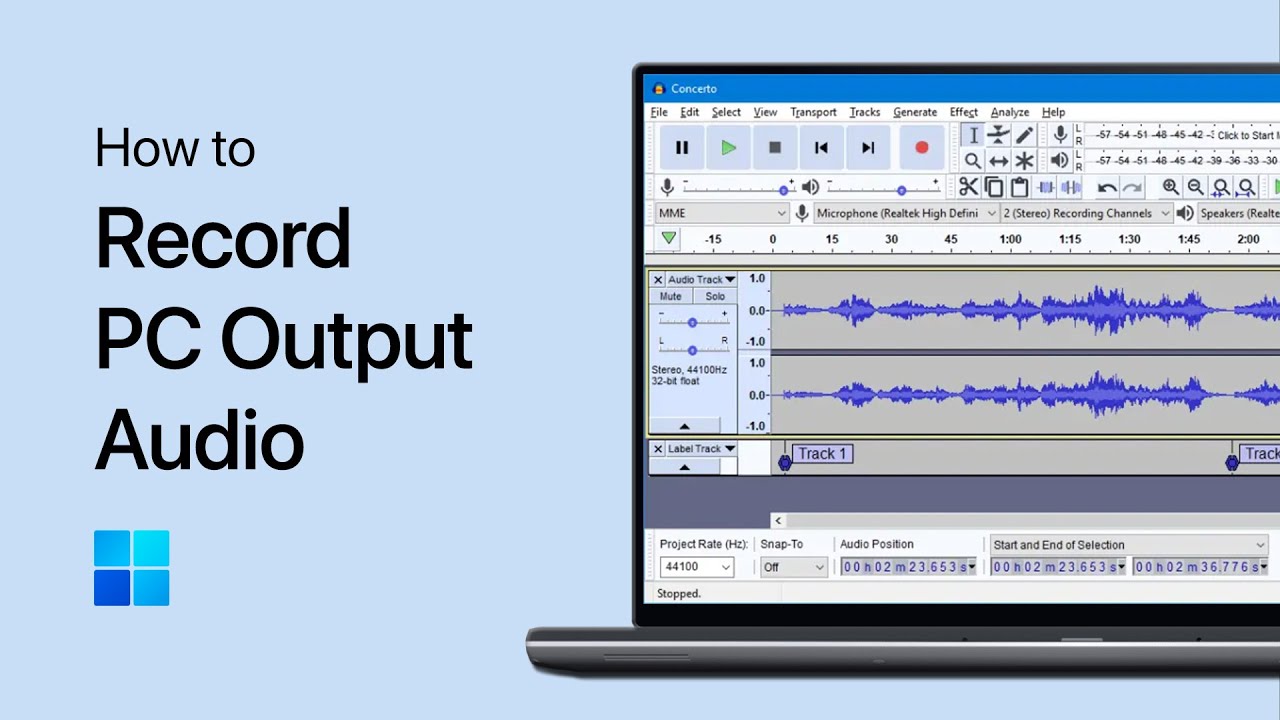
How to Record Your PC’s Output Audio with Audacity
Turn on Stereo Mix in Windows Sound settings, select it as the recording device in Audacity, and record your computer’s output audio with ease.
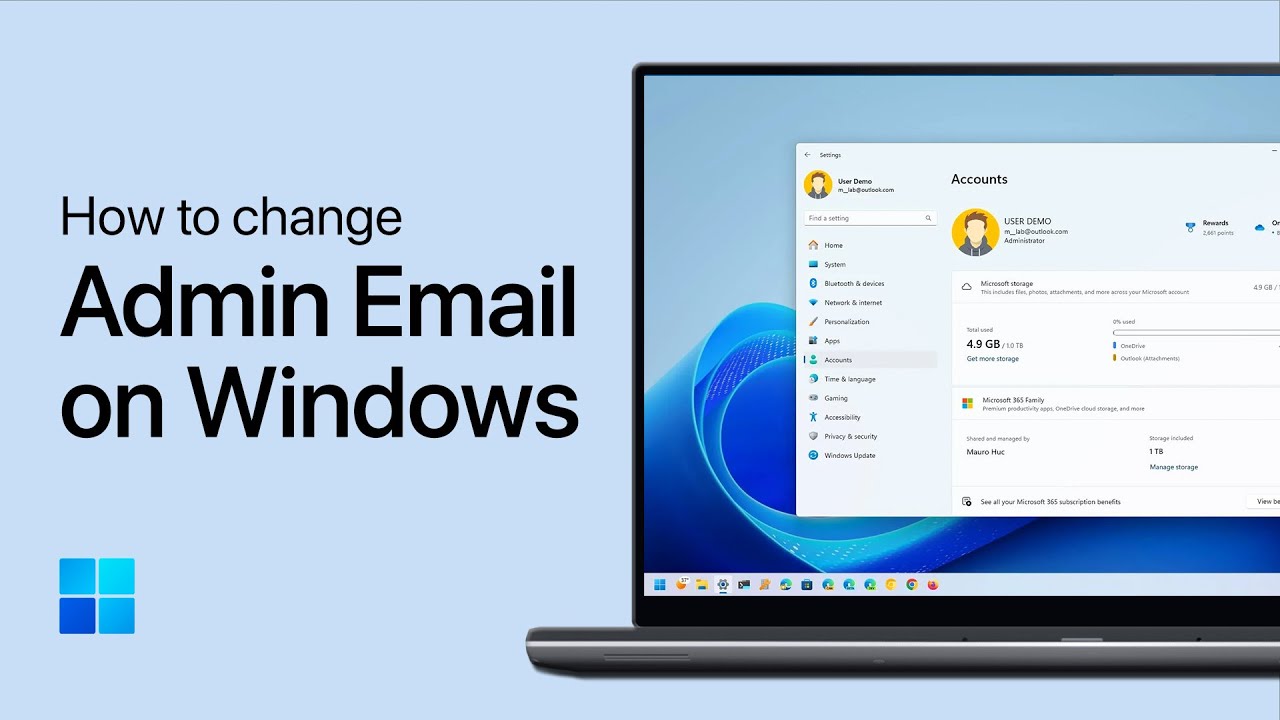
How to Change Administrator Email on Windows 11
Step-by-step guide to changing administrator email on Windows 11, including user account management, account type changes, and administrator configuration.

How to Create ZIP File on Windows PC - Complete Tutorial
Step-by-step guide to creating ZIP files on Windows PC, including file selection, compression techniques, and sharing methods.
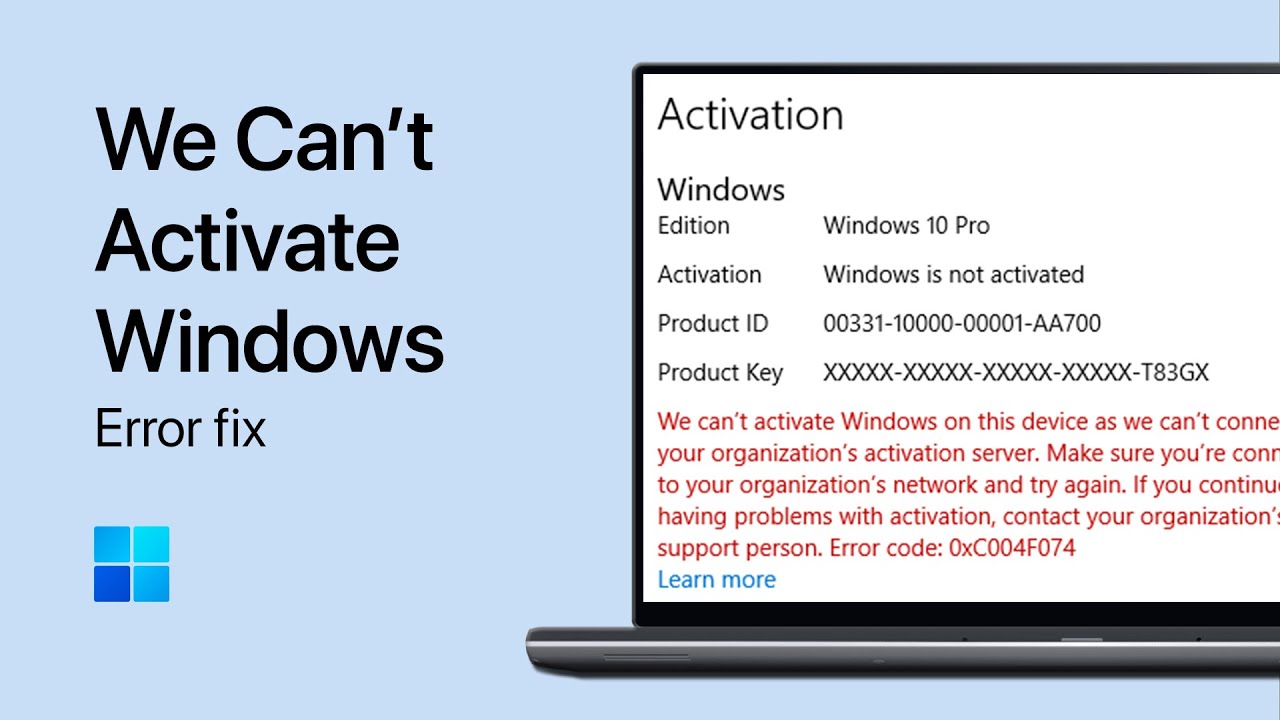
Fix 'We Can't Activate Windows on This Device As We Can't Connect to Your Organization' Error
Step-by-step tutorial on fixing Windows activation errors related to organization connections, including KMS server configuration and activation troubleshooting.