Optimized Battery Charging is one of the most important battery-saving features in iOS, yet many users do not understand how it works or even know it exists. This guide explains everything about this smart feature.
What is Optimized Battery Charging?
Optimized Battery Charging is an iOS feature that learns your daily charging routine and delays charging past 80% until you need it. This reduces the time your battery spends at full charge, which extends its overall lifespan.
Why Does It Matter?
Lithium-ion batteries experience the most stress when held at very high charge levels. When your phone sits at 100% overnight, the battery is under constant voltage stress for hours.
With Optimized Battery Charging:
- Phone charges to 80% quickly
- Waits at 80% overnight
- Finishes charging to 100% just before you wake up
- Reduces time at 100% from ~8 hours to ~30 minutes
Time Spent at 100% Charge
How to Enable Optimized Battery Charging
- Open Settings
- Tap Battery
- Tap Battery Health
- Enable Optimized Battery Charging
The feature is enabled by default on most iPhones, but you should verify it is turned on.
How Does iOS Learn Your Routine?
iOS uses machine learning to understand your patterns:
- Location data: Recognizes when you are at home or work
- Alarm data: Knows when you typically wake up
- Charging history: Learns your typical overnight charging times
- Usage patterns: Understands when you need a full charge
The feature works best with consistent daily routines. If your schedule is highly variable, it may not activate as often.
When Optimized Charging Does Not Work
The feature may not activate when:
- You are traveling or in a new location
- Your routine is unpredictable
- You just enabled the feature (needs time to learn)
- Location Services are disabled
Seeing "Charging on Hold"
When Optimized Battery Charging is active, you may see:
- "Charging on Hold" notification
- Charge stuck at 80%
- Notification showing when full charge will complete
This is normal! The phone is protecting your battery. If you need full charge immediately, tap "Charge Now" in the notification.
Optimized Charging for Different Situations
Overnight Charging at Home
Works best in this scenario. iOS learns your sleep schedule and timing.
Charging at Work
Also works if you have a consistent work schedule and charge at the same times.
Travel
Usually disabled during travel because iOS cannot predict your needs reliably.
Inconsistent Schedule
May not activate often, but still helps when patterns are detected.
Advanced: 80% Charge Limit (iOS 17+)
In iOS 17 and later, you can set a hard 80% limit:
- Settings > Battery > Battery Health
- Charging Optimization > 80% Limit
This prevents charging above 80% entirely, maximizing battery longevity at the cost of capacity.
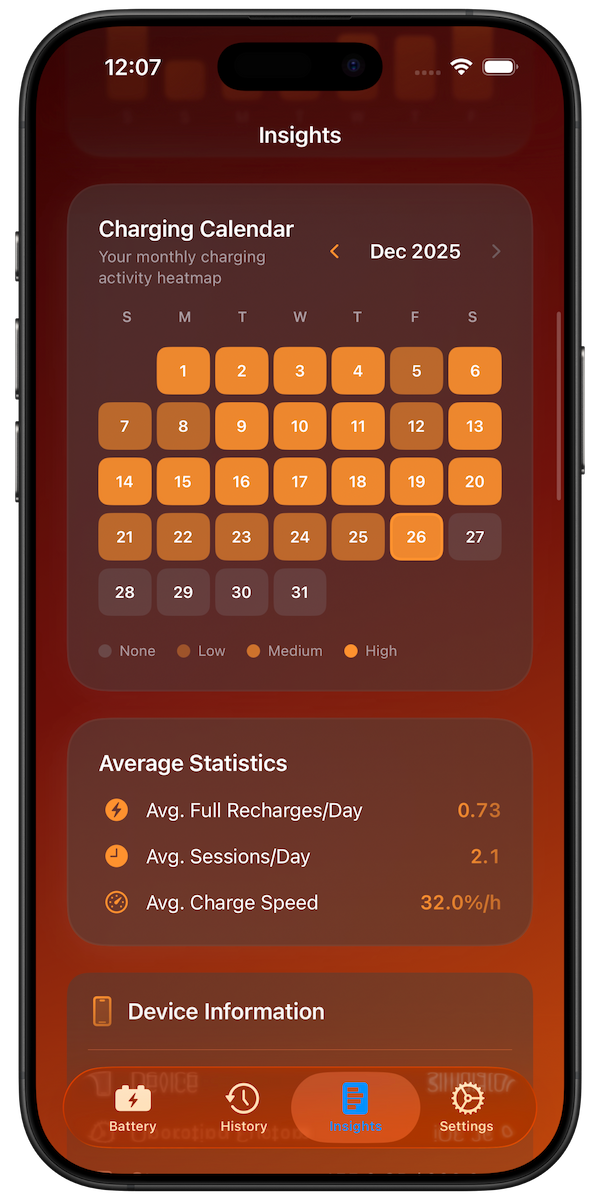
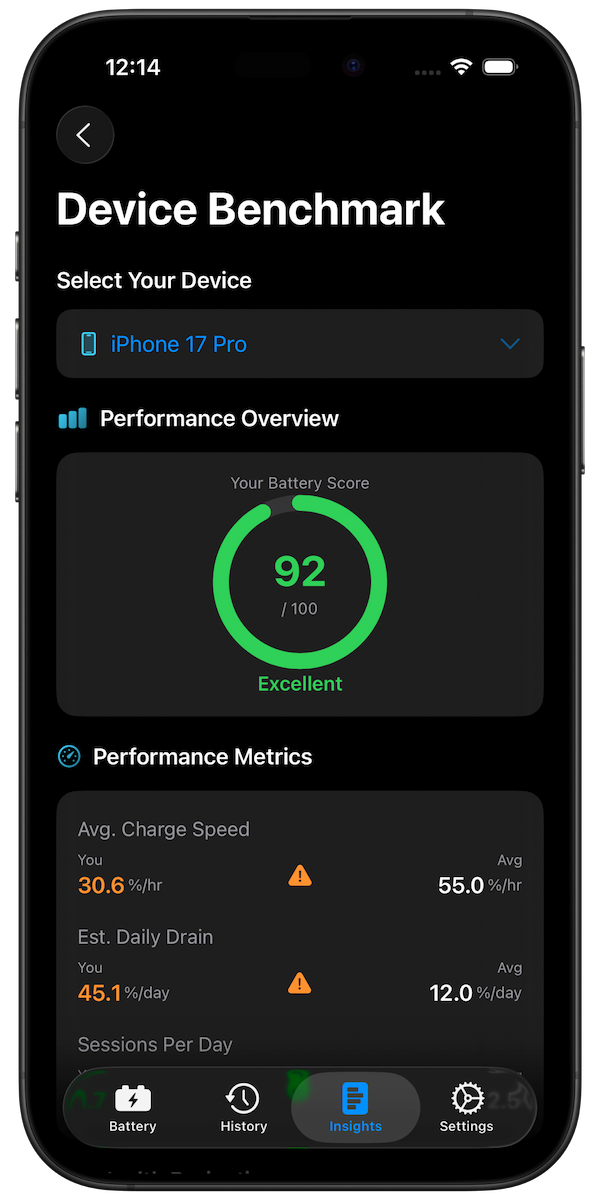
Track the Impact with Battery Health Pro
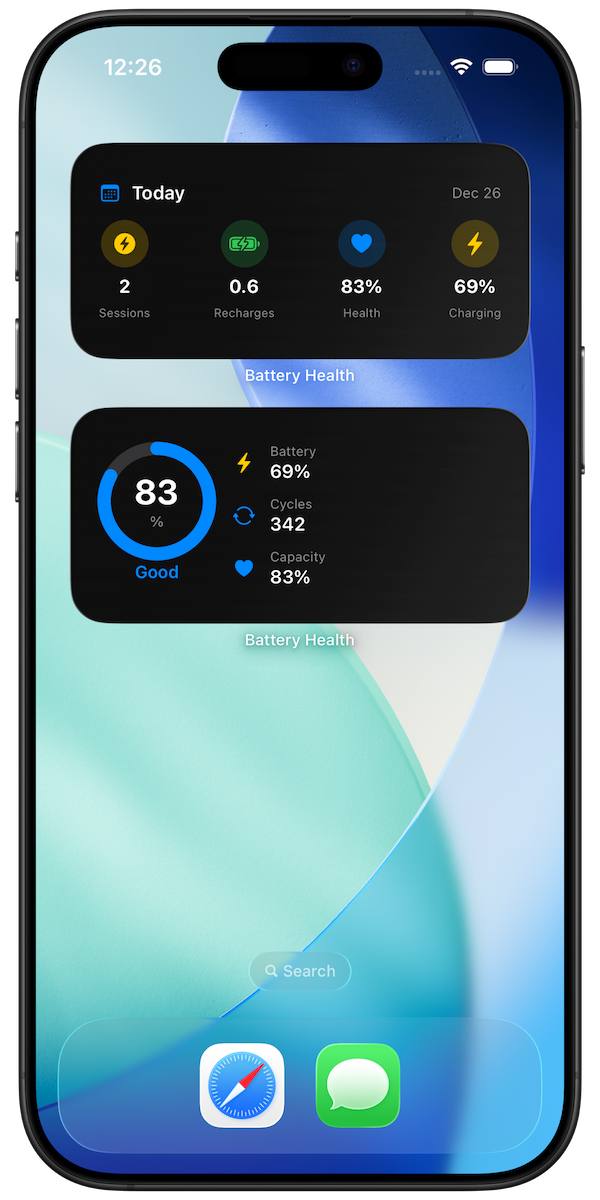
Battery Health Pro helps you see how Optimized Battery Charging affects your battery:
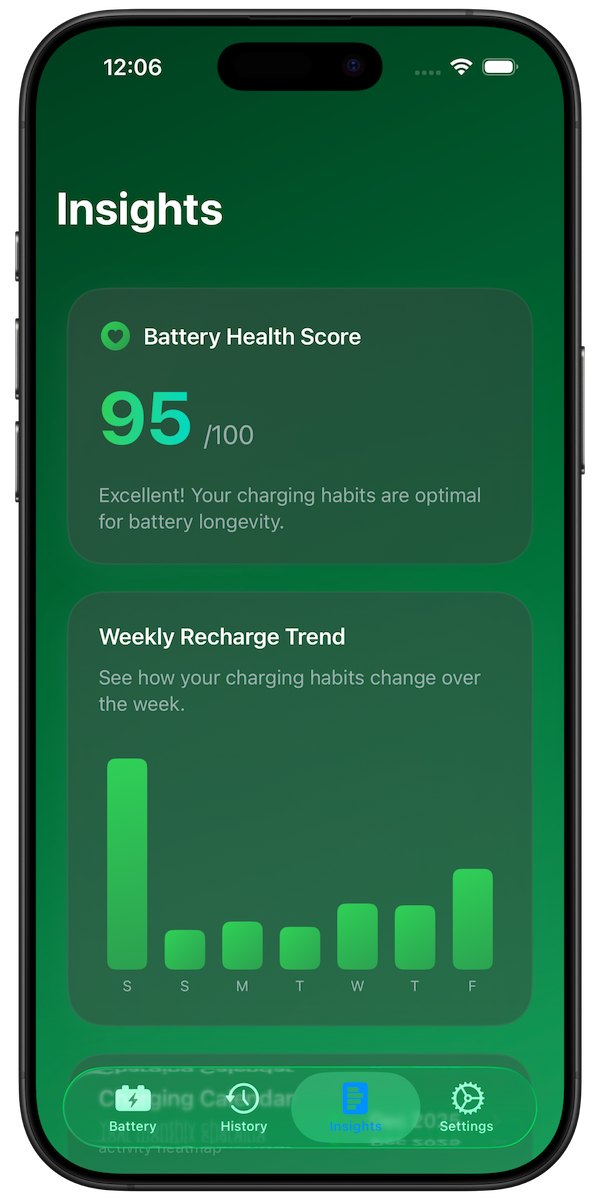
- Track time spent above 80% each day
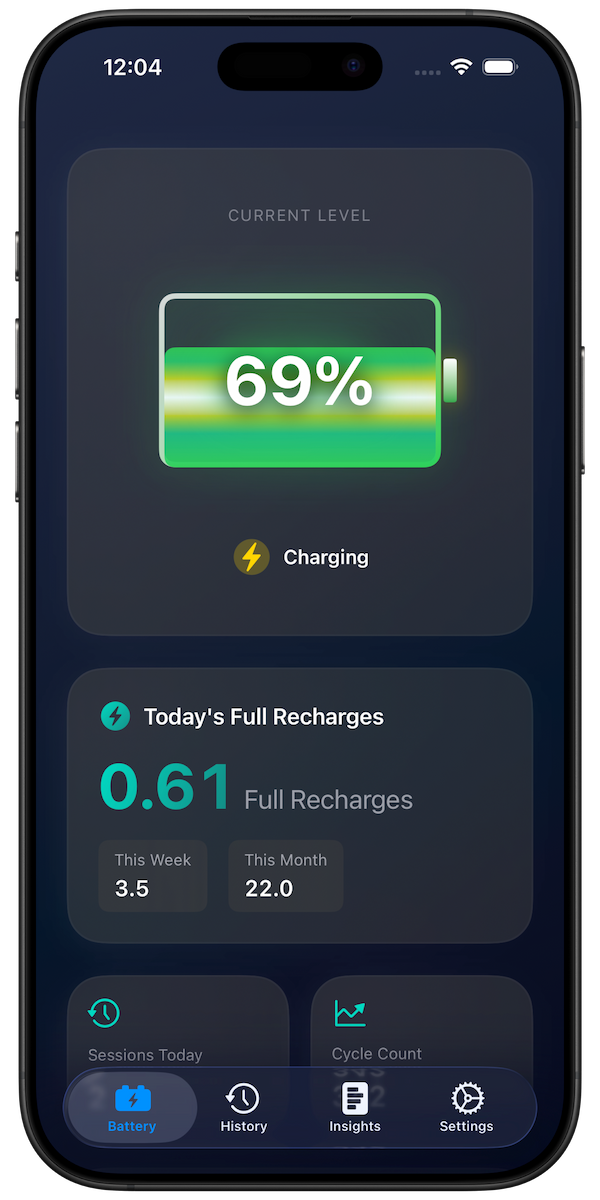
- See charging session details showing when optimization kicked in
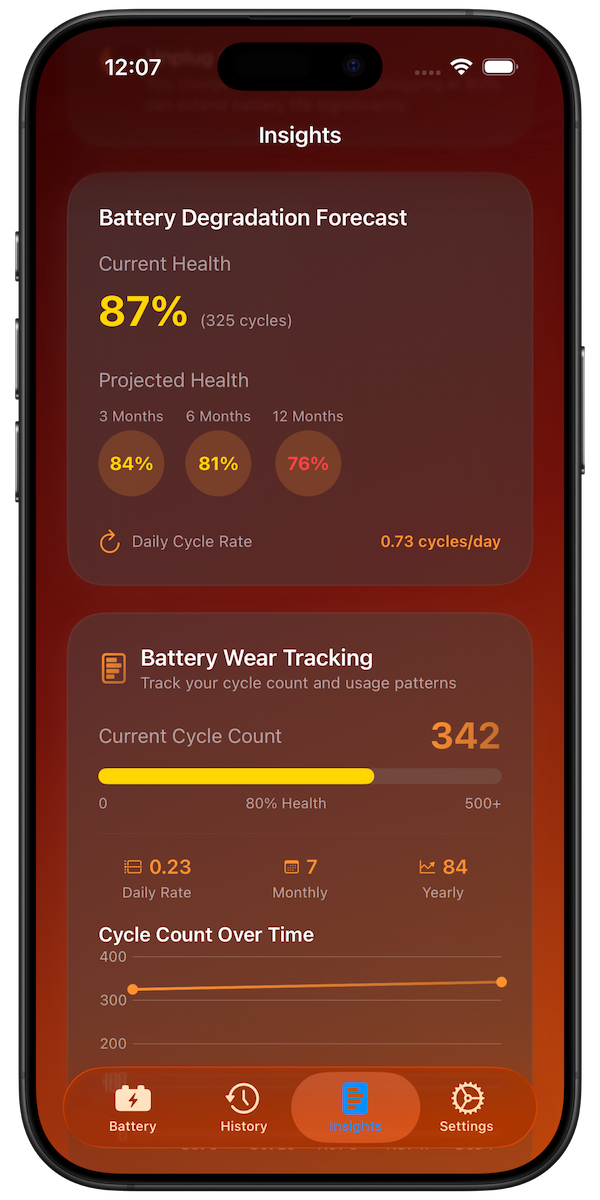
- Monitor long-term health improvements
- Compare habits before and after optimization
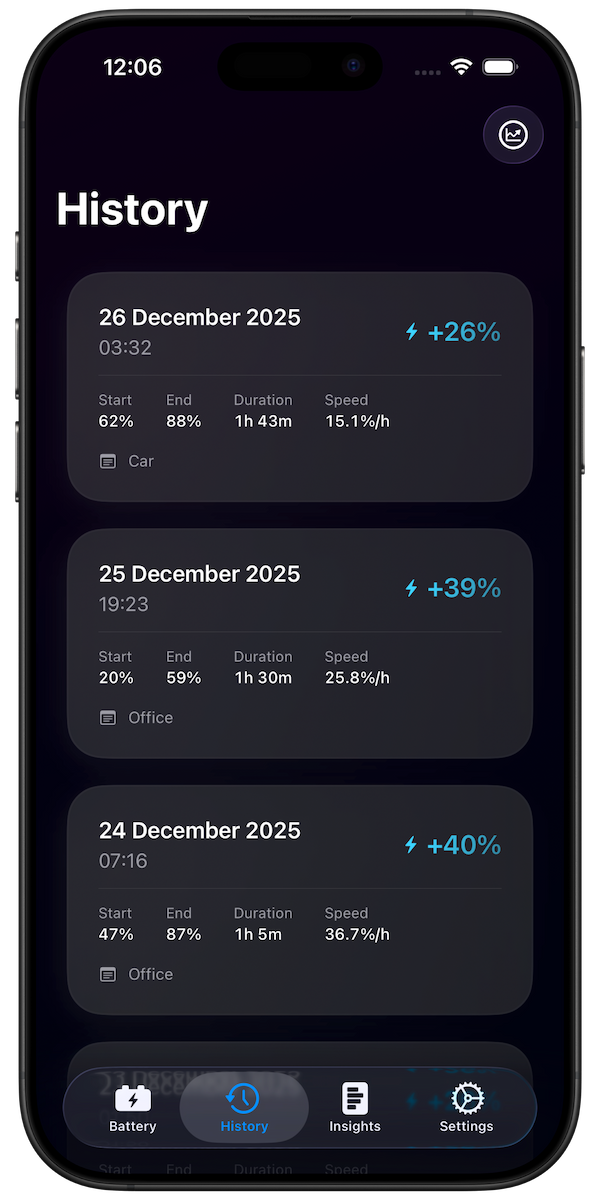
See when Optimized Charging activates in your history
Download Battery Health Pro Free
Summary
Optimized Battery Charging is a powerful feature that protects your battery with zero effort from you. Keep it enabled, maintain a consistent routine when possible, and use Battery Health Pro to track the benefits over time.