Is your iPhone battery draining faster than it should? You are not alone. Rapid battery drain is one of the most common iPhone complaints, but the good news is most causes are easily fixable. This guide walks you through diagnosing and solving battery drain issues.
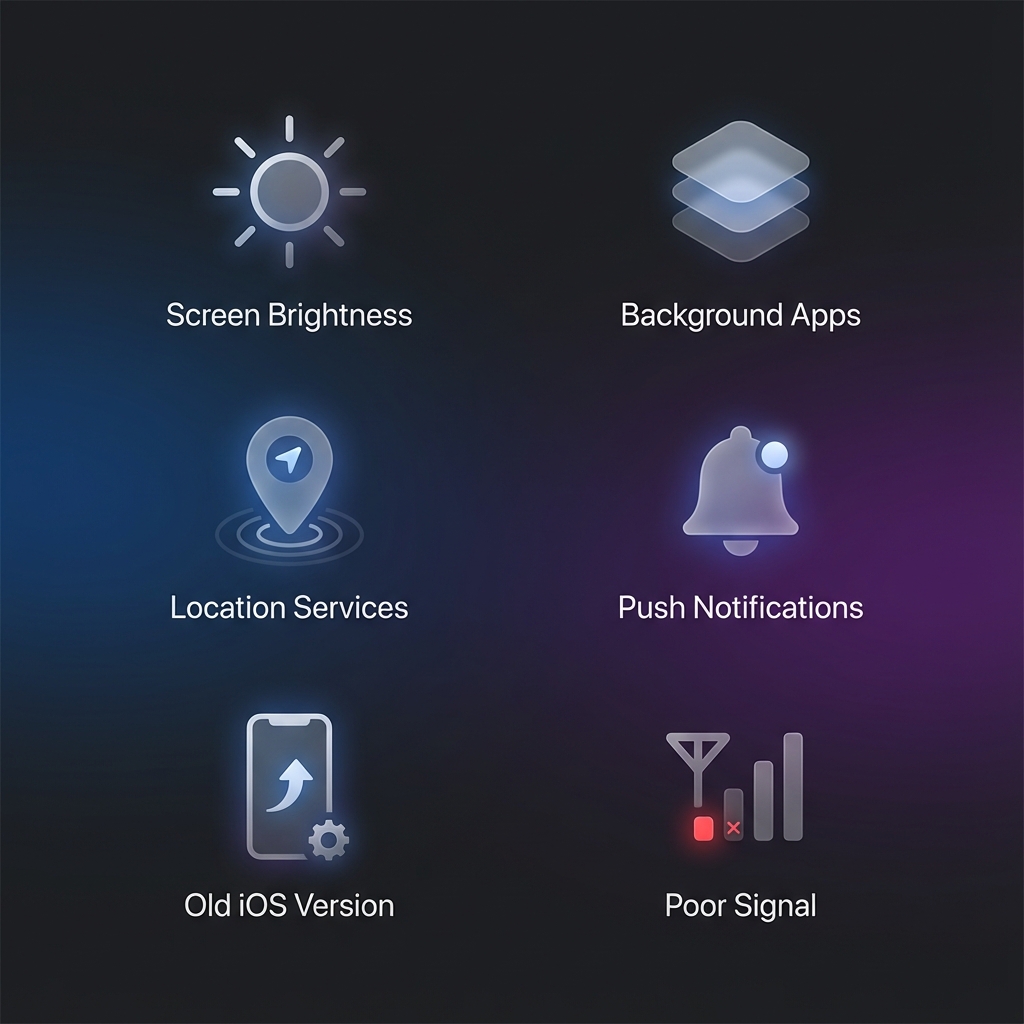
Common causes of iPhone battery drain
Quick Diagnosis: Check Battery Usage
Before troubleshooting, see what is actually draining your battery:
- Go to Settings > Battery
- Review the last 24 hours or 10 days
- Look for apps using unusually high percentages
- Check "Activity" vs "Background Activity" breakdown
Top 10 Causes of Fast Battery Drain
1. Screen Brightness Too High
The display is your biggest battery consumer. Fix it:
- Enable Auto-Brightness: Settings > Accessibility > Display > Auto-Brightness
- Reduce manual brightness when indoors
- Use Dark Mode on OLED iPhones (iPhone X and later)
2. Background App Refresh
Apps refreshing in the background constantly use battery:
- Settings > General > Background App Refresh
- Disable for apps you do not need updated constantly
- Keep enabled only for messaging and essential apps
3. Location Services Always On
GPS is power-hungry. Review which apps have constant access:
- Settings > Privacy & Security > Location Services
- Change apps from "Always" to "While Using"
- Disable for apps that do not need location
4. Push Email and Notifications
Constant checking for new email drains battery:
- Settings > Mail > Accounts > Fetch New Data
- Change from Push to Fetch every 15-30 minutes
- Or set to Manual and check when you open the app
5. Poor Cellular Signal
Your iPhone works harder in low signal areas:
- Enable Airplane Mode in no-service areas
- Connect to WiFi when possible
- Consider a cell signal booster at home
6. Widgets and Live Activities
Too many widgets constantly updating:
- Remove widgets you do not frequently use
- Disable Live Activities for non-essential apps
- Use static widgets over live-updating ones
7. Outdated iOS Version
Apple often fixes battery bugs in updates:
- Settings > General > Software Update
- Install the latest iOS version
- Note: Battery may temporarily drain more after an update while reindexing
8. Degraded Battery Health
Check your battery's condition:
- Settings > Battery > Battery Health
- Below 80% Maximum Capacity? Consider replacement
- See "Performance management applied"? Battery needs service
9. Hot Weather or Environment
Heat accelerates battery drain and wear:
- Do not leave iPhone in hot cars
- Remove case while charging if phone gets warm
- Avoid using phone in direct sunlight
10. Rogue Apps
Some apps have bugs causing excessive drain:
- Check Battery settings for unusually high usage
- Update or reinstall problem apps
- Report to the app developer
Monitor Your Battery with Battery Health Pro
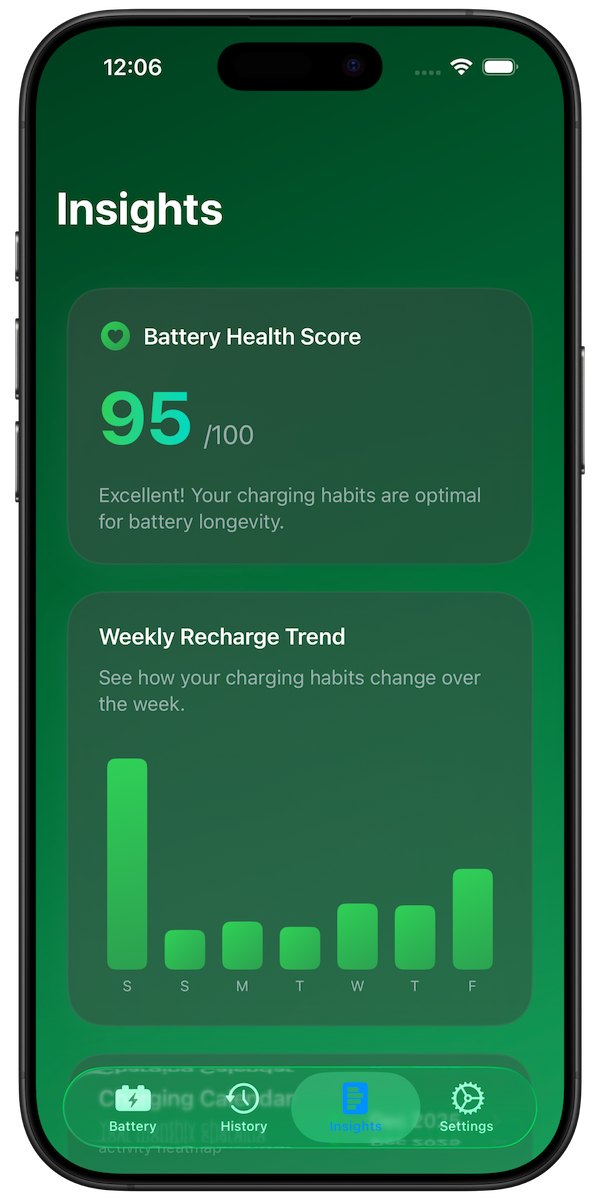
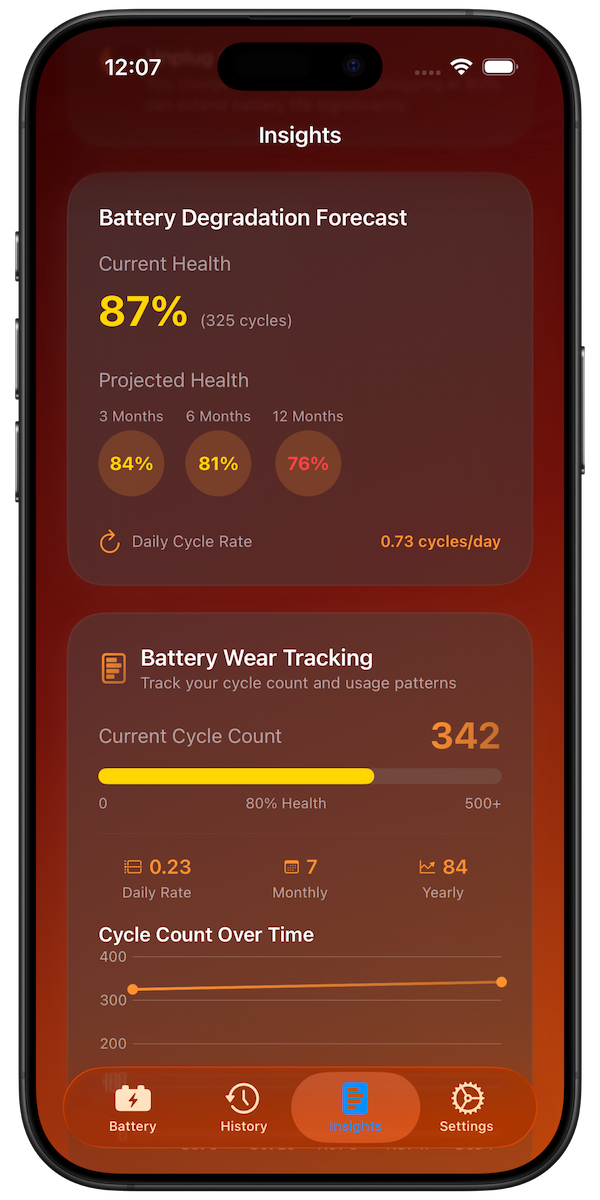
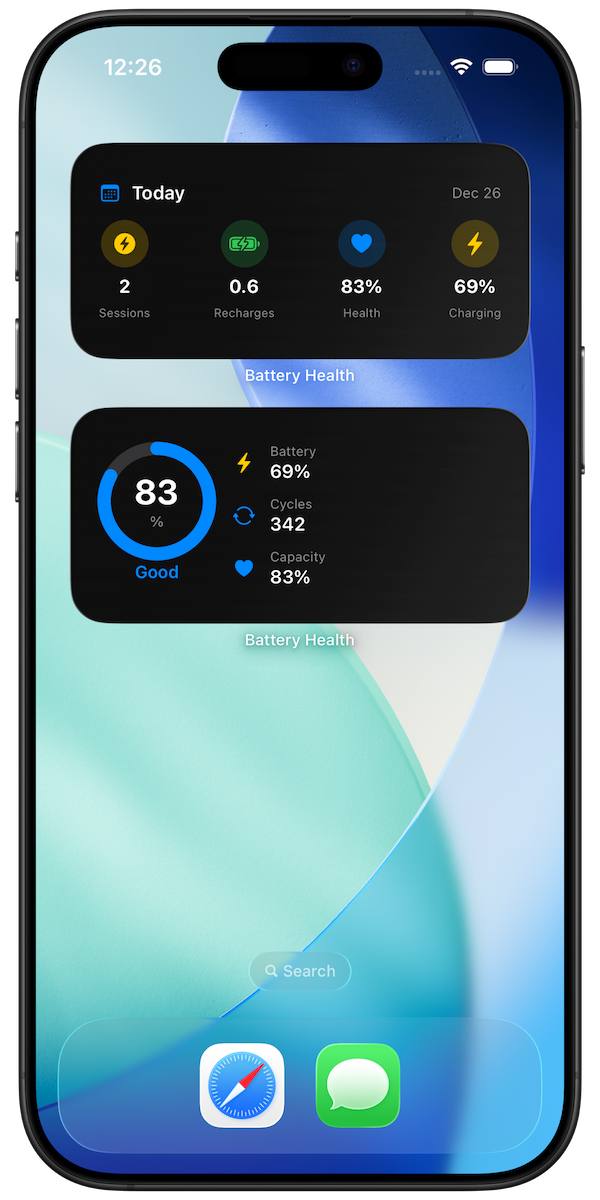
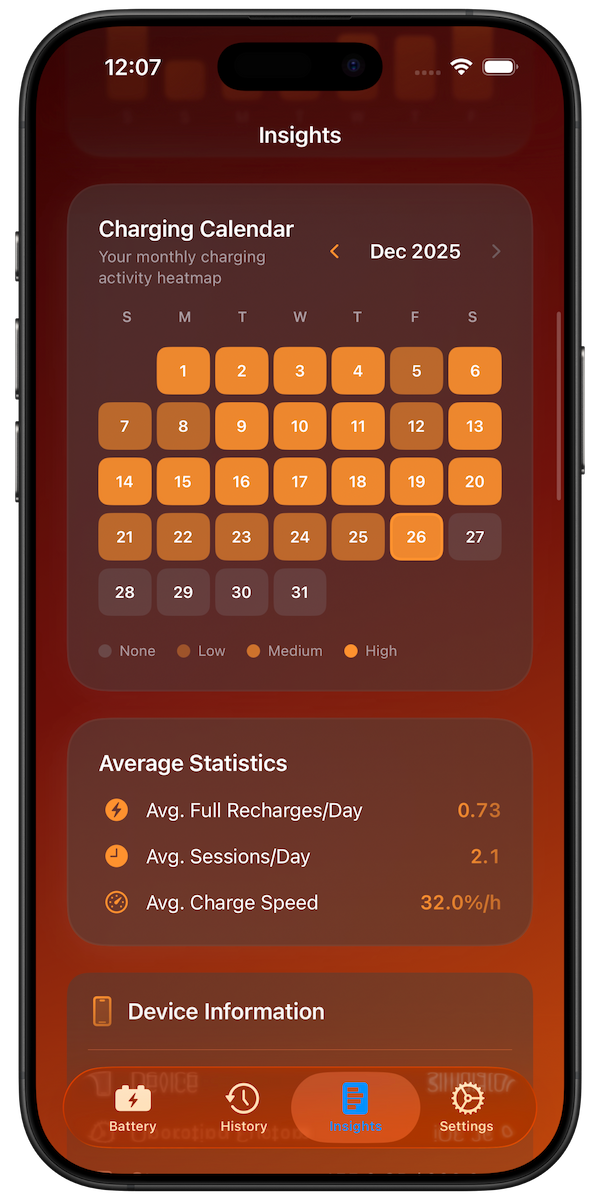
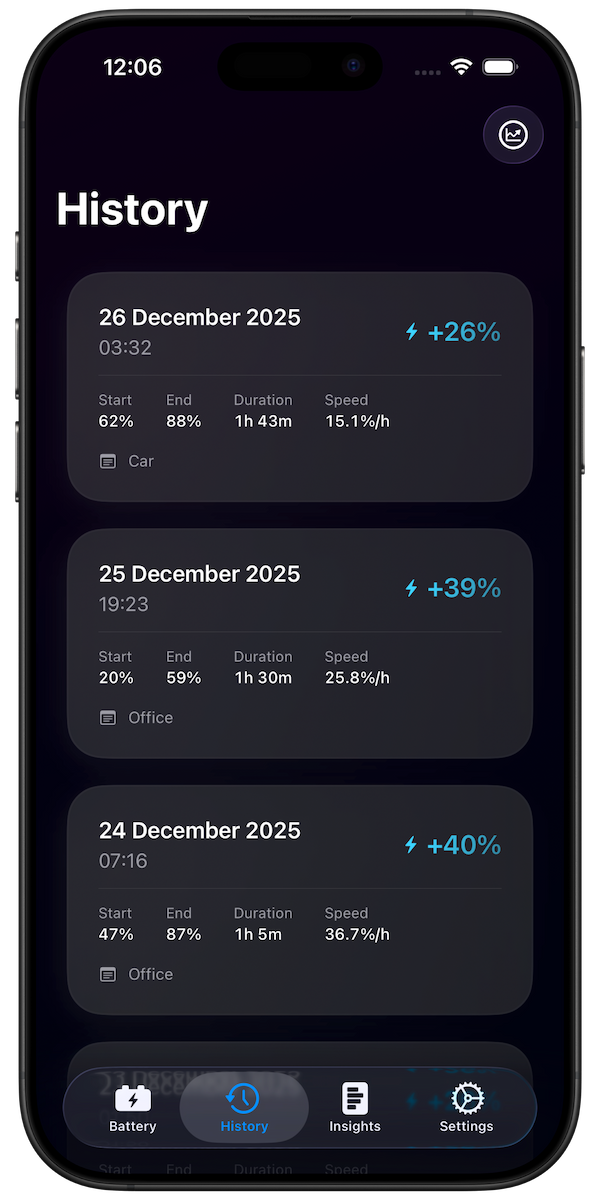
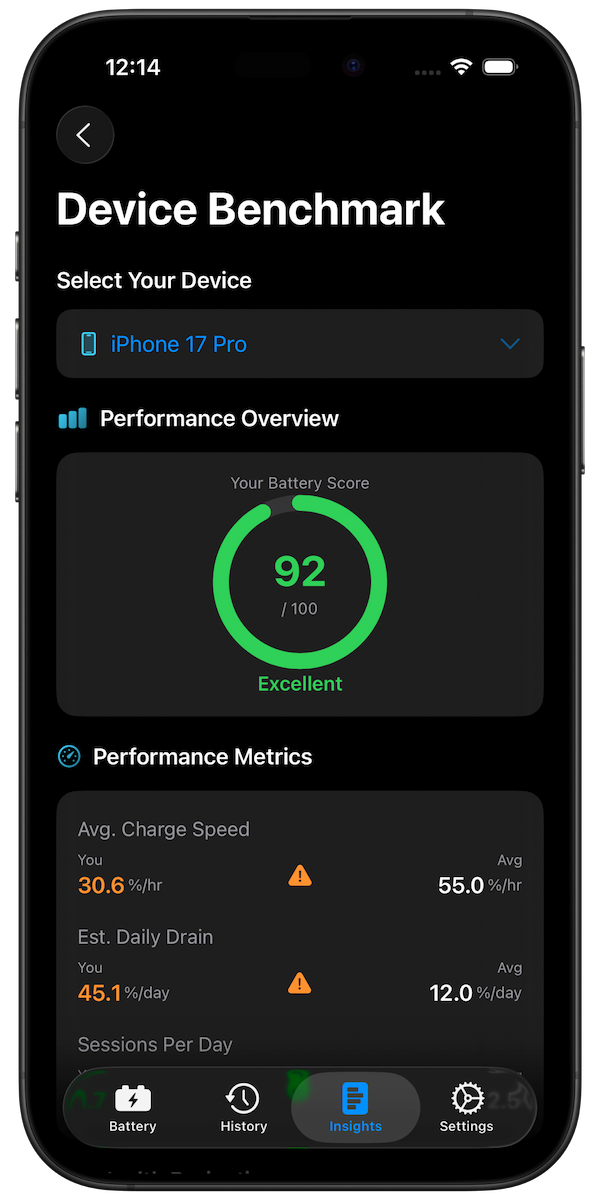
To track your battery drain patterns over time and identify issues, use Battery Health Pro. The app shows:
- Daily and weekly battery usage patterns
- Charging session history with speeds
- Battery health trends and degradation forecast
- Personalized recommendations to improve battery life
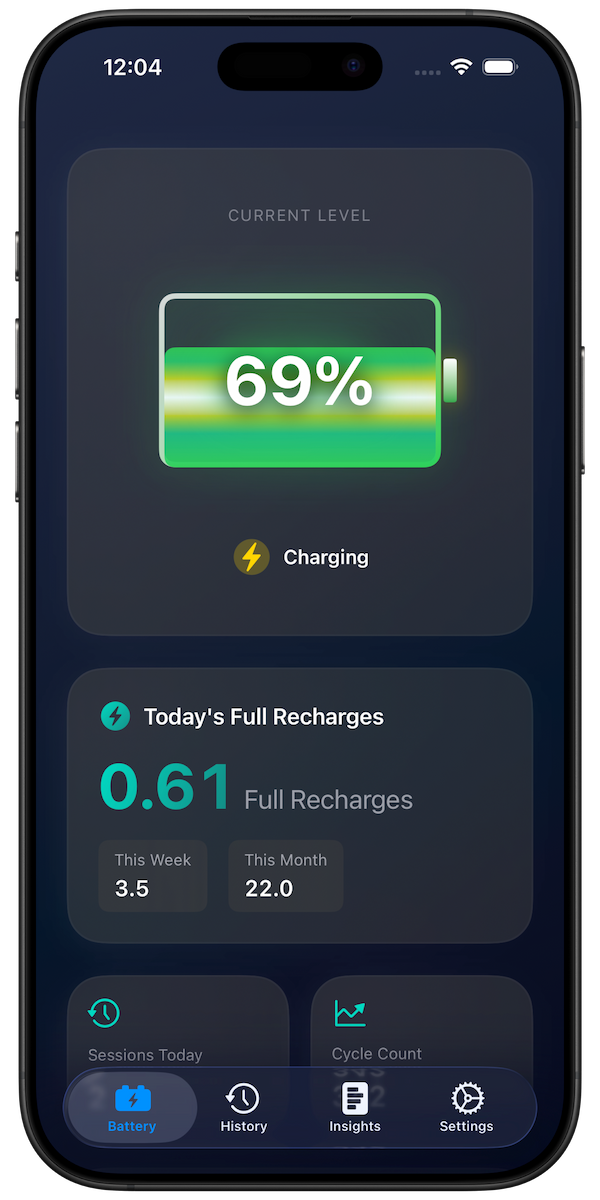
Track your battery usage patterns with Battery Health Pro
Download Battery Health Pro Free
When to Get Help
Contact Apple Support or visit an Apple Store if:
- Battery drains from 100% to 0% in under 4 hours with normal use
- Phone gets excessively hot during normal use
- Battery Health shows "Service" message
- Phone shuts down unexpectedly at 20-30% battery
Conclusion
Most iPhone battery drain issues are caused by settings, apps, or environmental factors you can control. Start with the Battery settings to identify problem apps, then work through the fixes above. For ongoing monitoring, Battery Health Pro helps you track patterns and catch issues early.