Actions
Watch on YouTubeTutorial Details
Actions
Watch on YouTubeTutorial Details
How to Get Your OpenAI API Key - Complete Guide
Learn how to obtain your OpenAI API key with step-by-step instructions. Access GPT models, DALL-E, and other OpenAI services for your applications and projects.
OpenAI's API provides access to powerful AI models like GPT-4, GPT-3.5, DALL-E, and other cutting-edge artificial intelligence services. Getting your API key is the first step to integrating these capabilities into your applications, chatbots, or development projects. This comprehensive guide covers everything you need to know about obtaining and managing OpenAI API keys safely and effectively.
Whether you're building AI-powered applications, conducting research, or exploring machine learning possibilities, having access to OpenAI's API opens up endless possibilities for innovation and automation.
Understanding OpenAI API Keys
OpenAI API keys serve as your authentication credentials for accessing OpenAI services:
- Authentication: Verifies your identity and permissions
- Usage Tracking: Monitors your API consumption and billing
- Access Control: Determines which services and models you can use
- Security: Protects against unauthorized API access
Prerequisites for OpenAI API Access
- OpenAI Account: Valid account with email verification
- Age Verification: Must be 18+ or have parental consent
- Payment Method: Credit card for usage beyond free tier
- Technical Knowledge: Basic understanding of APIs and programming
Solution 1: Create OpenAI Account
Before obtaining API keys, you need an active OpenAI account with proper verification.
Step 1: Access OpenAI Platform
- Open your web browser and navigate to
https://platform.openai.com - Click on "Sign up" in the top-right corner
- Choose your preferred sign-up method (email or Google account)
- If using email, enter your email address and create a strong password
Step 2: Complete Account Verification
- Check your email for a verification message from OpenAI
- Click the verification link in the email
- Complete any additional verification steps (phone number may be required)
- Fill out your profile information as requested
- Set up two-factor authentication for account security
Step 3: Set Up Billing
- In your OpenAI dashboard, navigate to "Billing"
- Add a payment method (credit/debit card)
- Set up billing limits to control costs
- Review pricing for different models and services
Solution 2: Generate API Key via Platform
The primary method for obtaining API keys is through the OpenAI Platform dashboard.
Step 1: Access API Keys Section
- Log in to your OpenAI account at
https://platform.openai.com - Click on your profile picture in the top-right corner
- Select "API Keys" from the dropdown menu
- You can also navigate directly to
https://platform.openai.com/api-keys
Step 2: Create New Secret Key
- On the API keys page, click "Create new secret key"
- A dialog box will appear with key configuration options
- Choose between "User-owned" or "Service Account-owned"
- User-owned keys are tied to your personal account
- Service Account keys are for automated systems and integrations
Step 3: Configure Key Properties
- Name your key: Enter a descriptive name (e.g., "Chatbot Project" or "Development API Key")
- Select project: Choose from available projects or use "Default project"
- Set permissions: Choose from three permission levels:
- All Permissions: Full access to all API features
- Restricted: Limited access with customizable permissions
- Read-Only: View-only access without modification capabilities
Step 4: Configure Restricted Permissions (Optional)
- If you selected "Restricted" permissions, expand the detailed options
- Configure access for different services:
- Model capabilities: Read, write, or no access
- Fine-tuning: Allow or deny model training
- Files: Upload, download, or delete file permissions
- Assistants: Create and manage AI assistants
- Review all permission settings carefully
Step 5: Generate and Secure the Key
- Click "Create secret key" to generate the API key
- Important: Copy the key immediately - it will only be shown once
- Store the key securely using a password manager or encrypted storage
- Never share your API key publicly or commit it to version control
- Click "Done" to close the dialog
Solution 3: Create Project-Specific API Keys
For better organization, create separate API keys for different projects or applications.
Step 1: Create New Project
- In the OpenAI Platform, click on "Projects" in the sidebar
- Click "Create project"
- Enter a project name and description
- Set up project-specific settings and limits
Step 2: Generate Project API Key
- Navigate to the API keys section within your project
- Click "Create new secret key"
- The key will be automatically scoped to the current project
- Configure permissions specific to this project's needs
Advanced API Key Management
Learn to manage multiple API keys effectively and securely.
Key Organization Strategies
- Naming Convention: Use descriptive names like "Production-Chatbot-v1" or "Development-API"
- Environment Separation: Different keys for development, staging, and production
- Permission Levels: Restrict permissions based on use case
- Regular Rotation: Replace keys periodically for security
Security Best Practices
- Never Expose Keys: Don't include API keys in client-side code or public repositories
- Use Environment Variables: Store keys as environment variables in your applications
- Implement Rate Limiting: Monitor and limit API usage to prevent abuse
- Enable Monitoring: Set up alerts for unusual API activity
Troubleshooting API Key Issues
Resolve common problems when working with OpenAI API keys:
Issue: API Key Not Working
Problem: API requests fail with authentication errors.
Solutions:
- Verify the API key is copied correctly without extra spaces
- Check if the key has expired or been revoked
- Ensure you're using the correct API endpoint and headers
- Confirm your account has sufficient credits or billing setup
- Test with a simple API call to isolate the issue
Issue: Permission Denied Errors
Problem: API returns permission errors despite having a valid key.
Solutions:
- Check the API key's permission settings in the dashboard
- Ensure the key has access to the requested model or service
- Verify you're using the correct project and organization
- Regenerate the key with appropriate permissions
Issue: Rate Limit Exceeded
Problem: API requests are being throttled due to rate limits.
Solutions:
- Implement proper rate limiting in your application
- Upgrade to a higher usage tier if needed
- Spread requests over time to avoid bursts
- Use batch requests where possible
- Monitor your usage in the OpenAI dashboard
Issue: Billing or Payment Problems
Problem: API access blocked due to billing issues.
Solutions:
- Verify your payment method is valid and up to date
- Check your account balance and usage limits
- Set up billing alerts to avoid unexpected blocks
- Contact OpenAI support if billing issues persist
Issue: Key Compromised
Problem: Suspected unauthorized use of your API key.
Solutions:
- Immediately revoke the compromised key in the dashboard
- Generate a new key with restricted permissions
- Monitor your usage for suspicious activity
- Update all applications using the old key
- Review your security practices to prevent future compromises
Best Practices for API Key Usage
Follow these guidelines to maximize security and efficiency:
Development Environment
- Use Test Keys: Create separate keys for development and testing
- Environment Variables: Never hardcode API keys in source code
- Version Control: Use .env files and .gitignore to exclude sensitive data
- Local Testing: Test API integrations locally before deployment
Production Deployment
- Restricted Permissions: Use minimal required permissions in production
- Key Rotation: Regularly rotate API keys for security
- Monitoring: Implement logging and monitoring for API usage
- Backup Keys: Maintain backup keys for continuity
Cost Management
- Usage Monitoring: Track API usage and costs regularly
- Budget Limits: Set spending limits to prevent unexpected charges
- Efficient Coding: Optimize API calls to reduce costs
- Free Tier: Utilize free credits effectively before paid usage
Getting Started with OpenAI API
Once you have your API key, here's how to start using OpenAI services:
Basic API Integration
- Choose Your Model: Select appropriate models (GPT-4, GPT-3.5-turbo, etc.)
- API Documentation: Study the official OpenAI API documentation
- SDK Installation: Use official SDKs for Python, Node.js, or other languages
- Test Calls: Make your first API calls to ensure everything works
Popular Use Cases
- Chat Applications: Build conversational AI assistants
- Content Generation: Create articles, stories, and marketing copy
- Code Assistance: Get help with programming and debugging
- Data Analysis: Process and analyze large datasets
- Image Generation: Create images with DALL-E
Alternative AI Services
If OpenAI doesn't meet your needs, consider these alternatives:
Other AI Providers
- Anthropic Claude: Alternative large language model with strong reasoning
- Google Gemini: Google's AI model with multimodal capabilities
- Meta Llama: Open-source models available through various providers
- Mistral AI: European AI provider with privacy-focused approach
Self-Hosted Solutions
- Local Models: Run AI models on your own hardware
- Private Cloud: Deploy AI services in your own infrastructure
- Open-Source Alternatives: Use models like GPT-J or other open implementations
Related Tutorials
- How to Create Gmail Account Without Phone Number - Alternative email account creation methods.
- How to Install and Run Jupyter Notebook - Set up Python development environment for AI projects.
- How to Set Up VS Code for Python Development - Configure IDE for AI and machine learning development.
Conclusion
Obtaining your OpenAI API key is the gateway to accessing some of the most advanced AI capabilities available today. By following this comprehensive guide, you'll be able to generate, configure, and manage API keys securely while understanding the various permission levels and best practices for different use cases.
Remember that API key security is paramount - never expose your keys publicly, use appropriate permission restrictions, and regularly monitor your usage. Whether you're building the next big AI application or exploring machine learning possibilities, proper API key management ensures you can work safely and efficiently.
As AI technology continues to evolve, staying updated with OpenAI's latest features and maintaining good security practices will help you make the most of these powerful tools. Start with small projects, monitor your usage carefully, and scale up as you become more comfortable with the platform.
Tags
Related Tutorials

How to Install Java and Set Up JDK on Windows - Complete Guide
Complete Java installation guide for Windows including JDK setup, environment variables configuration, and verification for development.
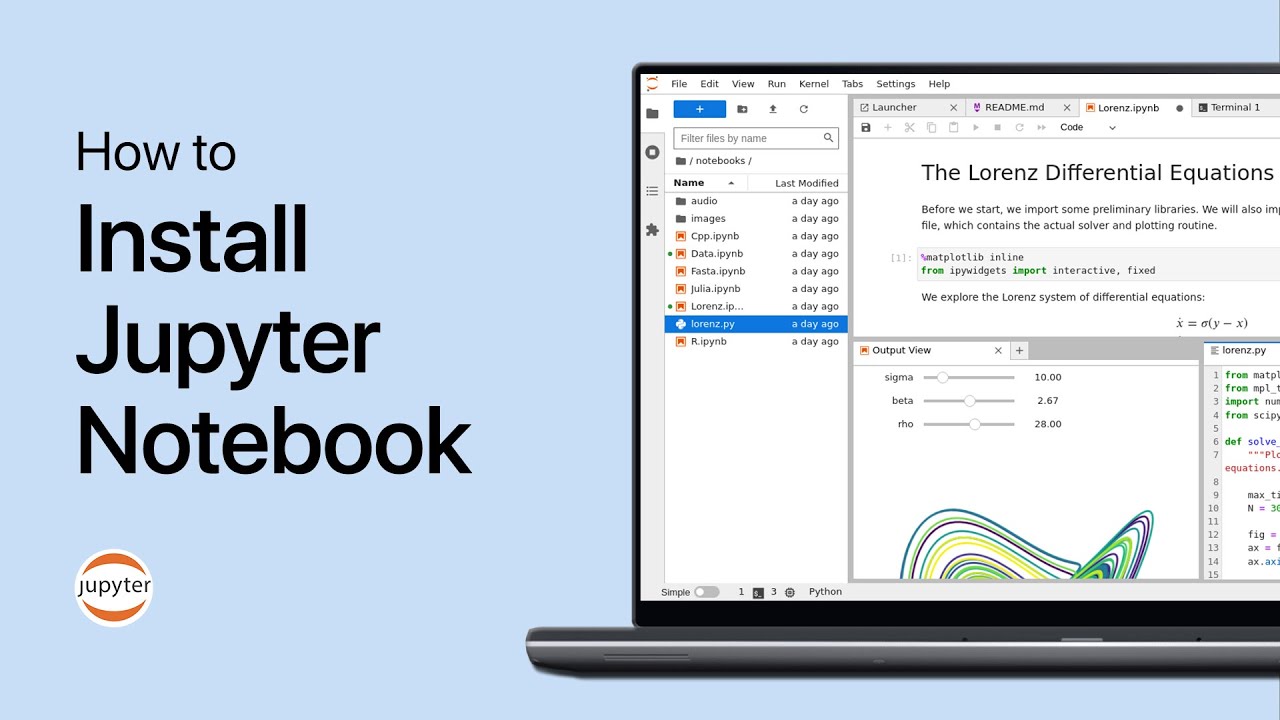
How to Install and Run Jupyter Notebook - Complete Guide
Complete Jupyter Notebook installation guide with Python setup, pip installation, and interactive coding environment for data science projects.

How to Fix 'Python Not Recognized' Error in Windows Command Prompt
Resolve Python command prompt errors by locating Python installation path and configuring environment variables for proper command line access.

How to Set Up Visual Studio Code for Python Development
Complete VS Code Python setup guide with extensions installation, virtual environment configuration, and debugging setup for professional development.