Actions
Watch on YouTubeTutorial Details
Actions
Watch on YouTubeTutorial Details
How to Restore Lost Photos After iOS Update - Complete Guide
Learn how to recover lost photos after iOS update with restart, check Recently Deleted, restore from iCloud backup, use iTunes/Finder backup, and recover from other sources.
iOS update photo loss represents a critical data recovery challenge that can cause significant distress to users who rely on their mobile devices for personal and professional photography. The update process, while designed to enhance device functionality and security, can sometimes interfere with photo organization and accessibility, leading to temporary or permanent photo disappearance. Understanding the systematic recovery approaches ensures comprehensive data restoration and prevention of future photo loss incidents.
This comprehensive guide explores the complete photo recovery ecosystem following iOS updates, covering immediate troubleshooting, backup restoration, cloud recovery, and advanced data retrieval techniques that maximize photo recovery success rates and prevent future data loss scenarios.
Understanding iOS Update Photo Loss
iOS update photo disappearance encompasses multiple potential causes:
- Temporary Glitches: Update-related system instabilities causing photo hiding
- Sync Interruptions: iCloud synchronization conflicts during update process
- Storage Reorganization: Photo library restructuring causing temporary inaccessibility
- App Compatibility: Photos app conflicts with updated iOS version
- Cache Corruption: System cache issues affecting photo display
Prerequisites for Photo Recovery
- iCloud Backup: Recent iCloud backup containing lost photos
- Computer Backup: iTunes or Finder backup with photo data
- Apple ID Access: Valid Apple ID with iCloud photo library enabled
- Storage Space: Sufficient device storage for photo restoration
- Internet Connection: Stable connectivity for cloud recovery operations
Solution 1: Restart iPhone
Implement immediate hardware reset to resolve temporary system glitches.
Step 1: Initiate Force Restart
- Locate volume buttons on device side
- Press and quickly release volume up button
- Press and quickly release volume down button
- Press and hold power button until Apple logo appears
- Wait for device to complete restart process
Step 2: Verify Photo Restoration
- Open Photos app from home screen
- Navigate through different album categories
- Check Recently Added and All Photos albums
- Scroll through photo library to verify restoration
- Test photo access and viewing functionality
Solution 2: Check Recently Deleted Album
Recover photos from automatic deletion buffer before permanent removal.
Step 1: Access Recently Deleted
- Open Photos app on device
- Navigate to Albums tab at bottom
- Scroll down to find Recently Deleted album
- Tap to open Recently Deleted folder
- Review available photos for recovery
Step 2: Recover Desired Photos
- Select individual photos or tap "Select All"
- Tap "Recover" button in bottom-right corner
- Confirm recovery action when prompted
- Wait for recovery process to complete
- Verify recovered photos in main photo library
Step 3: Manage Recovery Timeline
- Note 30-day recovery window for deleted photos
- Prioritize most important photos for immediate recovery
- Monitor Recently Deleted album regularly
- Empty Recently Deleted only when certain of recovery
- Document successful recovery procedures
Solution 3: Restore from iCloud Backup
Recover complete photo library from iCloud backup storage.
Step 1: Verify iCloud Backup
- Open Settings app on device
- Tap Apple ID banner at top of screen
- Select "iCloud" from available options
- Tap "Manage Storage" then "Backups"
- Verify recent backup containing photo data
Step 2: Initiate Restore Process
- Go to Settings > General > Transfer or Reset iPhone
- Tap "Erase All Content and Settings"
- Follow setup process until "Apps & Data" screen
- Select "Restore from iCloud Backup"
- Sign in to iCloud and select appropriate backup
Step 3: Complete Photo Restoration
- Wait for backup download and restoration
- Monitor restoration progress on screen
- Verify photo library restoration upon completion
- Test photo access and organization
- Reconfigure device settings as needed
Solution 4: Restore from Computer Backup
Recover photos using iTunes or Finder backup restoration.
Step 1: Connect to Computer
- Connect iPhone to computer using USB cable
- Launch iTunes (Windows) or Finder (Mac)
- Select device icon when it appears
- Navigate to device summary or general settings
- Verify computer recognizes connected device
Step 2: Initiate Backup Restore
- Click "Restore Backup" in device settings
- Select most recent backup containing photos
- Confirm restore action and enter password if required
- Wait for restoration process to complete
- Disconnect device when restoration finishes
Step 3: Verify Photo Recovery
- Open Photos app on restored device
- Check all album categories for recovered photos
- Verify photo quality and metadata preservation
- Test photo sharing and export functionality
- Document successful recovery procedures
Solution 5: Recover from iCloud.com
Access and download photos directly from iCloud web interface.
Step 1: Access iCloud Web
- Open web browser on computer
- Navigate to icloud.com
- Sign in with Apple ID and password
- Complete two-factor authentication if prompted
- Access iCloud Photos section
Step 2: Download Photos
- Select desired photos or albums
- Click download icon in top-right corner
- Choose download format and quality
- Wait for download process to complete
- Transfer downloaded photos to device if needed
Solution 6: Professional Data Recovery
Utilize specialized services for complex photo recovery scenarios.
Step 1: Assess Recovery Options
- Evaluate importance of lost photos
- Research reputable data recovery services
- Check Apple authorized service provider options
- Compare service costs and success rates
- Prepare device and backup information
Step 2: Contact Apple Support
- Visit Apple Support website or app
- Describe photo loss incident and iOS update details
- Provide device information and backup status
- Follow Apple support troubleshooting recommendations
- Schedule Genius Bar appointment if needed
iOS Photo Recovery Ecosystem
Understanding the broader iOS photo management and recovery framework:
iOS Photo Storage Architecture
- Local Storage: Device-based photo storage with optimization features
- iCloud Integration: Cloud-based photo backup and synchronization
- Photo Library: Organized photo management with smart categorization
- Backup Systems: Multiple backup options for comprehensive data protection
- Recovery Mechanisms: Built-in recovery tools and recently deleted functionality
iCloud Photo Features
- iCloud Photos: Automatic photo upload and synchronization
- Shared Albums: Collaborative photo sharing and management
- Photo Stream: Cross-device photo sharing and access
- Family Sharing: Multi-user photo library management
- Advanced Backup: Comprehensive device backup with photo preservation
Update-Related Recovery Challenges
- Compatibility Issues: Photo app conflicts with updated iOS version
- Sync Interruptions: iCloud synchronization disruptions during update
- Storage Reallocation: Photo library reorganization causing temporary issues
- Cache Corruption: System cache problems affecting photo display
- Permission Changes: Updated privacy settings affecting photo access
Troubleshooting iOS Update Photo Issues
Resolve common photo loss and recovery problems after iOS updates:
Photos Not Appearing After Update
Problem: Photo library empty or inaccessible after iOS update.
Solutions:
- Force restart device to clear temporary update glitches
- Check iCloud Photo Library sync status and settings
- Verify photo storage optimization settings
- Reset Photos app location permissions
- Update to latest iOS version for bug fixes
iCloud Sync Problems
Problem: Photos not syncing properly after iOS update.
Solutions:
- Toggle iCloud Photos off and on in settings
- Sign out and back into iCloud account
- Check iCloud storage space and upgrade if needed
- Verify internet connection stability for sync
- Wait for automatic sync completion (may take hours)
Backup Restoration Issues
Problem: iCloud or iTunes backup not restoring photos correctly.
Solutions:
- Verify backup contains photo data before restoration
- Check device storage space for restoration requirements
- Ensure stable internet connection during iCloud restore
- Try alternative restoration method if primary fails
- Contact Apple support for complex backup issues
Recently Deleted Empty
Problem: Recently Deleted album not showing lost photos.
Solutions:
- Check if photos were permanently deleted before 30-day window
- Verify Recently Deleted is enabled in Photos settings
- Try accessing Recently Deleted from different device signed into same iCloud
- Check if photos are in different album categories
- Use alternative recovery methods if Recently Deleted is empty
Photo Quality Degradation
Problem: Recovered photos appear compressed or lower quality.
Solutions:
- Check Optimize iPhone Storage setting in Photos preferences
- Disable storage optimization temporarily for full resolution
- Download original photos from iCloud.com for highest quality
- Check backup source for original photo quality preservation
- Use professional recovery services for quality-critical photos
Best Practices for iOS Photo Protection
Implement comprehensive photo protection and recovery strategies:
Prevention Strategies
- Regular Backups: Maintain current iCloud and computer backups
- iCloud Photos: Enable automatic photo upload and sync
- Storage Monitoring: Track device storage and iCloud space usage
- Update Planning: Backup before major iOS updates
- Multiple Copies: Store important photos in multiple locations
Recovery Preparedness
- Backup Verification: Regularly test backup integrity and accessibility
- Recovery Knowledge: Familiarize with all recovery methods
- Emergency Contacts: Keep Apple support information accessible
- Alternative Storage: Use external storage options for critical photos
- Documentation: Record backup procedures and recovery steps
Maintenance and Monitoring
- Regular Checks: Periodically verify photo library integrity
- Storage Optimization: Manage device storage to prevent issues
- Update Monitoring: Stay informed about iOS update photo-related changes
- App Maintenance: Keep Photos app and related apps updated
- System Health: Monitor overall device performance and storage
iOS Photo Recovery Technology Evolution
Understanding the development of iOS photo storage and recovery systems:
Current Recovery Capabilities
- Advanced Backup: Comprehensive iCloud and computer backup integration
- Smart Recovery: Intelligent photo restoration with metadata preservation
- Cloud Integration: Seamless iCloud photo library synchronization
- Cross-Device Access: Unified photo access across Apple ecosystem
- AI Enhancement: Machine learning-powered photo organization and search
Future Photo Protection Developments
- Enhanced Backup: More sophisticated backup and recovery systems
- AI Recovery: Machine learning-powered photo restoration
- Blockchain Security: Advanced photo authenticity and protection
- Quantum Storage: Next-generation data storage and recovery
- Universal Access: Cross-platform photo ecosystem integration
Ecosystem Integration
- Apple Ecosystem: Unified photo experience across all Apple devices
- Cloud Services: Advanced iCloud photo features and capabilities
- Third-Party Integration: Expanded compatibility with photo services
- Professional Tools: Advanced photo management and recovery software
- Security Features: Enhanced photo privacy and protection measures
Related Tutorials
- How to Use Updated Photos App on iPhone - iOS Photos app features.
- How to Fix Bluetooth Connection Problems on iPhone - iOS connectivity issues.
- How to Use Eye Tracking and Accessibility Features on iPhone - iOS accessibility features.
Conclusion
iOS update photo loss represents a solvable challenge that requires systematic recovery approaches and preventive strategies. The multi-layered recovery framework ensures comprehensive photo restoration through device resets, cloud backups, and professional recovery services.
The combination of built-in recovery tools like Recently Deleted, comprehensive backup systems including iCloud and iTunes, and web-based recovery options through iCloud.com provides users with multiple pathways for photo restoration. Each method addresses different scenarios and ensures maximum recovery potential.
As iOS continues to evolve with enhanced photo management features and more sophisticated backup systems, the recovery techniques remain fundamentally sound while incorporating new technological capabilities. The integration of AI-powered photo organization and advanced cloud storage ensures that photo recovery becomes increasingly reliable and user-friendly.
For iPhone users experiencing photo loss after iOS updates, implementing this comprehensive recovery approach provides the foundation for successful data restoration and future photo protection across the Apple ecosystem.
Tags
Related Tutorials

How to Change App Icon Size in iOS 26 (iPhone)
Step-by-step guide to changing app icon sizes on iOS 26, including toggling between small and large icons and customizing your home screen layout.
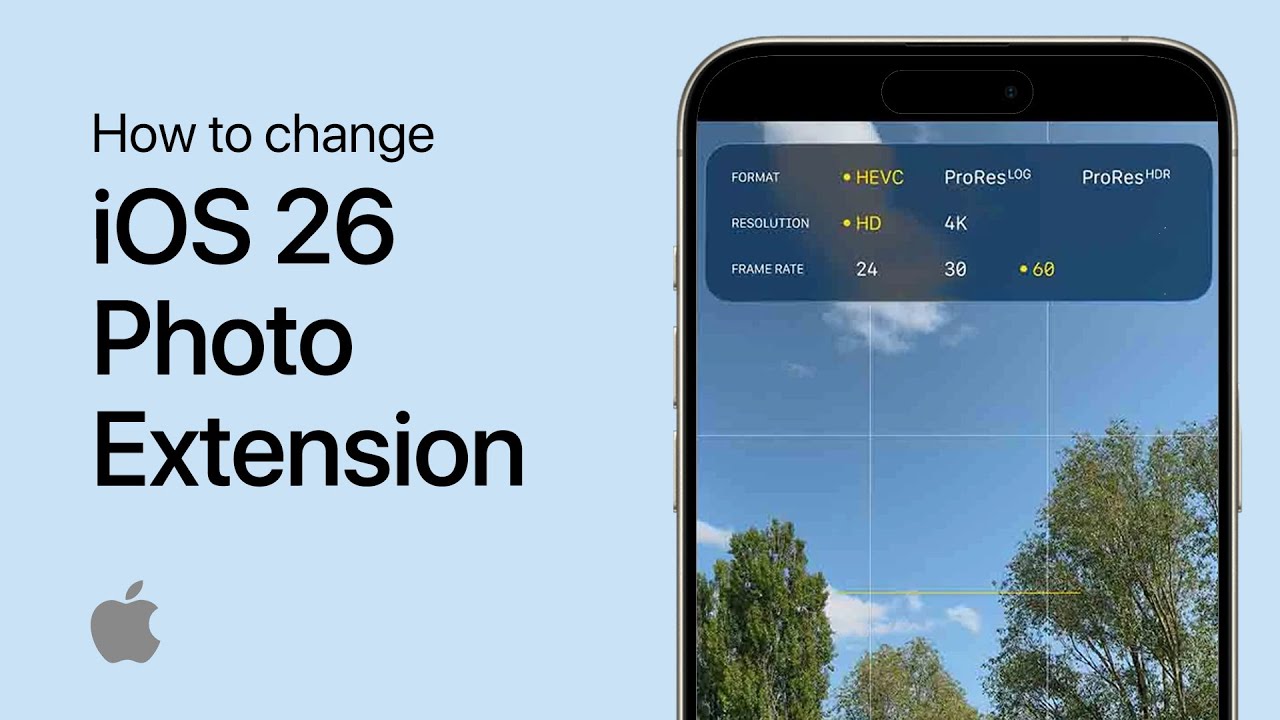
How to Change iOS 26 Camera Photo Extension (Format)
Step-by-step guide to changing camera photo formats in iOS 26, including HEIF vs JPEG settings and ProRAW/ProRes options for professional photography.
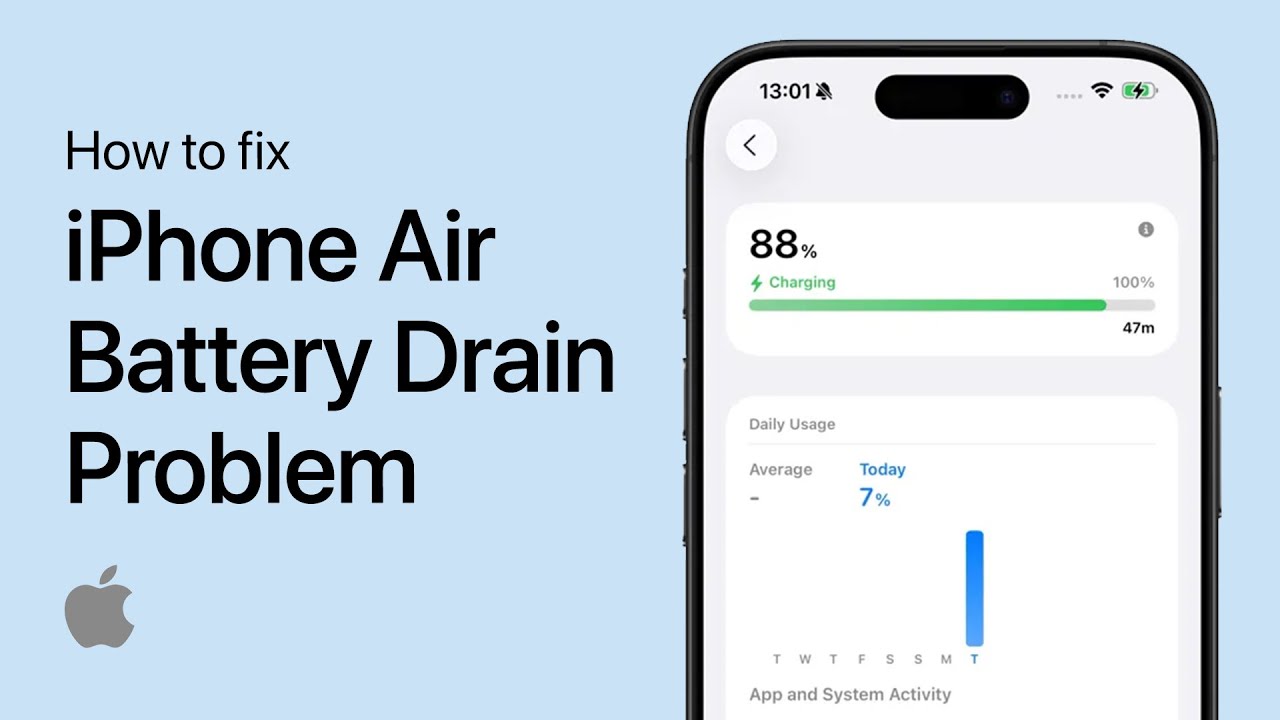
How to Fix iPhone Air Battery Draining Fast - Quick Guide
Step-by-step guide to fixing iPhone Air battery drain problems, including app management, settings optimization, and battery health monitoring for longer battery life.
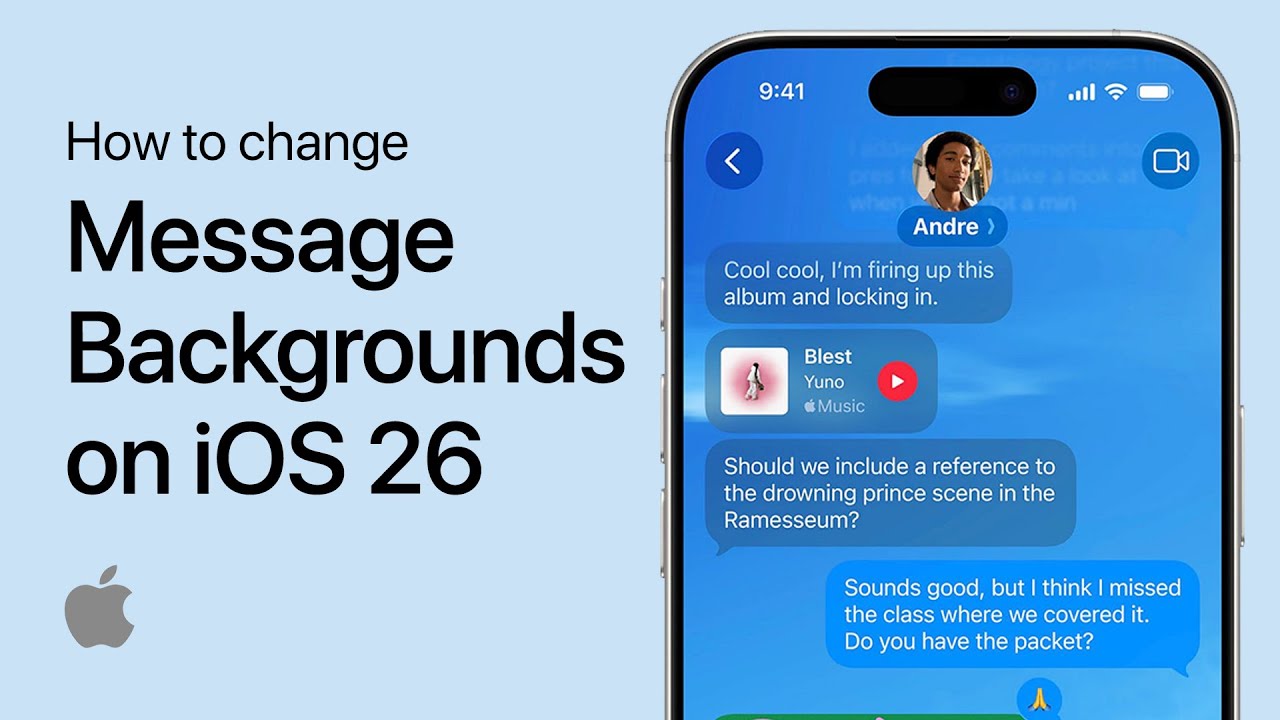
How to Change Message Backgrounds in iOS 26 (iPhone)
Complete guide to customizing iMessage backgrounds in iOS 26, including photo selection, color themes, and animated backgrounds for personalized conversations.