Actions
Watch on YouTubeTutorial Details
Actions
Watch on YouTubeTutorial Details
How to Fix Wi-Fi Connection Problems on iPhone - Complete Guide
Learn how to fix Wi-Fi connectivity issues on iPhone with restart device, forget network, reset network settings, update iOS, router reset, and DNS change.
iPhone Wi-Fi connectivity issues represent one of the most common wireless networking challenges that can significantly disrupt internet access and online functionality. The iPhone's dependence on stable Wi-Fi connections makes troubleshooting these issues a critical skill for maintaining optimal device performance. Understanding the systematic approach to Wi-Fi problem resolution ensures reliable internet connectivity and seamless online access.
This comprehensive guide explores the complete Wi-Fi troubleshooting ecosystem for iPhone devices, covering hardware resets, network reconfiguration, software updates, router management, and advanced diagnostic techniques that ensure consistent and reliable wireless connectivity.
Understanding iPhone Wi-Fi System
iPhone Wi-Fi connectivity encompasses multiple technological dimensions:
- Wireless Standards: Support for Wi-Fi 6, 5, and legacy protocols
- Network Management: Automatic connection handling and network switching
- Security Integration: WPA3, WPA2, and enterprise security protocol support
- Performance Optimization: Adaptive connectivity and bandwidth management
- Power Management: Energy-efficient Wi-Fi operation and sleep modes
- Return to iCloud settings main screen
- Tap "iCloud Backup" option
- Check "Last Backup" date and time
- Ensure backup includes recent shortcut changes
- Verify backup completed successfully
Step 3: Restore from Backup
- Go to Settings > General > Transfer or Reset iPhone
- Tap "Erase All Content and Settings"
- Follow setup process until "Apps & Data" screen
- Select "Restore from iCloud Backup"
- Choose backup containing shortcuts and restore
Solution 4: Reinstall Shortcuts
Download and reinstall shortcuts from App Store or Gallery.
Step 1: Access Shortcuts Gallery
- Open Shortcuts app on device
- Tap "Gallery" tab at bottom
- Browse available shortcut categories
- Search for specific shortcut names
- Look for shortcuts you previously downloaded
Step 2: Redownload Shortcuts
- Tap on desired shortcut in Gallery
- Review shortcut details and requirements
- Tap "Get Shortcut" button
- Grant any requested permissions
- Add shortcut to library when downloaded
Step 3: Restore Custom Shortcuts
- Check if custom shortcuts were shared via iCloud
- Ask friends/family if they have backup copies
- Recreate simple shortcuts from memory
- Use shortcut sharing features for complex automations
- Document custom shortcuts for future reference
Solution 5: Check Automation Settings
Verify automation permissions and settings for shortcut functionality.
Step 1: Review Automation Permissions
- Open Settings app and scroll to Shortcuts
- Tap "Shortcuts" in the app list
- Review "Allow Untrusted Shortcuts" setting
- Check "Use with Ask" vs "Allow Access" permissions
- Verify location and notification permissions
Step 2: Reset Shortcut Permissions
- Scroll down in Shortcuts settings
- Tap "Reset Shortcut Permissions"
- Confirm reset action when prompted
- Re-grant permissions when shortcuts run
- Test shortcut functionality after reset
Solution 6: Troubleshoot App Issues
Resolve Shortcuts app problems that may cause shortcut visibility issues.
Step 1: Restart Shortcuts App
- Swipe up from bottom and pause (iPhone with Home button)
- Or swipe up from bottom edge and swipe Shortcuts away (iPhone X and later)
- Wait a few seconds for app to fully close
- Tap Shortcuts icon to reopen app
- Check if shortcuts now appear correctly
Step 2: Update Shortcuts App
- Open App Store on device
- Tap profile icon in top-right corner
- Scroll down to see available updates
- Look for Shortcuts app update
- Tap "Update" if available
Step 3: Reinstall Shortcuts App
- Press and hold Shortcuts app icon
- Tap "Remove App" then "Delete App"
- Confirm deletion when prompted
- Restart iPhone to clear app cache
- Reinstall Shortcuts from App Store
iPhone Shortcuts Ecosystem Framework
Understanding the broader iOS automation and shortcut architecture:
Shortcuts App Architecture
- Library Organization: Personal and downloaded shortcut collections
- Gallery Integration: Access to pre-built automation tools
- iCloud Sync: Cross-device shortcut synchronization
- Automation Engine: Background execution of complex workflows
- App Integration: Deep integration with iOS and third-party apps
Shortcut Categories and Types
- Personal Automations: User-created custom workflows
- App Shortcuts: Integration with specific applications
- System Shortcuts: Built-in iOS automation tools
- Shared Shortcuts: Community-created automation solutions
- Automation Shortcuts: Background-running automated tasks
iCloud Integration Features
- Cross-Device Sync: Shortcuts available on all Apple devices
- Backup Protection: Automatic backup of personal shortcuts
- Sharing Capabilities: Share shortcuts with other users
- Version Control: Track changes to shortcut modifications
- Recovery Options: Restore shortcuts from iCloud backups
Troubleshooting Common Shortcut Issues
Resolve frequent shortcut disappearance and functionality problems:
Shortcuts Not Appearing
Problem: Shortcuts missing from app library despite being created.
Solutions:
- Check Shortcuts app search functionality
- Verify shortcuts aren't in different folders
- Restart Shortcuts app to refresh display
- Check iCloud sync status for all devices
- Reset home screen layout to restore visibility
iCloud Sync Problems
Problem: Shortcuts not syncing across Apple devices.
Solutions:
- Verify iCloud account is signed in on all devices
- Check Shortcuts toggle is enabled in iCloud settings
- Force close and reopen Shortcuts app
- Check iCloud storage space availability
- Sign out and back into iCloud to refresh sync
Permission-Related Issues
Problem: Shortcuts failing due to permission restrictions.
Solutions:
- Review and reset shortcut permissions in Settings
- Enable "Allow Untrusted Shortcuts" if needed
- Grant specific app permissions when requested
- Check location and notification permissions
- Update iOS to ensure compatibility
App Update Conflicts
Problem: Shortcuts disappear after iOS or app updates.
Solutions:
- Check for Shortcuts app updates in App Store
- Restart device after system updates
- Verify shortcut compatibility with new iOS version
- Re-download shortcuts from Gallery if needed
- Check Apple support forums for known issues
Storage Space Issues
Problem: Shortcuts not saving due to insufficient storage.
Solutions:
- Check device storage space in Settings > General > iPhone Storage
- Delete unnecessary files and apps to free space
- Offload unused apps to create more room
- Clear app caches and temporary files
- Consider iCloud storage upgrade if needed
Best Practices for Shortcut Management
Implement comprehensive shortcut organization and protection strategies:
Organization Strategies
- Folder Organization: Group related shortcuts in folders
- Naming Conventions: Use consistent and descriptive names
- Regular Backup: Maintain current iCloud backups
- Documentation: Record complex shortcut purposes and steps
- Version Control: Track important shortcut modifications
Maintenance and Care
- Regular Updates: Keep Shortcuts app and iOS current
- Permission Management: Review and update shortcut permissions
- Storage Monitoring: Monitor device and iCloud storage usage
- Cross-Device Sync: Verify shortcuts sync across all devices
- Performance Testing: Regularly test shortcut functionality
Recovery Preparedness
- Backup Verification: Regularly check iCloud backup contents
- Shortcut Documentation: Maintain list of important shortcuts
- Alternative Access: Know multiple ways to access shortcuts
- Community Resources: Bookmark helpful shortcut forums and sites
- Support Knowledge: Familiarize with Apple support resources
iPhone Shortcuts Technology Evolution
Understanding the development of iOS automation and shortcut capabilities:
Current Automation Features
- Advanced Actions: Complex multi-step automation sequences
- App Integration: Deep integration with iOS and third-party apps
- Personal Automations: Background-running automated tasks
- Cross-Device Sync: Seamless synchronization across Apple ecosystem
- Community Gallery: Shared shortcuts from developers and users
Future Automation Developments
- AI Integration: Machine learning-powered automation suggestions
- Advanced Triggers: More sophisticated automation activation methods
- Cross-Platform Support: Automation extending beyond Apple ecosystem
- Voice Integration: Enhanced Siri shortcut capabilities
- Pro Features: Advanced automation tools for power users
Ecosystem Integration
- iOS Integration: Deep integration with system features and apps
- Developer Tools: APIs for third-party app integration
- Community Platform: User-created and shared automation solutions
- Education Resources: Learning materials and tutorial content
- Enterprise Support: Business and organizational automation tools
Related Tutorials
- How to Fix Bluetooth Connection Problems on iPhone - iOS connectivity issues.
- How to Restore Lost Photos After iOS Update - iOS data recovery.
- How to Use Updated Photos App on iPhone - iOS app features.
Conclusion
iPhone shortcut disappearance represents a solvable organizational challenge that requires systematic recovery approaches and preventive management strategies. The multi-layered recovery framework ensures comprehensive shortcut restoration through app searches, home screen reorganization, backup recovery, and permission management.
The combination of built-in recovery tools within the Shortcuts app, iCloud synchronization capabilities, and backup restoration options provides users with multiple pathways for automation recovery. Each method addresses different scenarios and ensures maximum shortcut rediscovery potential.
As iOS automation capabilities continue to evolve with more sophisticated features and deeper system integration, the recovery techniques remain fundamentally sound while incorporating new technological capabilities. The integration of advanced automation features and intelligent organization systems ensures that shortcut management becomes increasingly reliable and user-friendly.
For iPhone users experiencing shortcut disappearance challenges, implementing this comprehensive recovery approach provides the foundation for reliable automation access and personalized workflow management across the Apple ecosystem.
Tags
Related Tutorials
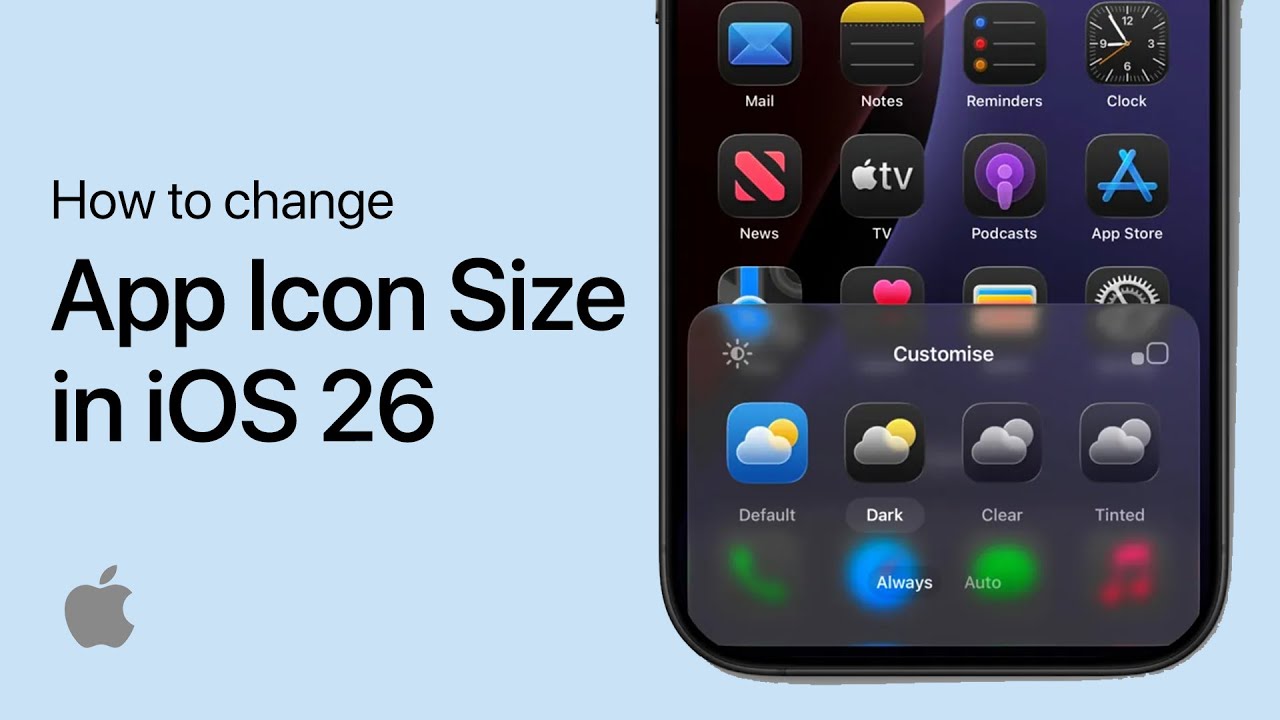
How to Change App Icon Size in iOS 26 (iPhone)
Step-by-step guide to changing app icon sizes on iOS 26, including toggling between small and large icons and customizing your home screen layout.

How to Change iOS 26 Camera Photo Extension (Format)
Step-by-step guide to changing camera photo formats in iOS 26, including HEIF vs JPEG settings and ProRAW/ProRes options for professional photography.
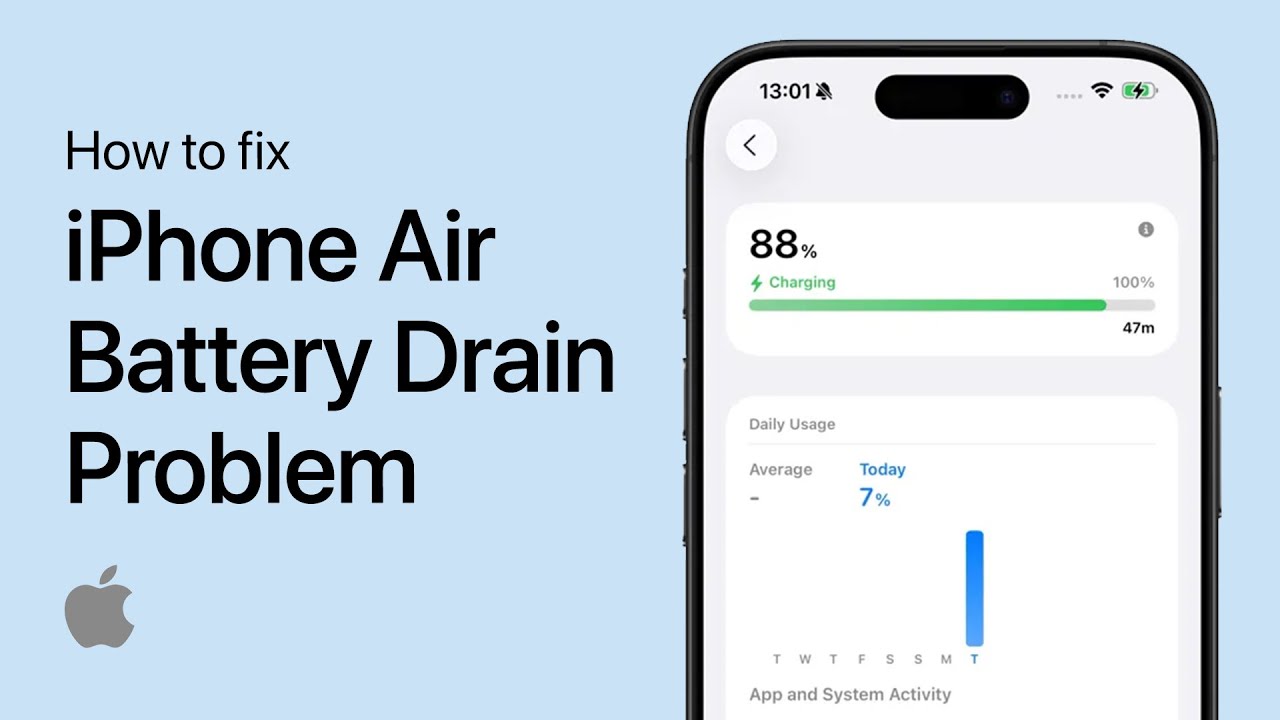
How to Fix iPhone Air Battery Draining Fast - Quick Guide
Step-by-step guide to fixing iPhone Air battery drain problems, including app management, settings optimization, and battery health monitoring for longer battery life.
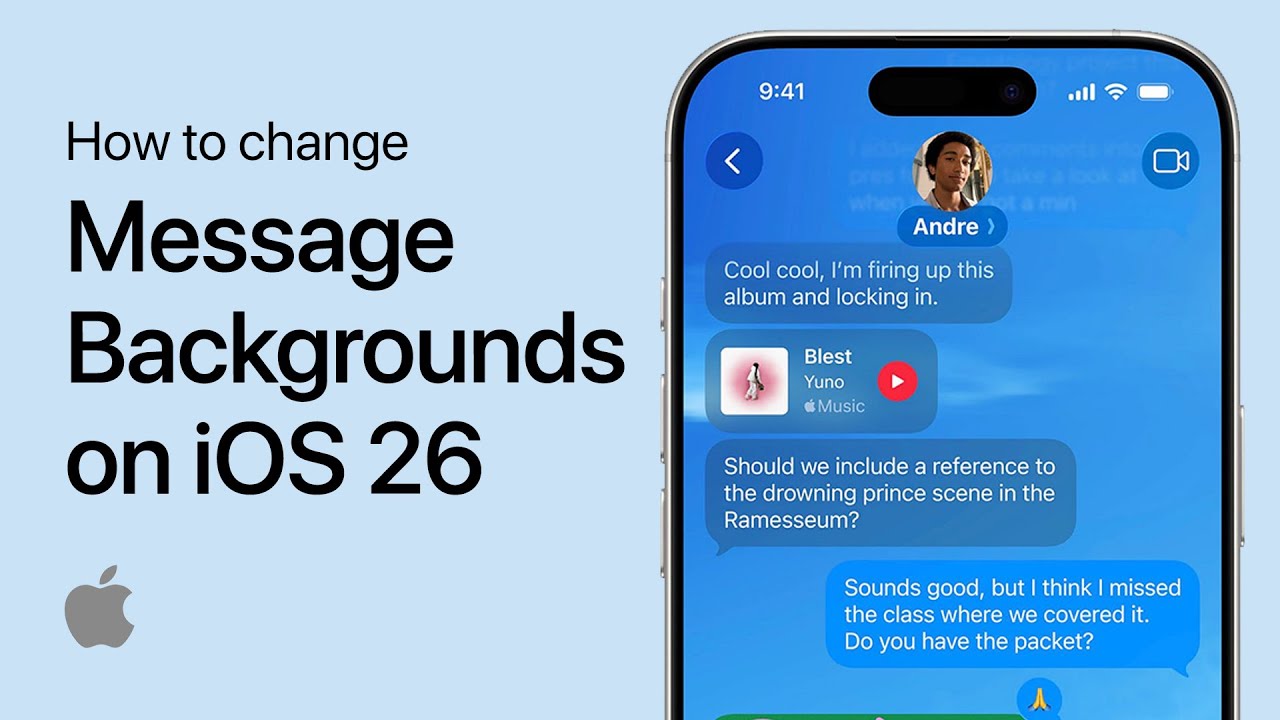
How to Change Message Backgrounds in iOS 26 (iPhone)
Complete guide to customizing iMessage backgrounds in iOS 26, including photo selection, color themes, and animated backgrounds for personalized conversations.