Actions
Watch on YouTubeTutorial Details
Actions
Watch on YouTubeTutorial Details
How to Fix iPhone Not Vibrating on Incoming Calls - Complete Guide
Learn how to fix iPhone vibration issues on incoming calls with check silent mode, adjust vibration settings, clean charging port, update iOS, and hardware troubleshooting.
iPhone vibration functionality represents a critical communication feature that ensures users don't miss important calls in quiet environments or when audio alerts aren't appropriate. The vibration motor provides tactile feedback for incoming calls, notifications, and alerts, making its proper functioning essential for optimal device usability. Understanding the systematic approach to vibration troubleshooting ensures reliable tactile feedback across all iPhone operations.
This comprehensive guide explores the complete vibration troubleshooting ecosystem for iPhone devices, covering hardware switches, software settings, physical maintenance, system updates, and advanced diagnostic techniques that ensure consistent vibration functionality for incoming calls and other alerts.
Understanding iPhone Vibration System
iPhone vibration technology encompasses multiple operational dimensions:
- Tactile Motor: Linear vibration motor for precise haptic feedback
- System Integration: Deep integration with iOS notification and call systems
- Power Management: Energy-efficient operation with adaptive vibration patterns
- Custom Patterns: User-customizable vibration alerts for different contacts
- Accessibility Features: Enhanced vibration options for users with hearing impairments
Prerequisites for Vibration Troubleshooting
- Silent Mode Check: Verify device is not in silent mode
- Battery Status: Ensure adequate battery charge for vibration motor
- Physical Inspection: Check for visible damage or obstruction
- Software Updates: Latest iOS version for vibration compatibility
- Settings Access: Ability to modify sound and vibration preferences
Solution 1: Check Silent Mode Switch
Verify the most common cause of missing vibration - silent mode activation.
Step 1: Locate Silent Switch
- Locate physical switch on iPhone side (left side on most models)
- Look for the switch above volume buttons
- Check if orange indicator is visible
- Note switch position and indicator status
- Orange indicator means silent mode is active
Step 2: Toggle Silent Mode
- Flip the silent mode switch towards the screen
- Verify orange indicator disappears
- Listen for sound mode confirmation tone
- Test vibration with an incoming call
- Confirm vibration functionality is restored
Step 3: Test Vibration
- Have someone call your iPhone
- Feel for vibration when call comes in
- Check vibration during ringtone playback
- Test with different call scenarios
- Verify consistent vibration behavior
Solution 2: Adjust Vibration Settings
Configure vibration preferences for calls and notifications.
Step 1: Access Sound Settings
- Open Settings app from home screen
- Scroll down and tap "Sounds & Haptics"
- Review current vibration settings
- Check "Vibrate on Ring" and "Vibrate on Silent" toggles
- Verify vibration options are enabled
Step 2: Configure Call Vibration
- Tap "Ringtone" option in Sounds & Haptics
- Select vibration pattern for ringtone
- Choose from default patterns or create custom
- Test vibration pattern by tapping it
- Save vibration preferences
Step 3: Set Silent Mode Vibration
- Return to Sounds & Haptics main screen
- Ensure "Vibrate on Silent" is enabled
- Tap "Ringtone" to set silent vibration pattern
- Choose appropriate vibration for silent mode
- Test vibration in silent mode
Solution 3: Clean Charging Port
Remove dust and debris that may interfere with vibration motor.
Step 1: Prepare Cleaning Tools
- Gather soft brush or compressed air
- Use wooden toothpick or soft cloth if needed
- Ensure device is powered off
- Work in well-lit area
- Have proper lighting for visibility
Step 2: Clean Charging Port
- Gently insert soft brush into charging port
- Remove visible dust and lint
- Use compressed air to blow out debris
- Avoid using metal objects that could damage port
- Be gentle to avoid damaging internal components
Step 3: Test After Cleaning
- Power on iPhone
- Test vibration functionality
- Check for improved vibration strength
- Test with incoming calls and notifications
- Note any improvement in vibration performance
Solution 4: Update iOS Software
Install latest iOS updates to resolve vibration-related bugs.
Step 1: Check for Updates
- Open Settings and tap "General"
- Select "Software Update" option
- Tap "Download and Install" if available
- Agree to terms and conditions
- Ensure stable Wi-Fi connection for download
Step 2: Install Update
- Follow on-screen installation instructions
- Device may restart multiple times during update
- Wait for complete installation (15-45 minutes)
- iPhone will restart with updated iOS
- Test vibration functionality with new software
Step 3: Verify Update Benefits
- Check for improved vibration performance
- Test vibration consistency across different scenarios
- Verify compatibility with vibration features
- Monitor for resolved vibration issues
- Document any improvements or remaining problems
Solution 5: Reset All Settings
Restore all settings to default to eliminate software conflicts.
Step 1: Access Reset Options
- Open Settings and tap "General"
- Scroll down and select "Transfer or Reset iPhone"
- Tap "Reset" option in the menu
- Select "Reset All Settings"
- Review warning about settings reset
Step 2: Execute Reset
- Enter device passcode if required
- Confirm "Reset All Settings" action
- Wait for reset process to complete
- iPhone will restart automatically
- Wait for home screen to fully reload
Step 3: Reconfigure Preferences
- Re-enable vibration settings in Sounds & Haptics
- Set up vibration patterns for calls
- Configure notification vibration preferences
- Test vibration functionality after reset
- Verify all vibration features work correctly
Solution 6: Check Hardware Issues
Diagnose potential hardware problems affecting vibration motor.
Step 1: Physical Inspection
- Check iPhone exterior for visible damage
- Look for dents or impacts that could affect vibration motor
- Test vibration by placing iPhone on flat surface
- Compare vibration strength with known working device
- Note any unusual vibration behavior
Step 2: Test Different Scenarios
- Test vibration during incoming calls
- Test vibration for notifications and alerts
- Test vibration in different physical orientations
- Test vibration with different grip pressures
- Document vibration performance across scenarios
Step 3: Professional Assessment
- Visit Apple Store or authorized service provider
- Describe vibration symptoms and troubleshooting steps
- Allow diagnostic testing of vibration motor
- Consider repair options for hardware issues
- Follow professional repair recommendations
iPhone Vibration Ecosystem Framework
Understanding the broader iPhone haptic feedback and vibration system:
Vibration Technology Integration
- Linear Motor: Precise linear oscillation for consistent vibration
- Haptic Engine: Advanced haptic feedback system for iPhone models
- Taptic Engine: Apple's proprietary vibration technology
- Adaptive Patterns: Context-aware vibration intensity and patterns
- Energy Efficiency: Low-power operation for extended battery life
Vibration System Management
- System Integration: Deep integration with iOS notification system
- Custom Patterns: User-defined vibration patterns for contacts
- Silent Alerts: Vibration-only notifications in quiet environments
- Accessibility: Enhanced vibration for users with hearing impairments
- Emergency Alerts: Strong vibration patterns for critical notifications
iOS Vibration Features
- Call Alerts: Vibration for incoming phone calls and FaceTime
- Message Notifications: Vibration for text messages and iMessages
- App Notifications: Vibration for third-party app alerts
- System Alerts: Vibration for system notifications and reminders
- Emergency SOS: Maximum vibration for emergency situations
Troubleshooting Common Vibration Issues
Resolve frequent vibration problems and inconsistencies:
Intermittent Vibration
Problem: Vibration works sometimes but not consistently.
Solutions:
- Check battery level and charging status
- Clean charging port thoroughly
- Update to latest iOS version
- Reset all settings to clear conflicts
- Test vibration motor hardware
Weak Vibration
Problem: Vibration is present but very weak or hard to feel.
Solutions:
- Clean charging port and remove debris
- Check for physical damage to device
- Ensure adequate battery charge
- Test vibration on different surfaces
- Compare with other iPhone devices
No Vibration at All
Problem: Complete absence of vibration for any function.
Solutions:
- Verify device is not in silent mode
- Check vibration settings in Sounds & Haptics
- Perform force restart of device
- Update iOS to latest version
- Test vibration motor functionality
Vibration Only in Certain Apps
Problem: Vibration works for some functions but not others.
Solutions:
- Check individual app notification settings
- Verify app permissions for vibration
- Update problematic apps to latest versions
- Reset app-specific notification preferences
- Test with different apps to isolate issue
Vibration After iOS Update
Problem: Vibration stops working after iOS update.
Solutions:
- Check Apple support forums for known issues
- Force restart device after update
- Reset all settings to clear update conflicts
- Install any available iOS updates or patches
- Contact Apple support for update-specific issues
Best Practices for iPhone Vibration Management
Optimize vibration functionality and maintenance:
Regular Maintenance
- Port Cleaning: Regularly clean charging port to prevent debris buildup
- Settings Review: Periodically check vibration settings and preferences
- Software Updates: Keep iOS updated for vibration compatibility
- Physical Care: Protect device from drops and impacts
- Battery Management: Maintain adequate charge for vibration functionality
Vibration Customization
- Pattern Selection: Choose appropriate vibration patterns for different scenarios
- Contact Customization: Set specific vibration patterns for important contacts
- App Configuration: Configure vibration settings for individual apps
- Accessibility Settings: Adjust vibration for accessibility needs
- Power Optimization: Balance vibration strength with battery conservation
Troubleshooting Preparedness
- Regular Testing: Periodically test vibration functionality
- Issue Documentation: Record vibration problems and solutions
- Alternative Alerts: Know when to rely on audio or visual alerts
- Support Resources: Familiarize with Apple support options
- Backup Testing: Verify vibration works with iCloud backups
iPhone Vibration Technology Evolution
Understanding the development of iPhone haptic feedback systems:
Current Vibration Capabilities
- Taptic Engine: Advanced haptic feedback with precise control
- 3D Touch Integration: Pressure-sensitive haptic responses
- Haptic Feedback: Contextual vibration for different interactions
- Custom Patterns: User-defined vibration sequences
- Energy Efficiency: Low-power vibration motor technology
Future Vibration Developments
- Advanced Haptics: More sophisticated tactile feedback systems
- Ultrasonic Vibration: Silent vibration technology for discreet alerts
- Directional Haptics: Vibration that indicates direction and distance
- Neural Interfaces: Direct neural stimulation for enhanced feedback
- Immersive Experiences: Haptic feedback for AR and VR applications
Ecosystem Integration
- iOS Integration: Seamless vibration integration across iOS features
- Apple Watch Sync: Coordinated haptics between iPhone and Apple Watch
- Accessibility Focus: Enhanced vibration for assistive technologies
- Developer APIs: Advanced haptic feedback for app developers
- Cross-Device Experience: Consistent vibration across Apple ecosystem
Related Tutorials
- How to Fix Bluetooth Connection Problems on iPhone - iOS connectivity issues.
- How to Fix Notifications Not Working on iPhone - iOS notification problems.
- How to Use Eye Tracking and Accessibility Features on iPhone - iOS accessibility features.
Conclusion
iPhone vibration issues represent a solvable challenge that requires systematic troubleshooting and proper device maintenance. The multi-layered approach ensures reliable tactile feedback through hardware checks, software configuration, and physical maintenance.
The comprehensive troubleshooting methodology addresses everything from simple silent mode activation to complex hardware issues, providing users with a complete toolkit for vibration problem resolution. Each solution builds upon the previous one, creating a thorough diagnostic and repair framework.
As iPhone haptic technology continues to evolve with more sophisticated vibration motors and advanced tactile feedback systems, the troubleshooting techniques remain fundamentally sound while incorporating new technological capabilities. The integration of advanced haptic engines and contextual vibration patterns ensures increasingly refined user experiences.
For iPhone users experiencing vibration issues with incoming calls, implementing this systematic troubleshooting approach provides the foundation for consistent and reliable tactile feedback across all device operations.
Tags
Related Tutorials
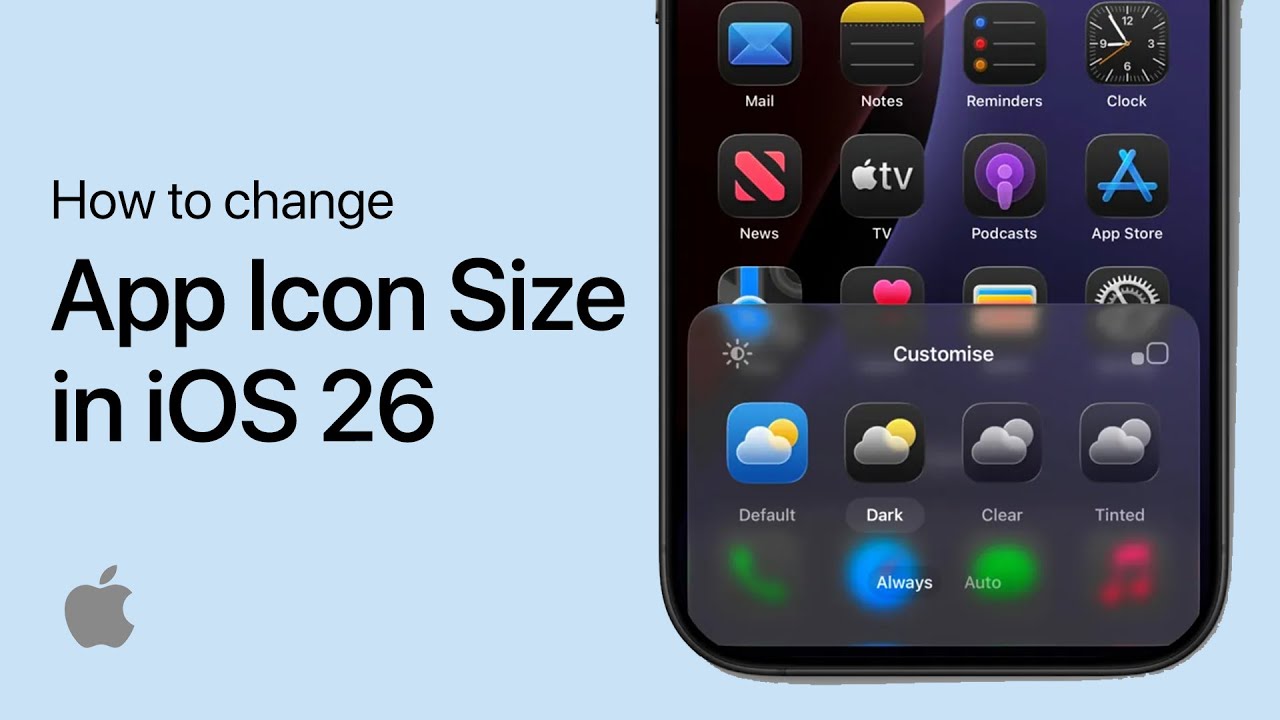
How to Change App Icon Size in iOS 26 (iPhone)
Step-by-step guide to changing app icon sizes on iOS 26, including toggling between small and large icons and customizing your home screen layout.
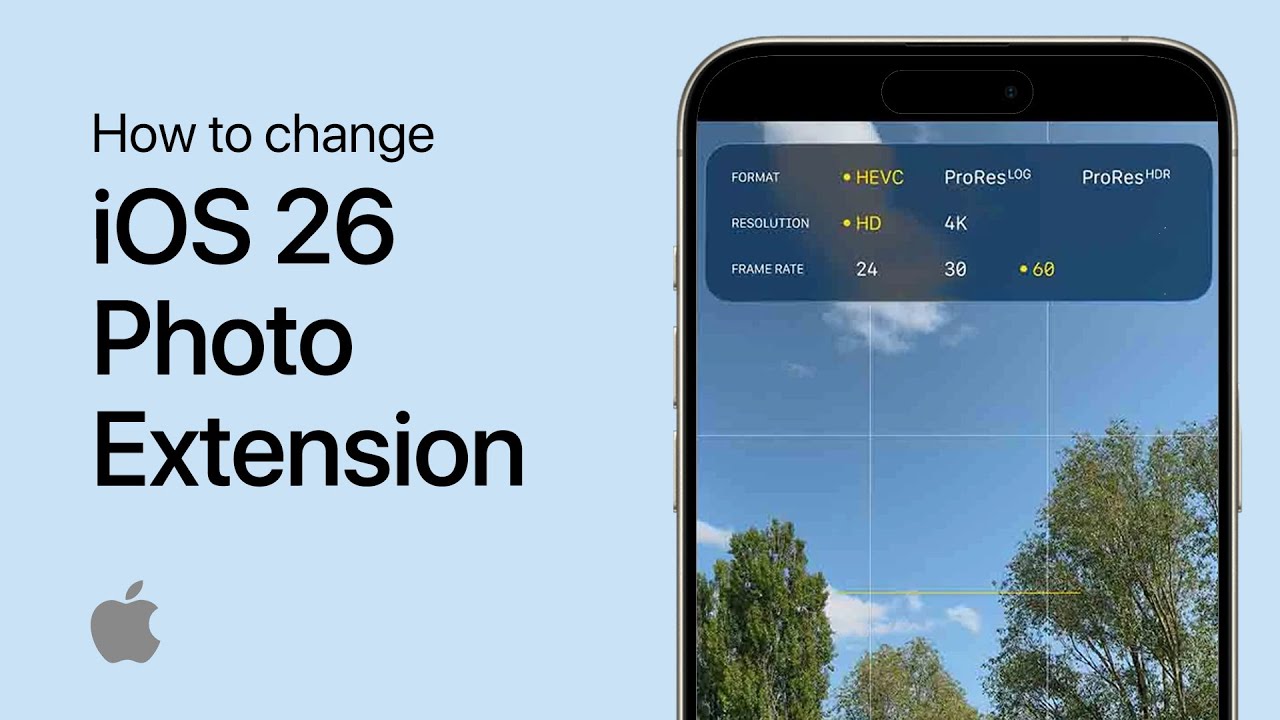
How to Change iOS 26 Camera Photo Extension (Format)
Step-by-step guide to changing camera photo formats in iOS 26, including HEIF vs JPEG settings and ProRAW/ProRes options for professional photography.
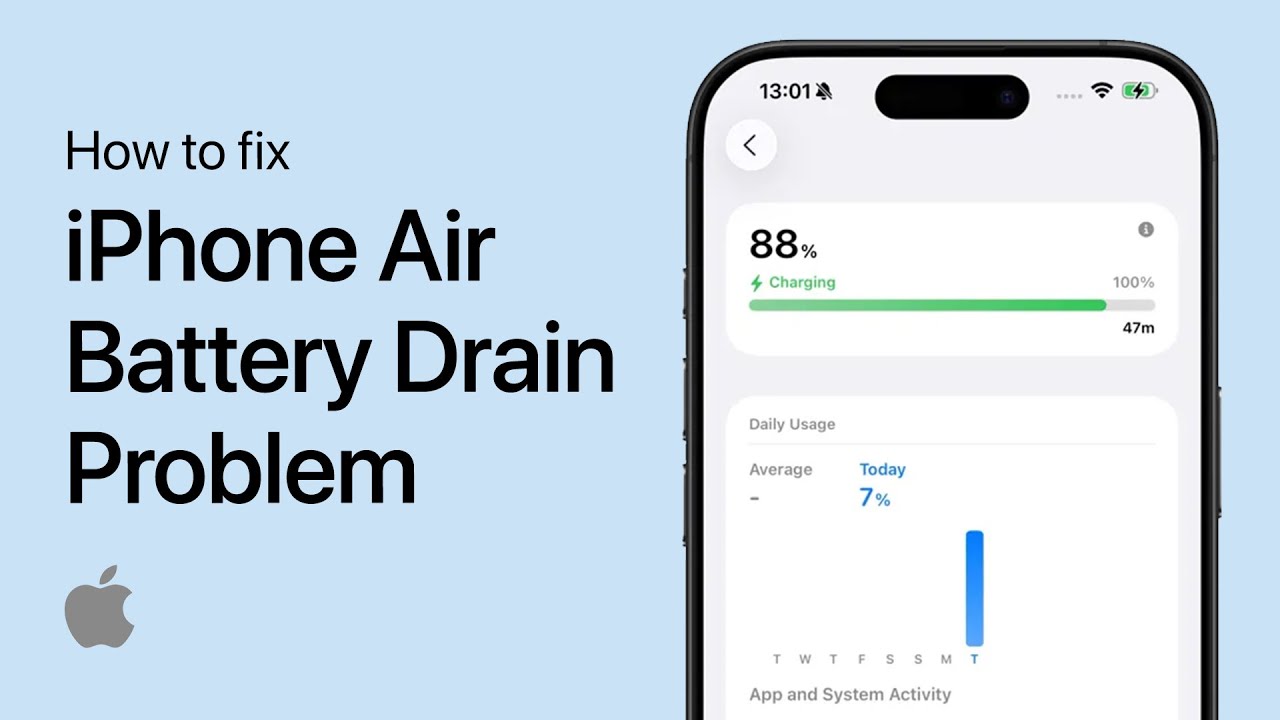
How to Fix iPhone Air Battery Draining Fast - Quick Guide
Step-by-step guide to fixing iPhone Air battery drain problems, including app management, settings optimization, and battery health monitoring for longer battery life.
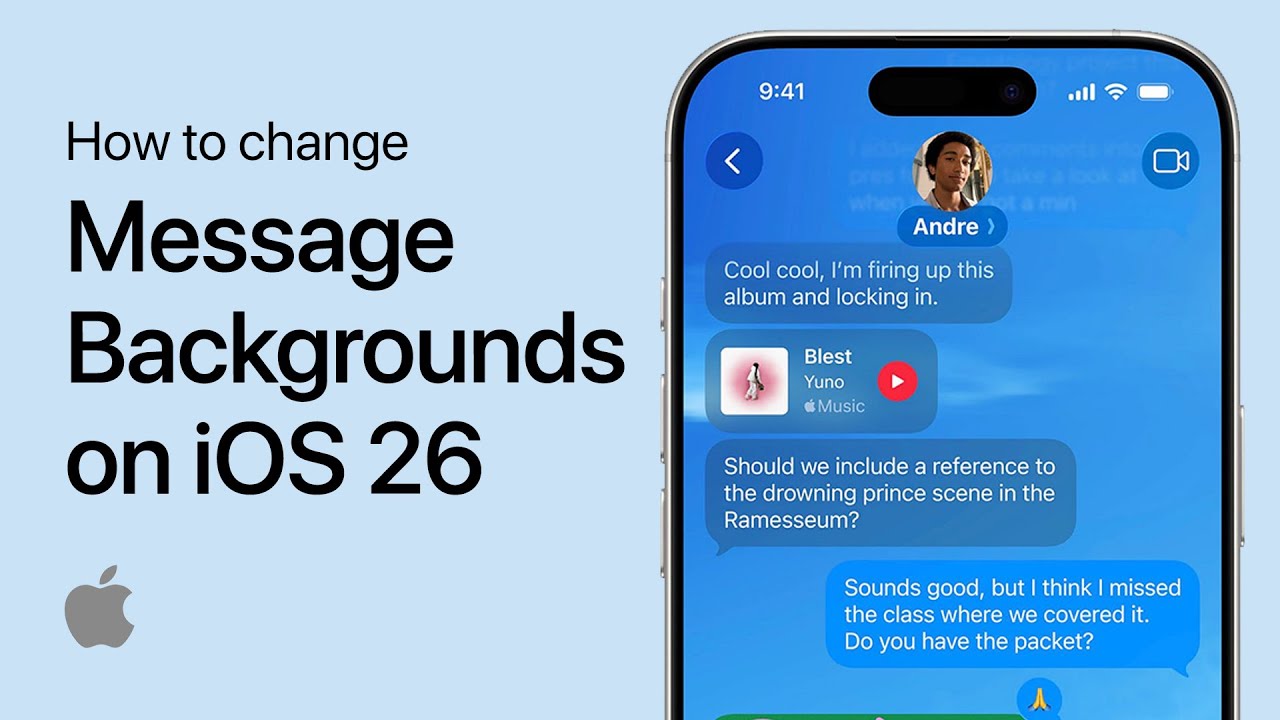
How to Change Message Backgrounds in iOS 26 (iPhone)
Complete guide to customizing iMessage backgrounds in iOS 26, including photo selection, color themes, and animated backgrounds for personalized conversations.