Actions
Watch on YouTubeTutorial Details
Actions
Watch on YouTubeTutorial Details
Unable to Install NVIDIA Graphics Driver - Problem Fix Windows 10/11 - Complete Guide
Learn how to fix NVIDIA graphics driver installation failures with internet connection checks, storage space verification, GeForce Experience restart, and manual driver installation from NVIDIA website.
NVIDIA graphics driver installation failures represent one of the most frustrating technical issues Windows users encounter, potentially crippling gaming performance, display functionality, and system stability. When GeForce Experience displays "download failed" errors or driver installations stall, users are left with outdated graphics drivers that can't leverage the full potential of their NVIDIA graphics cards. Understanding the systematic approach to resolving these installation failures ensures optimal graphics performance and prevents long-term system degradation.
This comprehensive guide explores the complete NVIDIA graphics driver installation troubleshooting ecosystem, covering network connectivity verification, storage capacity assessment, application process management, and manual installation procedures that guarantee successful driver deployment.
Understanding NVIDIA Driver Installation Issues
NVIDIA graphics driver failures manifest through multiple error scenarios:
- Download Failures: GeForce Experience unable to download driver packages
- Installation Errors: Driver packages fail during installation process
- Compatibility Issues: Drivers incompatible with current Windows version
- Corrupted Downloads: Incomplete or damaged driver files
- Permission Problems: Insufficient system privileges for installation
Prerequisites for NVIDIA Driver Installation
- System Requirements: Compatible NVIDIA graphics card with Windows 10/11
- Administrative Access: Administrator privileges for driver installation
- GeForce Experience: Latest version of NVIDIA's driver management software
- Internet Connectivity: Stable broadband connection for downloads
- Storage Space: Minimum 5GB free space for driver installation
Solution 1: Verify Internet Connection Stability
Ensure reliable network connectivity for successful driver downloads.
Step 1: Test Network Performance
- Open web browser on the target Windows system
- Navigate to speed test website (speedtest.net or fast.com)
- Click "Go" or "Start Test" to begin speed assessment
- Wait for download/upload speed results
- Verify speeds meet minimum requirements (10 Mbps download recommended)
Step 2: Troubleshoot Network Issues
- Restart modem/router if speeds are inadequate
- Connect via Ethernet cable for maximum stability
- Disable VPN or proxy connections temporarily
- Check for Windows network adapter issues
- Test connection with different devices
Step 3: Retry Driver Download
- Launch GeForce Experience application
- Navigate to Drivers section
- Click "Check for updates" or "Download"
- Monitor download progress for stability
- Verify successful download completion
Solution 2: Check Storage Space Availability
Ensure adequate disk space for driver installation and temporary files.
Step 1: Access File Explorer
- Open File Explorer (Win + E or search in Start menu)
- Navigate to "This PC" in left sidebar
- Locate system drive (usually C:)
- Right-click drive and select "Properties"
- Review available free space in drive properties
Step 2: Verify Minimum Requirements
- Ensure at least 5GB free space available
- Check both system drive and download location
- Calculate space needed for specific driver version
- Consider additional space for installation temporary files
- Note space requirements for future driver updates
Step 3: Free Up Storage Space
- Delete temporary files and system cache
- Empty Recycle Bin and Downloads folder
- Uninstall unused applications and games
- Move large files to external storage
- Use Disk Cleanup utility for system optimization
Step 4: Retry Installation
- Attempt driver download again after freeing space
- Monitor available space during download process
- Ensure sufficient space remains for installation
- Complete full installation cycle
- Verify successful driver installation
Solution 3: Restart GeForce Experience Application
Clear corrupted processes and refresh application state.
Step 1: Access Task Manager
- Press Ctrl + Shift + Esc to open Task Manager
- Alternatively, right-click taskbar and select "Task Manager"
- Navigate to "Processes" tab
- Locate NVIDIA GeForce Experience in process list
- Identify any related NVIDIA processes
Step 2: Terminate NVIDIA Processes
- Right-click "NVIDIA GeForce Experience" process
- Select "End task" from context menu
- Repeat for any other NVIDIA-related processes
- Confirm process termination when prompted
- Verify processes are completely closed
Step 3: Restart GeForce Experience
- Launch GeForce Experience from Start menu or desktop
- Allow application to fully initialize
- Navigate to Drivers section
- Click "Check for updates" button
- Attempt driver download with fresh application state
Step 4: Monitor Installation Progress
- Watch download progress indicators
- Note any error messages or warnings
- Allow installation to complete without interruption
- Restart system when prompted
- Verify driver installation success
Solution 4: Manual Driver Installation
Bypass GeForce Experience and install drivers directly from NVIDIA.
Step 1: Identify Graphics Card Model
- Right-click desktop and select "NVIDIA Control Panel"
- Alternatively, search "Device Manager" in Start menu
- Expand "Display adapters" section
- Note exact NVIDIA graphics card model
- Record driver version and date if applicable
Step 2: Download from NVIDIA Website
- Open web browser and navigate to nvidia.com
- Click "Drivers" in top navigation menu
- Select "GeForce Drivers" or "NVIDIA Drivers"
- Enter graphics card model details
- Select correct operating system (Windows 10/11)
Step 3: Select Driver Package
- Choose appropriate driver type (Game Ready or Studio)
- Select latest stable driver version
- Choose download language (English recommended)
- Click "Search" to find compatible drivers
- Click "Download" for selected driver package
Step 4: Install Downloaded Driver
- Locate downloaded driver file in Downloads folder
- Right-click and select "Run as administrator"
- Allow User Account Control elevation if prompted
- Follow installation wizard prompts
- Choose "Express" installation for automatic setup
Step 5: Complete Installation Process
- Accept license agreement terms
- Allow installation to proceed automatically
- Monitor installation progress
- Restart computer when installation completes
- Verify successful driver installation in Device Manager
Solution 5: Advanced Troubleshooting
Implement additional diagnostic and repair procedures.
Step 1: Clean Installation Preparation
- Boot into Safe Mode if necessary
- Uninstall existing NVIDIA drivers completely
- Use DDU (Display Driver Uninstaller) for clean removal
- Restart in normal mode
- Attempt fresh driver installation
Step 2: Windows Update Verification
- Open Settings > Update & Security > Windows Update
- Click "Check for updates"
- Install any pending Windows updates
- Restart system after updates
- Retry NVIDIA driver installation
Step 3: Antivirus and Firewall Configuration
- Temporarily disable third-party antivirus software
- Configure firewall to allow NVIDIA downloads
- Add GeForce Experience to antivirus exceptions
- Attempt driver download with security disabled
- Re-enable security after successful installation
NVIDIA Graphics Driver Ecosystem
Understanding the broader NVIDIA driver management framework:
Driver Types and Versions
- Game Ready Drivers: Optimized for gaming performance and features
- Studio Drivers: Enhanced for content creation and professional workloads
- Beta/Preview Drivers: Early access to new features and optimizations
- DCH Drivers: Modern driver architecture for Windows 10/11
- Standard Drivers: Basic functionality without GeForce Experience
GeForce Experience Features
- Automatic Updates: Seamless driver download and installation
- Performance Optimization: Game settings and performance tweaks
- Screenshot and Recording: Built-in capture and streaming tools
- Driver Management: Centralized driver update and rollback
- System Monitoring: GPU temperature and performance metrics
Installation Methods
- GeForce Experience: Automated download and installation
- NVIDIA Website: Manual download with custom options
- Windows Update: Microsoft-delivered driver updates
- OEM Installation: Pre-installed drivers from system manufacturer
- Third-party Tools: Alternative driver management utilities
Troubleshooting NVIDIA Driver Issues
Resolve common driver installation and performance problems:
Installation Conflicts
Problem: Driver installation fails due to conflicting software.
Solutions:
- Uninstall conflicting graphics software
- Remove old driver versions completely
- Use clean installation procedures
- Disable integrated graphics temporarily
- Check for software compatibility issues
Download Interruptions
Problem: Driver downloads fail or get interrupted.
Solutions:
- Use wired Ethernet connection instead of WiFi
- Disable download accelerators or managers
- Check firewall and antivirus settings
- Use different browser or download method
- Resume interrupted downloads when possible
Post-Installation Issues
Problem: System instability or performance issues after driver installation.
Solutions:
- Verify correct driver version for hardware
- Check Windows compatibility mode
- Update Windows to latest version
- Roll back to previous driver version if needed
- Perform clean boot troubleshooting
GeForce Experience Errors
Problem: GeForce Experience application fails to function properly.
Solutions:
- Repair GeForce Experience installation
- Update to latest application version
- Clear application cache and temporary files
- Reinstall GeForce Experience completely
- Check for Windows service dependencies
Hardware Recognition Issues
Problem: System fails to recognize NVIDIA graphics card.
Solutions:
- Verify graphics card is properly seated
- Check power supply connections
- Test graphics card in different PCIe slot
- Verify PSU provides adequate power
- Check for physical damage or defects
Best Practices for NVIDIA Driver Management
Ensure optimal graphics performance and system stability:
Driver Update Strategy
- Regular Updates: Keep drivers current with latest releases
- Stability Testing: Verify driver stability before production use
- Backup Procedures: Create system restore points before updates
- Version Tracking: Maintain record of installed driver versions
- Rollback Planning: Know how to revert to previous versions
Performance Optimization
- Temperature Monitoring: Track GPU temperatures during operation
- Power Management: Configure optimal power settings
- Game Optimization: Use GeForce Experience game profiles
- Driver Settings: Customize performance vs quality balance
- System Resources: Ensure adequate CPU and RAM for graphics workloads
Maintenance and Troubleshooting
- Regular Cleaning: Keep graphics card and system clean
- Error Monitoring: Watch for driver-related system errors
- Performance Benchmarking: Regularly test graphics performance
- Support Resources: Utilize NVIDIA forums and support
- Community Knowledge: Stay informed about known issues and fixes
NVIDIA Graphics Technology Evolution
Understanding the development of NVIDIA graphics driver technology:
Current Driver Capabilities
- DLSS Technology: AI-powered upscaling and performance enhancement
- Ray Tracing: Real-time ray tracing for realistic lighting and reflections
- G-Sync/FreeSync: Variable refresh rate display synchronization
- NVIDIA Broadcast: AI-enhanced camera and microphone effects
- RTX Voice: AI-powered noise and echo cancellation
Future Driver Developments
- DLSS 3: Next-generation AI upscaling with frame generation
- RTX Neural Rendering: AI-accelerated graphics rendering
- NVIDIA Omniverse: Real-time 3D collaboration platform
- Cloud Gaming Integration: Seamless cloud gaming experiences
- AI Graphics Enhancement: Machine learning-powered visual improvements
Ecosystem Integration
- Game Developer Partnerships: Optimized drivers for popular games
- Content Creator Tools: Professional graphics software optimization
- VR/AR Support: Enhanced virtual and augmented reality experiences
- Mobile Integration: Cross-device graphics performance
- Enterprise Solutions: Professional workstation optimizations
Related Tutorials
- How to Remove Audio Output Device in Windows 11 - Audio device management.
- How to Enable & Use On-Screen Keyboard on Windows PC - Accessibility features.
- Top 15 Windows Run Commands Every User Should Know - System commands.
Conclusion
NVIDIA graphics driver installation failures represent critical performance bottlenecks that can severely impact gaming experiences, content creation workflows, and overall system functionality. The systematic approach combining network verification, storage assessment, application process management, and manual installation procedures provides a comprehensive framework for resolving driver deployment challenges and ensuring optimal graphics performance.
The interplay between GeForce Experience automation, manual installation procedures, and system-level troubleshooting creates a robust driver management ecosystem that adapts to various installation scenarios and system configurations. From simple connectivity checks to complex clean installations, each troubleshooting step builds upon the previous to guarantee successful NVIDIA driver deployment.
As graphics technology continues to evolve with advanced features like DLSS, ray tracing, and AI enhancements, the importance of reliable driver installation and maintenance becomes increasingly critical for maximizing hardware investment and achieving optimal performance across gaming and professional applications.
For Windows users seeking to resolve NVIDIA graphics driver installation failures and maintain optimal graphics performance, mastering these comprehensive troubleshooting techniques provides the foundation for reliable, high-performance graphics system operation and future-proof driver management.
Tags
Related Tutorials
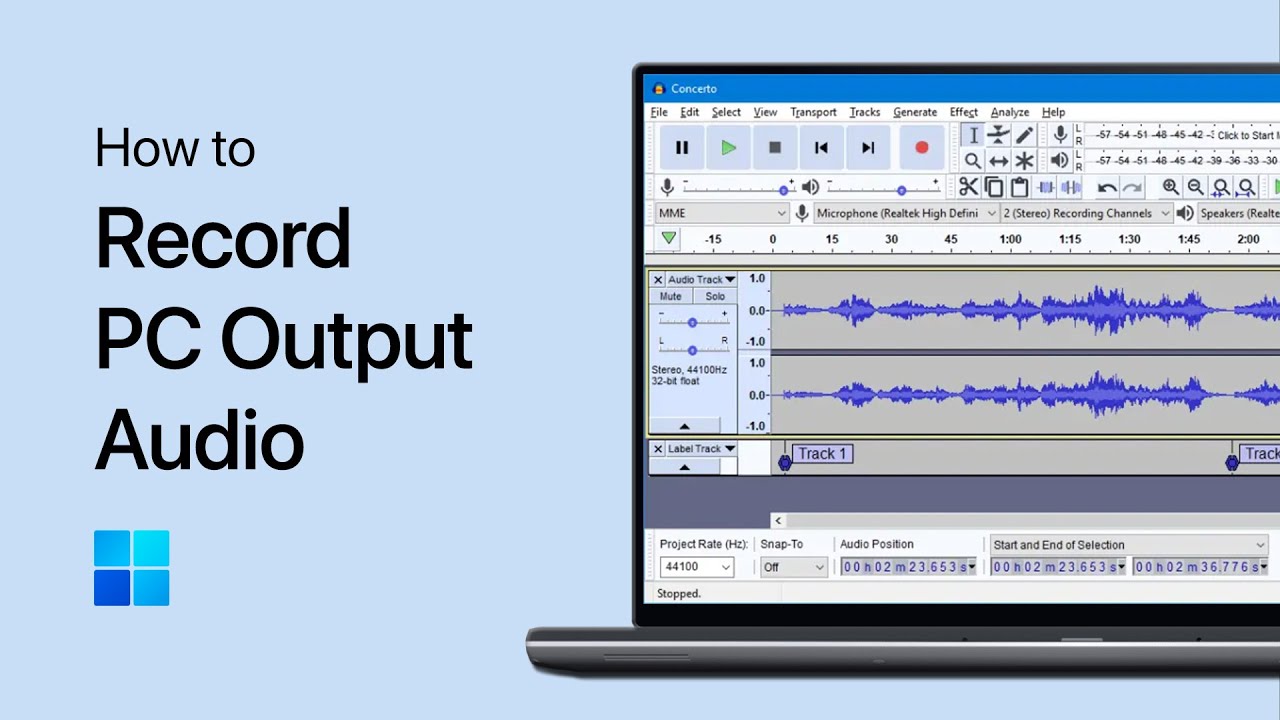
How to Record Your PC’s Output Audio with Audacity
Turn on Stereo Mix in Windows Sound settings, select it as the recording device in Audacity, and record your computer’s output audio with ease.
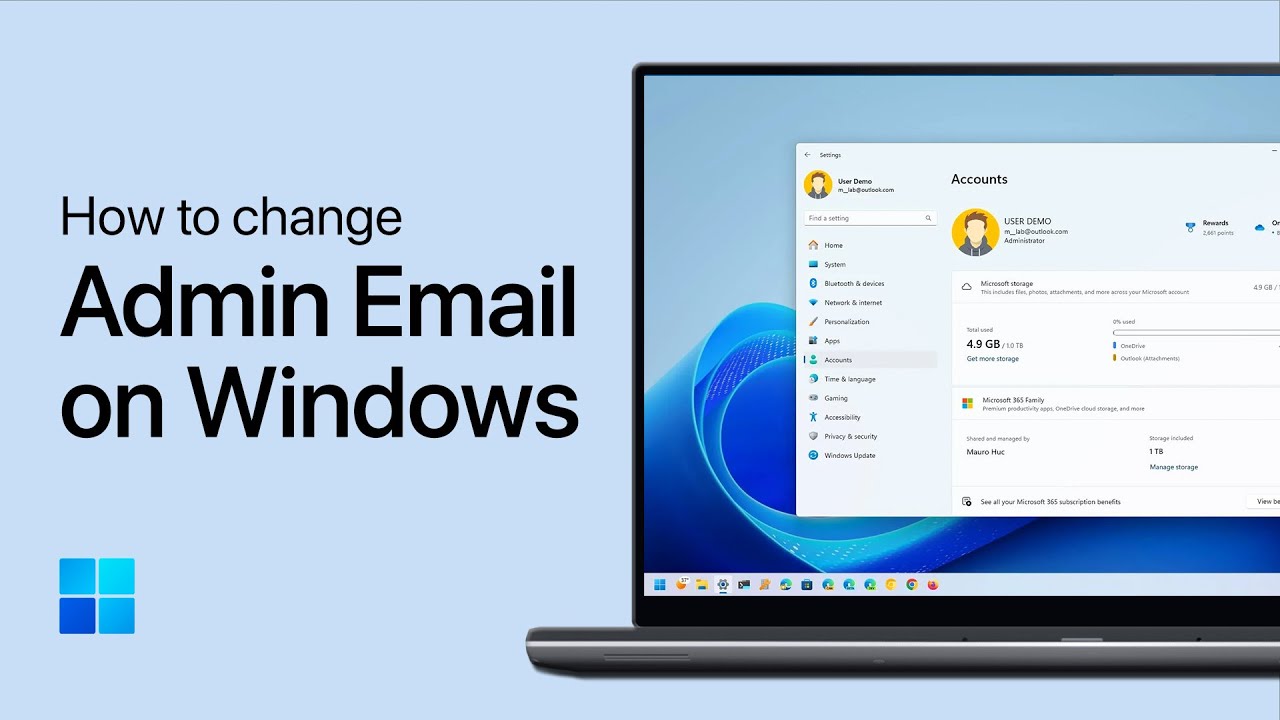
How to Change Administrator Email on Windows 11
Step-by-step guide to changing administrator email on Windows 11, including user account management, account type changes, and administrator configuration.
How to Create ZIP File on Windows PC - Complete Tutorial
Step-by-step guide to creating ZIP files on Windows PC, including file selection, compression techniques, and sharing methods.
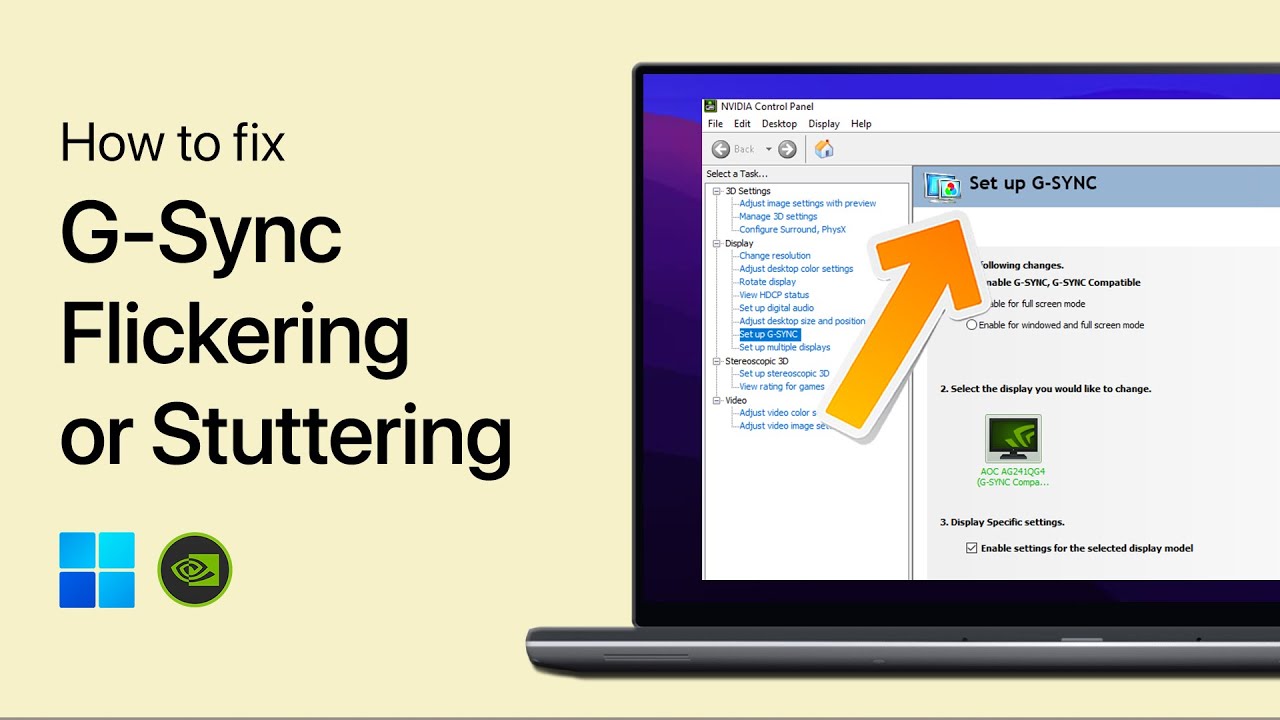
How to Fix G-Sync Flickering or Stuttering on Windows
Resolve G-Sync flickering or stuttering by matching Windows refresh rates, adjusting NVIDIA Control Panel options, and applying driver updates.