Actions
Watch on YouTubeTutorial Details
Actions
Watch on YouTubeTutorial Details
How to Remove Audio Output Device in Windows 11 - Complete Guide
Learn how to remove audio output devices in Windows 11 through Sound settings, disable devices, uninstall drivers, check hidden devices, and troubleshoot audio issues for clean system configuration.
Audio device management in Windows 11 represents a critical aspect of system configuration and troubleshooting, particularly when dealing with multiple audio output devices, outdated drivers, or conflicting hardware configurations. The ability to properly remove unwanted audio output devices ensures clean system operation, prevents driver conflicts, and maintains optimal audio performance across different applications and use cases.
This comprehensive guide explores the complete Windows 11 audio output device removal ecosystem, covering Sound settings management, device disabling techniques, driver uninstallation procedures, and advanced troubleshooting methods that ensure proper audio device cleanup.
Understanding Windows 11 Audio Device Management
Windows 11 provides comprehensive audio device management capabilities:
- Device Detection: Automatic recognition of connected audio devices
- Driver Management: Integrated driver installation and updates
- Device Prioritization: Default device selection and switching
- Hidden Device Support: Management of disconnected devices
- Troubleshooting Tools: Built-in audio diagnostic utilities
Prerequisites for Audio Device Removal
- Administrator Access: Required for driver uninstallation and system changes
- Current Drivers: Ensure latest audio drivers are available for backup
- Device Backup: Alternative audio devices available during removal
- System Restore: Create restore point before major changes
- Device Knowledge: Understanding of target device and its purpose
Solution 1: Access Windows 11 Sound Settings
Navigate to the primary audio management interface in Windows 11.
Step 1: Open Settings Application
- Click Start menu button
- Select Settings gear icon
- Use Windows key + I keyboard shortcut
- Search for "Settings" in Start menu
Step 2: Navigate to Sound Settings
- Select "System" from left sidebar
- Click "Sound" option
- View current audio output devices
- Review device status and configuration
Step 3: Access Advanced Sound Options
- Scroll down in Sound settings
- Click "All sound devices" under Advanced options
- Open comprehensive device management window
- View detailed device properties and status
Solution 2: Disable Audio Output Device
Temporarily disable audio devices without complete removal.
Step 1: Select Target Device
- Locate unwanted audio output device
- Review device name and status
- Confirm device is not currently in use
- Note device specifications for reference
Step 2: Access Device Properties
- Click on the device name
- Open device properties dialog
- Review current device settings
- Check device status and driver information
Step 3: Disable the Device
- Locate "Don't allow" option in properties
- Click to disable the device
- Confirm disable action if prompted
- Verify device shows as disabled
Step 4: Test Audio Functionality
- Play audio through remaining devices
- Verify system audio still functions
- Test different applications and scenarios
- Monitor for audio conflicts or issues
Solution 3: Uninstall Audio Device Driver
Completely remove audio device drivers from the system.
Step 1: Open Device Manager
- Right-click Start menu button
- Select "Device Manager" from menu
- Use Windows key + X shortcut
- Search for "Device Manager" in Start menu
Step 2: Locate Audio Devices
- Expand "Sound, video and game controllers"
- View all audio-related devices
- Identify target device for removal
- Note device driver version and manufacturer
Step 3: Uninstall Device Driver
- Right-click target audio device
- Select "Uninstall device" from context menu
- Check "Delete the driver software" option
- Click "Uninstall" to confirm removal
Step 4: Complete Uninstallation
- Wait for uninstallation process to complete
- Device disappears from Device Manager list
- Verify removal in Sound settings
- Test system audio functionality
Solution 4: Manage Hidden Audio Devices
Remove previously connected devices that remain in the system.
Step 1: Enable Hidden Device View
- Open Device Manager
- Click "View" menu at top
- Select "Show hidden devices"
- Expand device categories to view hidden items
Step 2: Identify Hidden Audio Devices
- Look for greyed-out device entries
- Expand "Sound, video and game controllers"
- Review hidden audio device list
- Note devices marked as disconnected
Step 3: Remove Hidden Devices
- Right-click hidden audio device
- Select "Uninstall device"
- Enable driver deletion option
- Confirm removal of hidden device
Step 4: Clean Up Device List
- Remove multiple hidden devices as needed
- Restart system to complete cleanup
- Verify clean device list in Sound settings
- Test audio functionality with clean device list
Solution 5: System Restart and Verification
Ensure all audio device changes take effect properly.
Step 1: Restart Windows 11
- Click Start menu
- Select Power option
- Choose "Restart" from menu
- Allow system to complete restart process
Step 2: Verify Device Removal
- Open Sound settings again
- Check "All sound devices" list
- Confirm removed devices are gone
- Verify remaining devices function properly
Step 3: Test Audio Output
- Play audio through remaining devices
- Test different audio applications
- Verify volume controls work
- Check audio quality and performance
Windows 11 Audio Device Management Ecosystem
Understanding the broader audio configuration framework:
Audio Device Types
- Built-in Speakers: Integrated system audio output
- External Speakers: Connected speaker systems
- Headphones: Wired and wireless audio headsets
- Bluetooth Devices: Wireless audio peripherals
- HDMI/Display Audio: Video output audio devices
Driver Management System
- Automatic Updates: Windows Update driver integration
- Manufacturer Drivers: OEM-specific driver packages
- Generic Drivers: Microsoft basic audio drivers
- Driver Rollback: Previous version restoration
- Driver Verification: Digital signature validation
Audio Troubleshooting Tools
- Sound Troubleshooter: Automated audio diagnostic tool
- Device Properties: Individual device configuration
- Volume Mixer: Application-specific audio control
- Audio Enhancement: Sound quality improvement options
- Exclusive Mode: Direct audio device access
Troubleshooting Audio Device Removal Issues
Resolve common problems during audio device removal:
Device Won't Disable
Problem: Audio device cannot be disabled in Sound settings.
Solutions:
- Stop all audio playback applications
- Close programs using the audio device
- Switch to different default audio device
- Restart Windows Audio service
- Use Device Manager to disable instead
Driver Won't Uninstall
Problem: Audio driver uninstallation fails in Device Manager.
Solutions:
- Boot into Safe Mode for removal
- Use third-party driver removal tools
- Stop Windows Audio service temporarily
- Use manufacturer's uninstaller utility
- Perform clean boot before uninstallation
Hidden Devices Not Showing
Problem: Hidden devices don't appear in Device Manager.
Solutions:
- Ensure "Show hidden devices" is enabled
- Refresh Device Manager view
- Restart computer and check again
- Use command prompt to list all devices
- Check for device enumeration issues
Audio Stops Working After Removal
Problem: System audio fails after removing audio device.
Solutions:
- Restart Windows Audio service
- Run audio troubleshooter
- Roll back to previous audio driver
- Restore system from restore point
- Reinstall default audio drivers
Device Reappears After Restart
Problem: Removed audio device comes back after system restart.
Solutions:
- Device is physically reconnected
- Check for automatic driver installation
- Disable automatic driver updates temporarily
- Use registry to block device installation
- Configure device installation restrictions
Best Practices for Windows 11 Audio Device Management
Optimize audio device management and maintenance:
Device Organization
- Clean Device List: Regularly remove unused audio devices
- Device Naming: Use descriptive names for audio devices
- Default Device Management: Set appropriate default audio devices
- Device Testing: Verify audio quality after changes
- Backup Configuration: Document working audio setups
Driver Maintenance
- Regular Updates: Keep audio drivers current
- Driver Backups: Save working driver versions
- Compatibility Checks: Verify driver Windows 11 compatibility
- Clean Installations: Use clean driver installation methods
- Rollback Options: Maintain previous driver versions
Troubleshooting Preparedness
- System Restore Points: Create before major audio changes
- Alternative Audio: Maintain backup audio devices
- Diagnostic Tools: Know audio troubleshooting utilities
- Support Resources: Access manufacturer support resources
- Community Knowledge: Learn from Windows audio communities
Advanced Audio Device Management Techniques
Enhance audio device control with advanced methods:
Command Line Management
- PowerShell Commands: Advanced audio device scripting
- Registry Modifications: System-level audio configuration
- Group Policy Settings: Enterprise audio management
- Batch File Automation: Automated audio device management
Third-Party Audio Tools
- Audio Device Managers: Advanced device switching utilities
- Driver Update Tools: Automated driver management
- Audio Diagnostic Software: Comprehensive audio testing
- Sound Enhancement Tools: Audio quality improvement
Network Audio Considerations
- Bluetooth Audio: Wireless audio device management
- Network Speakers: IP-based audio device handling
- Audio Streaming: Network audio device configuration
- Multi-Room Audio: Distributed audio system management
Windows 11 Audio Evolution
Understanding the development of Windows audio systems:
Current Audio Capabilities
- Spatial Audio: 3D sound positioning technology
- ANC Integration: Active noise cancellation support
- Voice Focus: Enhanced voice audio processing
- Audio Graph: Advanced audio processing pipeline
- HDR Audio: High dynamic range audio support
Future Audio Developments
- AI Audio Enhancement: Machine learning audio improvements
- Immersive Audio: Advanced spatial audio technologies
- Neural Processing: AI-powered audio processing
- Cloud Audio Sync: Cross-device audio continuity
- Adaptive Audio: Context-aware audio adjustments
Ecosystem Integration
- Xbox Integration: Gaming audio device management
- Teams Integration: Communication audio optimization
- Media Apps: Streaming service audio management
- Accessibility Features: Audio assistance technologies
- Developer APIs: Custom audio device integration
Related Tutorials
- How to Enable & Use On-Screen Keyboard on Windows PC - Alternative input methods.
- Top 15 Windows Run Commands Every User Should Know - System command shortcuts.
- Unable to Install NVIDIA Graphics Driver - How to Fix - Driver installation troubleshooting.
Conclusion
Audio device removal in Windows 11 represents a critical maintenance task that ensures clean system configuration, prevents driver conflicts, and maintains optimal audio performance. The systematic approach combining Sound settings management, device disabling, driver uninstallation, and hidden device cleanup provides comprehensive audio device management capabilities.
The interplay between Windows Settings, Device Manager, and system services creates a robust framework for audio device management. From simple device disabling to complete driver removal, each method addresses different aspects of audio device cleanup and system optimization.
As Windows 11 continues to evolve with increasingly sophisticated audio technologies, maintaining clean and well-managed audio device configurations becomes essential for optimal system performance. The ability to properly remove unwanted audio devices ensures compatibility, prevents conflicts, and maintains the highest quality audio experience across all applications and use cases.
For Windows 11 users seeking to optimize their audio experience and maintain clean system configurations, mastering audio device removal techniques provides the foundation for reliable, high-quality audio performance and efficient system management.
Tags
Related Tutorials
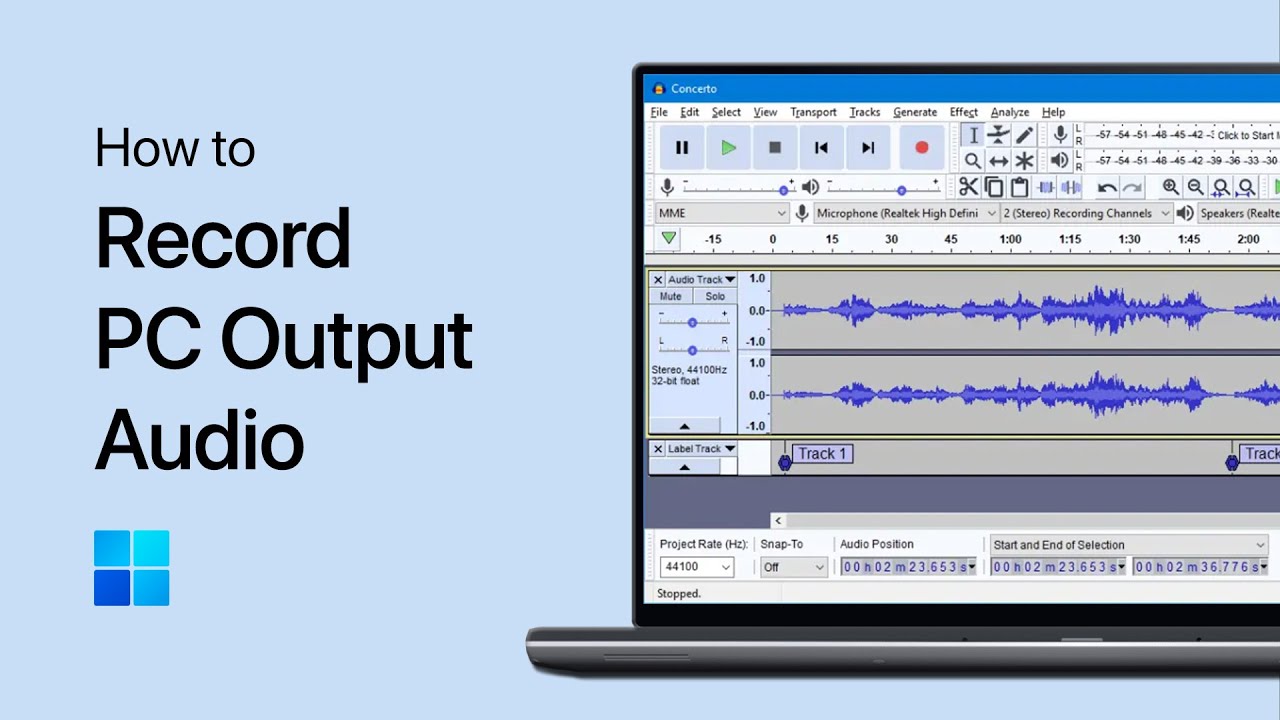
How to Record Your PC’s Output Audio with Audacity
Turn on Stereo Mix in Windows Sound settings, select it as the recording device in Audacity, and record your computer’s output audio with ease.
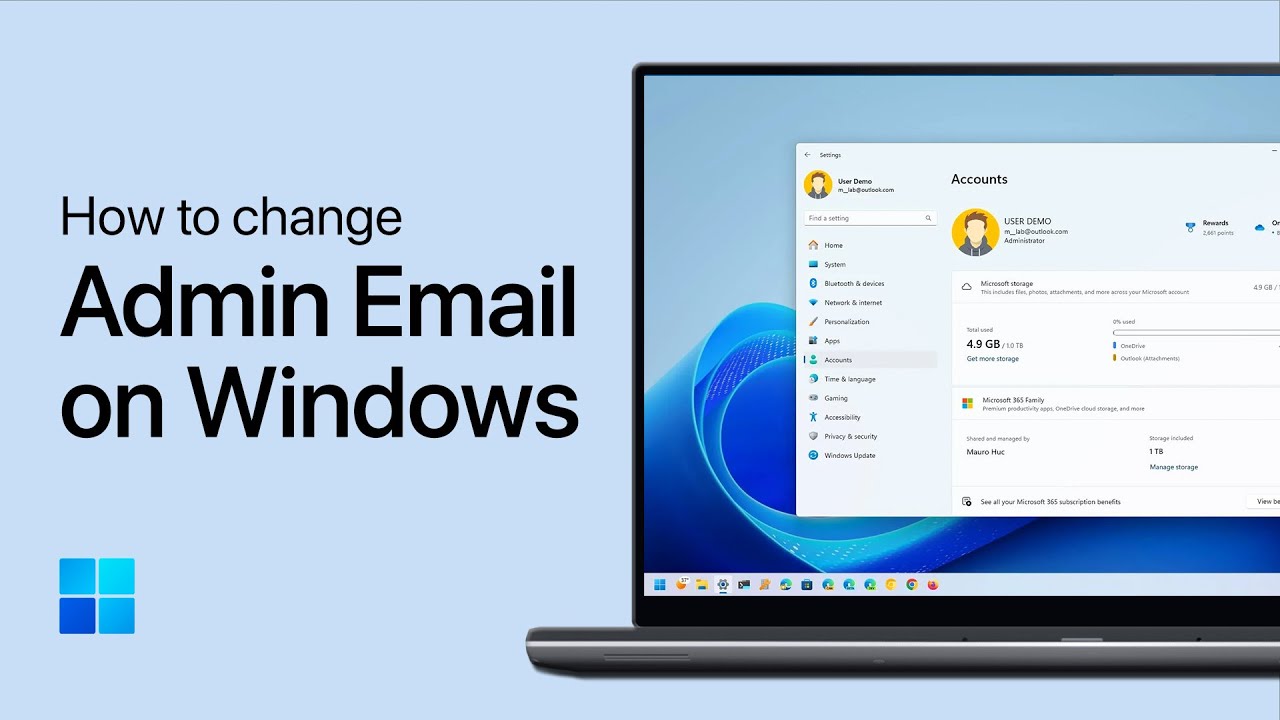
How to Change Administrator Email on Windows 11
Step-by-step guide to changing administrator email on Windows 11, including user account management, account type changes, and administrator configuration.
How to Create ZIP File on Windows PC - Complete Tutorial
Step-by-step guide to creating ZIP files on Windows PC, including file selection, compression techniques, and sharing methods.
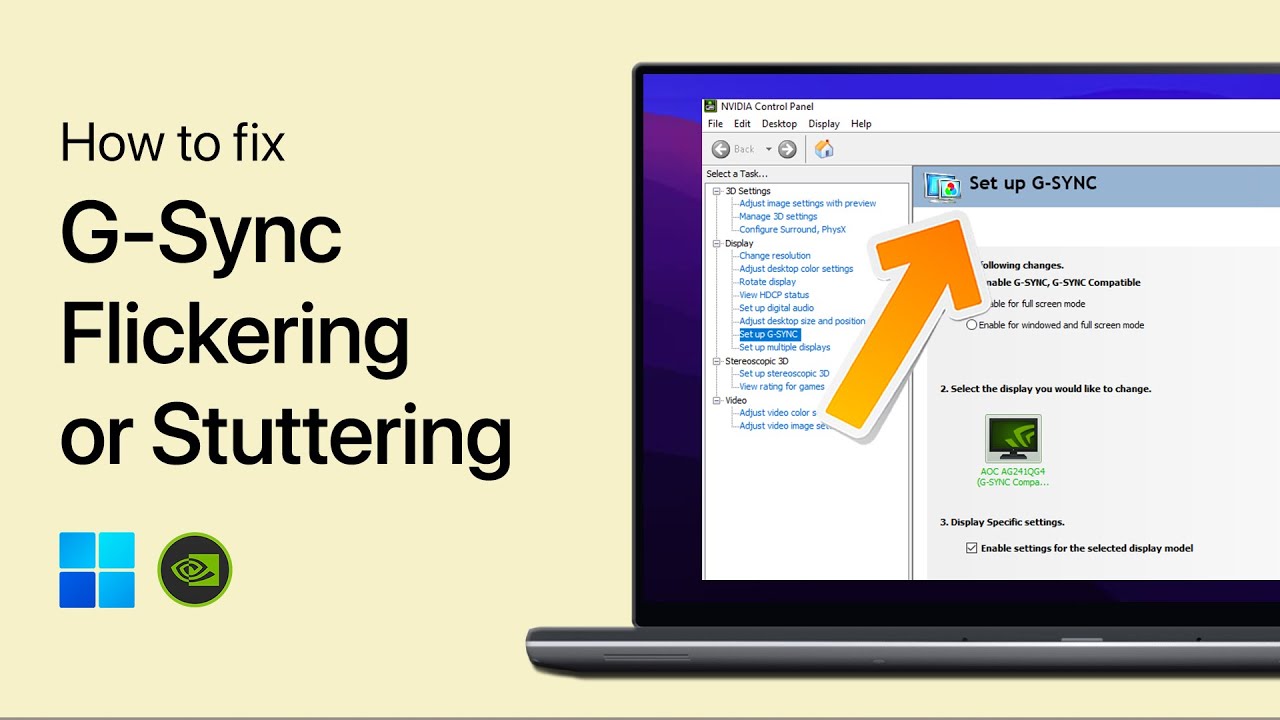
How to Fix G-Sync Flickering or Stuttering on Windows
Resolve G-Sync flickering or stuttering by matching Windows refresh rates, adjusting NVIDIA Control Panel options, and applying driver updates.